Panopto Tutorials:
How to Import Videos from a Previous Course
Tutorial on how to import videos from a previous course into a new one.
NOTE: The following instructions are only to be done after you copy your Canvas course. For instructions on how to copy a course in Canvas, go here: How To Import Content into Course
When you copy a course in Canvas, you may want to copy your videos from your old course to your new one. This process is not done by default, but copying videos- from any course you own- to your new course is an easy process.
Here is how:
- Go to the Panopto tab in the new course you created, click on the
 and then Settings: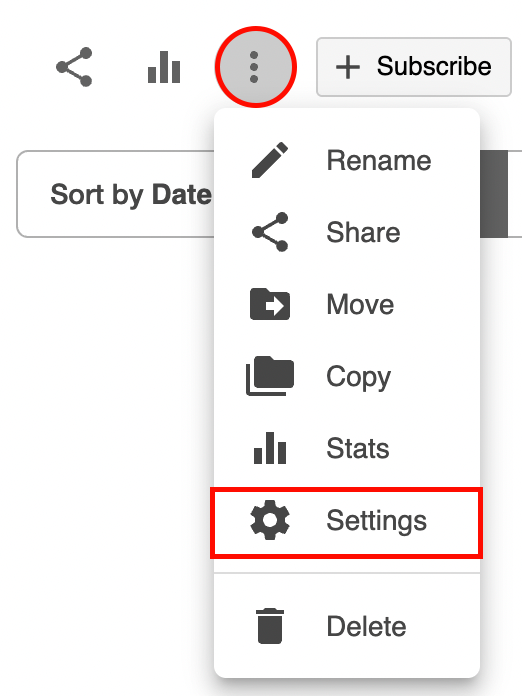
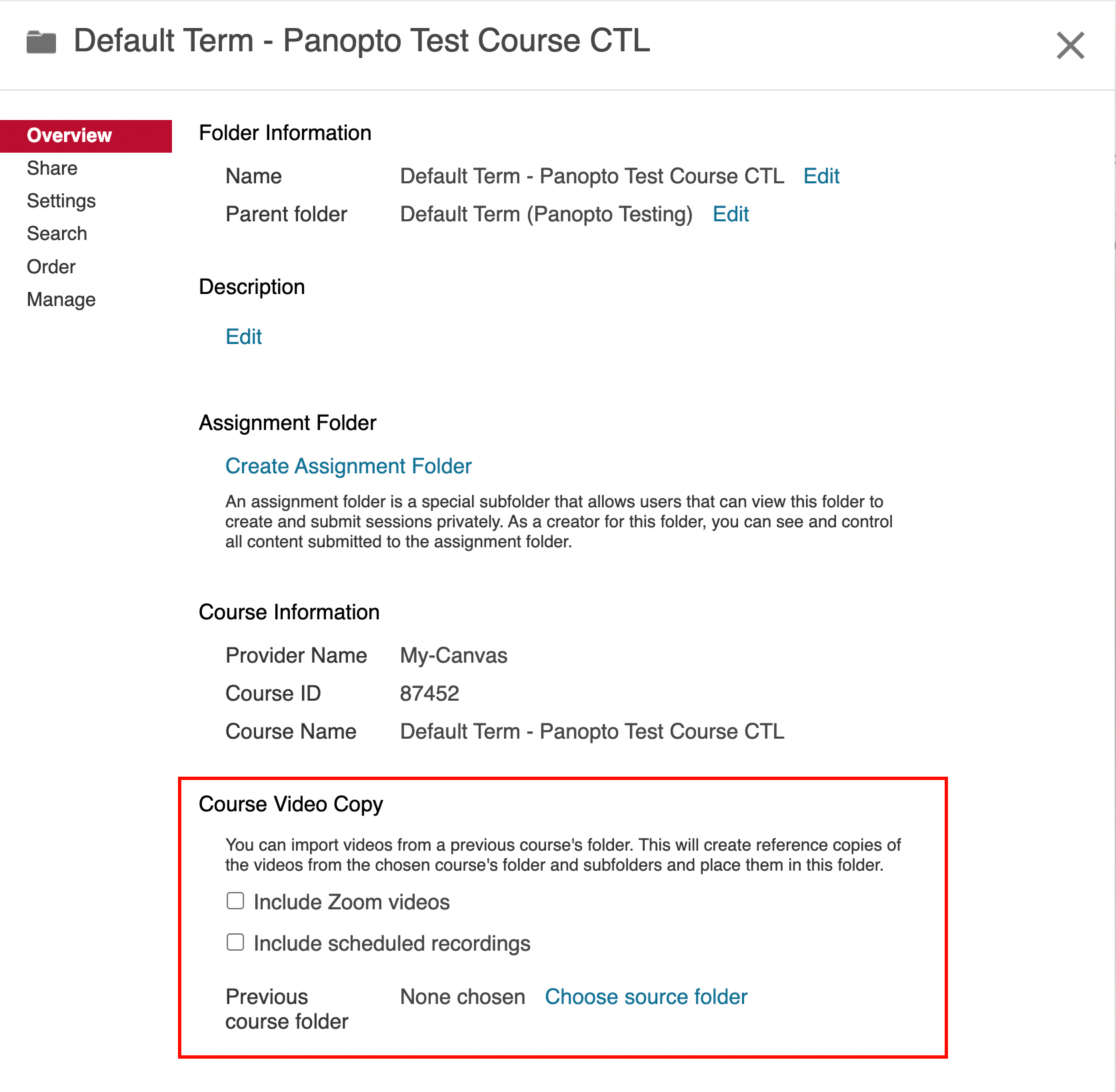
- In the Overview tab, find the “Course Video Copy” section:
- Select the checkboxes if desired, then click “Choose source folder”:
- In most cases, you will want to Include Zoom videos, but not Include scheduled recordings.
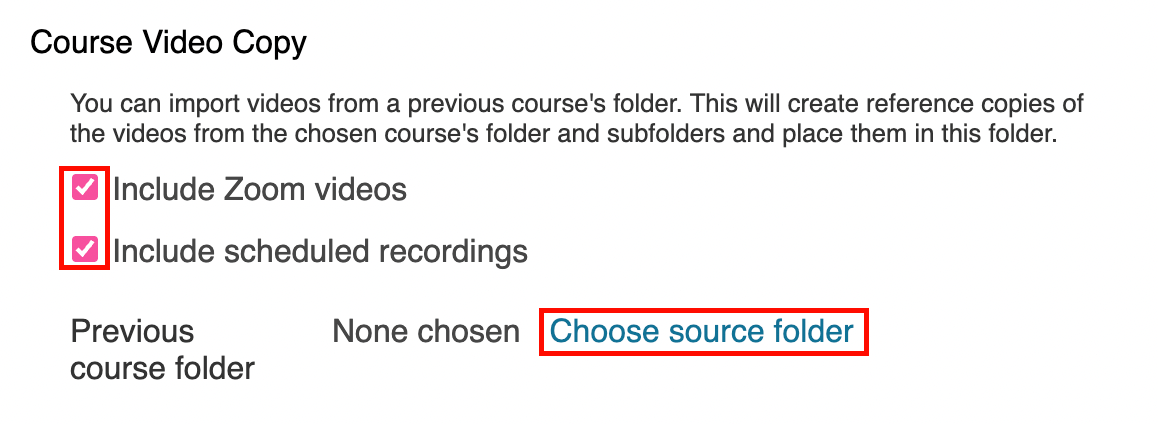 ↳ In some cases, a Suggested Folder will populate as a recommendation, you can ignore that.
- In most cases, you will want to Include Zoom videos, but not Include scheduled recordings.
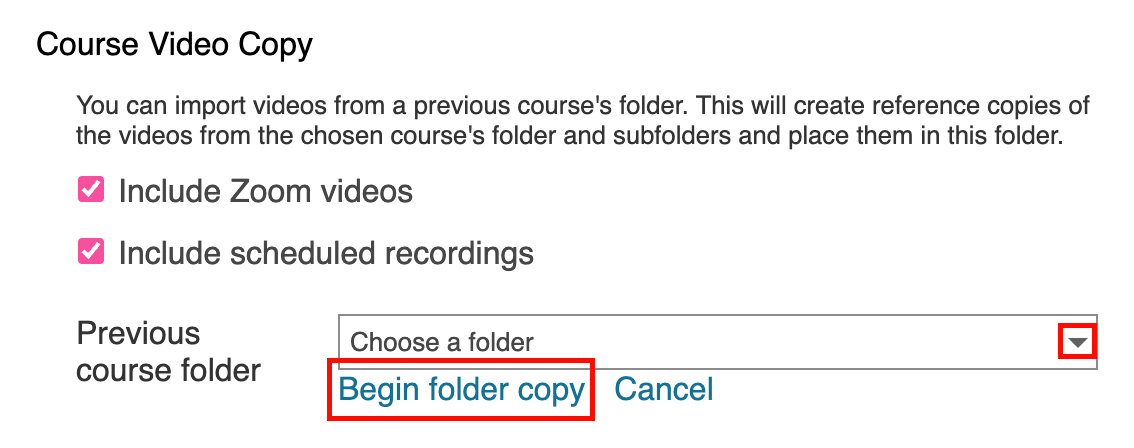
- Select the appropriate course from the drop-down and then click Begin folder copy: