Panopto Tutorials:
How To Use the Captions Service
Tutorial on how to use the Captions service in Panopto.
Importing Automatic Captions
Panopto offers English captions by default. To add them to a video:
- Locate the video you would like to add captions to and click on the “Edit” icon:

- Select the “Captions” menu item.
- Select the “Import Captions” dropdown.
- Select “Import automatic captions”:
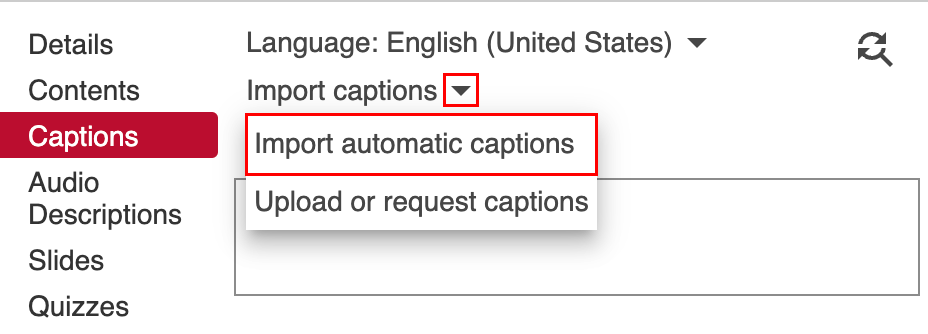
↳ If the video already contains captions, you will see “Replace with automatic captions” instead.
↳ If the video does not contain audio, automatic captioning options will not be available. - Once you are done, click “Apply” at the top of the page:

Uploading Captions
If you have pre-made captions, you can upload them. You are not limited to just one file. You can upload as many captions files as you would like:
- Locate the video you would like to add captions to and click on the “Edit” icon:
- Select the “Captions” menu item.
- Select the “Import Captions” dropdown.
- Select “Upload or request captions”:
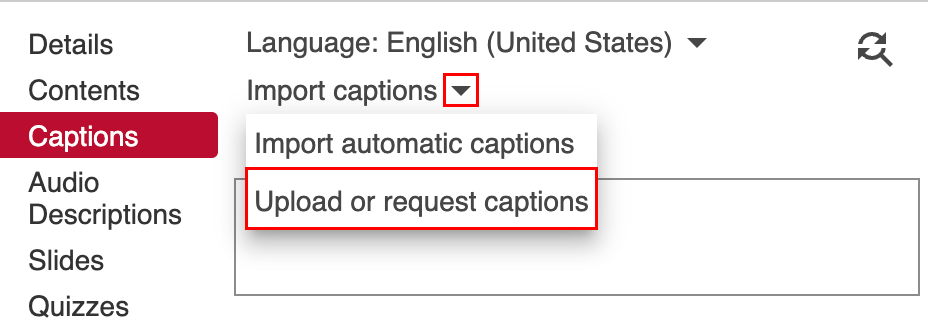
- Select the language, choose the file and then click “Upload Captions”:

- Once you are done, click “Apply” at the top of the page:
Editing Captions
Editing the Text
- Select the “Captions” menu item.
- Click to select the caption you want to modify, make your changes in the text box, and click enter:
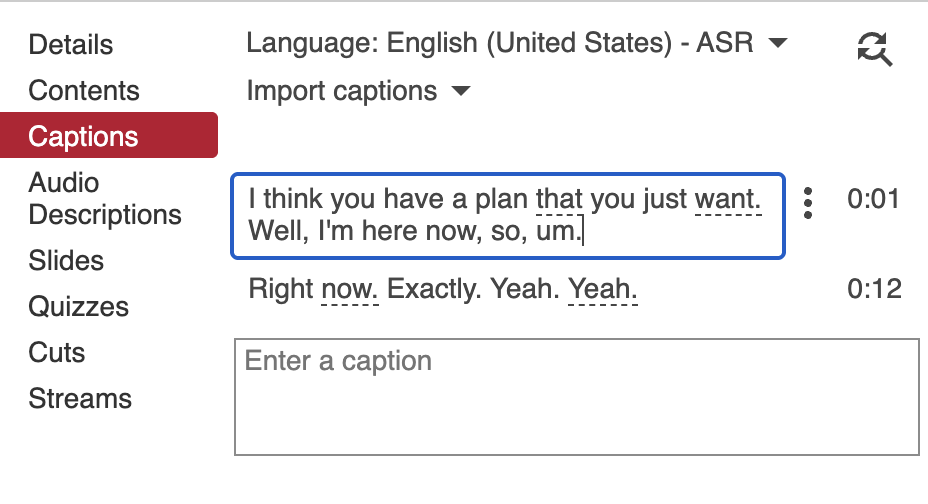
- Once you are finished editing all captions, click “Apply” at the top of the page:
Replacing Incorrect Text
- Click on the “Find & Replace” icon at the top, to the right of Language:
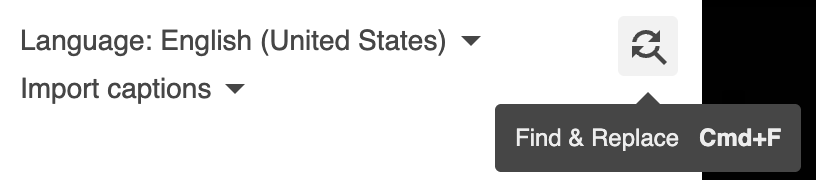
- Fill out the Find and Replace text boxes and click “Replace” to change the current caption or “Replace All” to change all captions that contain that word:
 ↳ You can flip through the captions by using the arrows next to the found word:
- Once you are finished editing, click “Apply” at the top of the page:
Changing the Timestamp
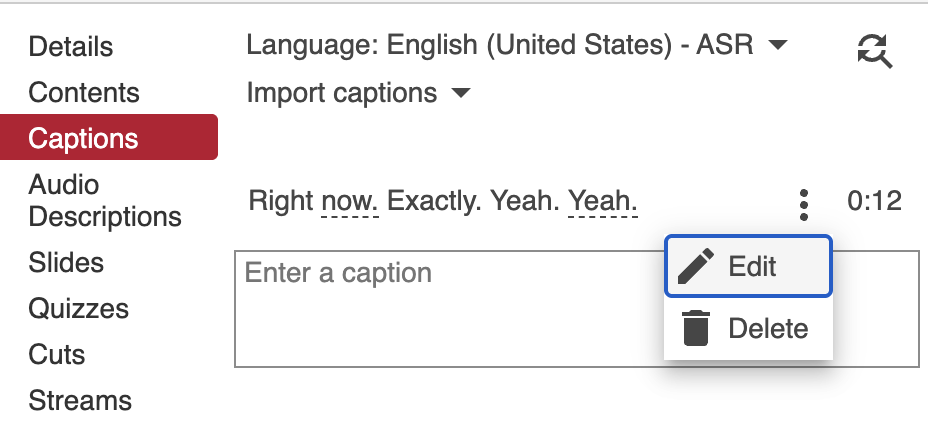
- Click on the “More Actions” icon (three vertical dots) on the desired text box and select “Edit”:
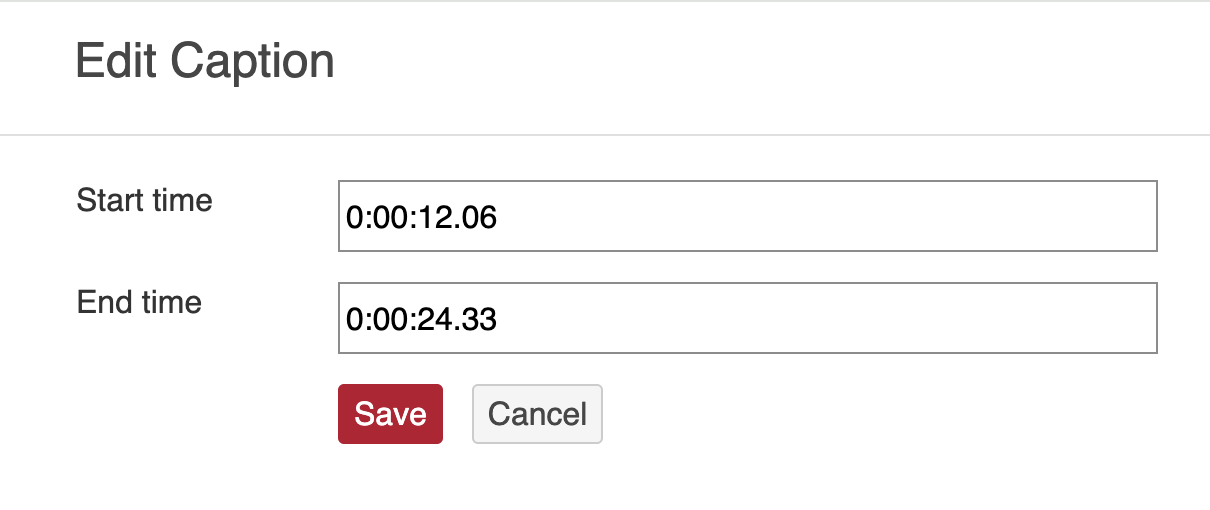
- Make your changes to Start and End times and then click “Save”:
- Once you are finished editing, click “Apply” at the top of the page:
Deleting Captions
- Click on the “More Actions” icon on the desired text box and select “Delete”:

- Once you are done, click “Apply” at the top of the page: