Panopto Tutorials:
How To Create Recordings (Mac)
Tutorial on how to create recordings in Panopto.
- Go to the Panopto tab on your Canvas course, click on “+ Create” and then select “Panopto for Mac”:
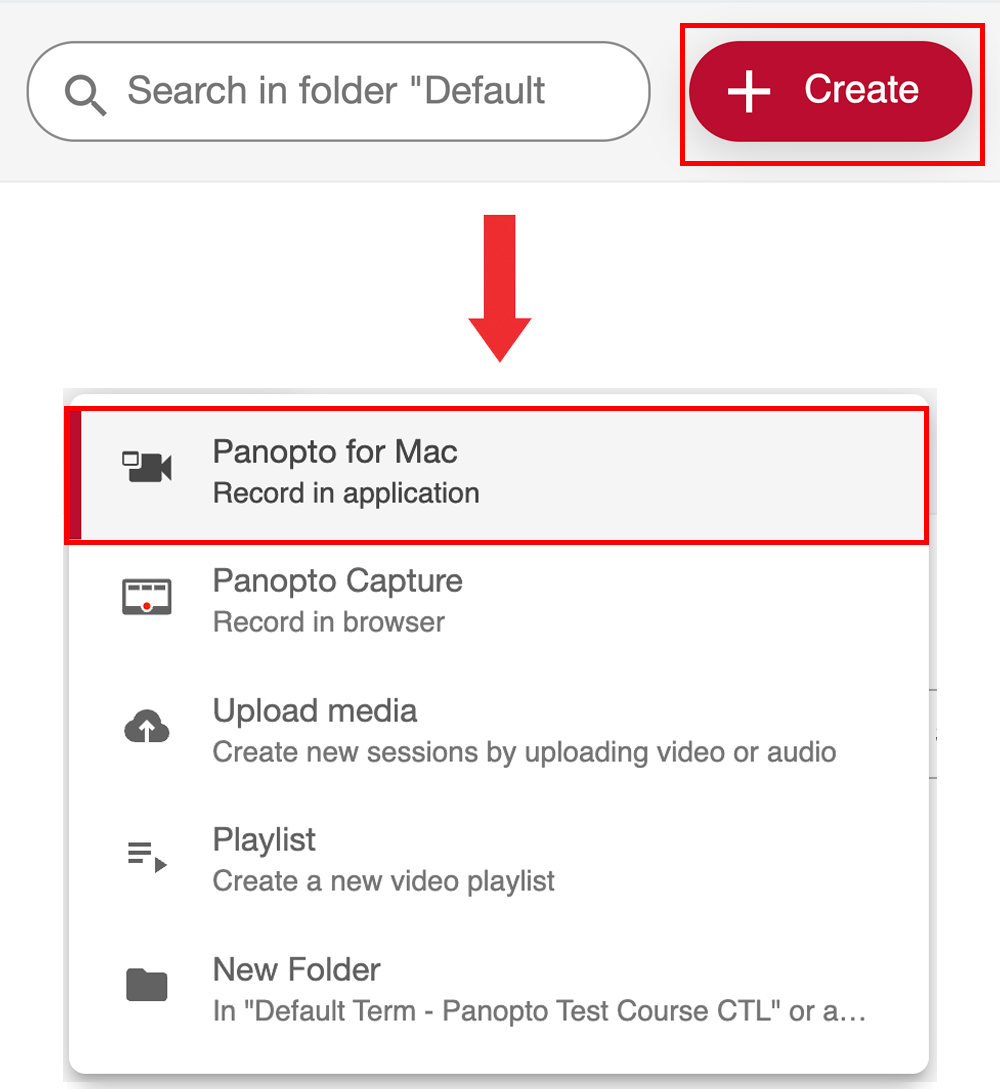
- If you already have the app installed, click on “Open Panopto”. If not, click on “Download Panopto” and follow the installation instructions.

- Once the app loads, you will be brought to the recording page:

Make sure to do the following before clicking the “Record” button:
- Select the correct Folder.
- NOTE: When you launch Panopto from within a course, it will default to your course folder.
- Select the correct Video and Audio sources.
- Enable or Disable PowerPoint/Keynote recording.
- Enable or Disable Screen Recording.
- You can add a second stream, such as a second screen or an additional camera, for screen recording by clicking on the “Secondary ” tabs and selecting a source.
Once you’re done with your recording, click “Stop”.
- You can also click “Pause” to pause and then resume your recording at a later time.

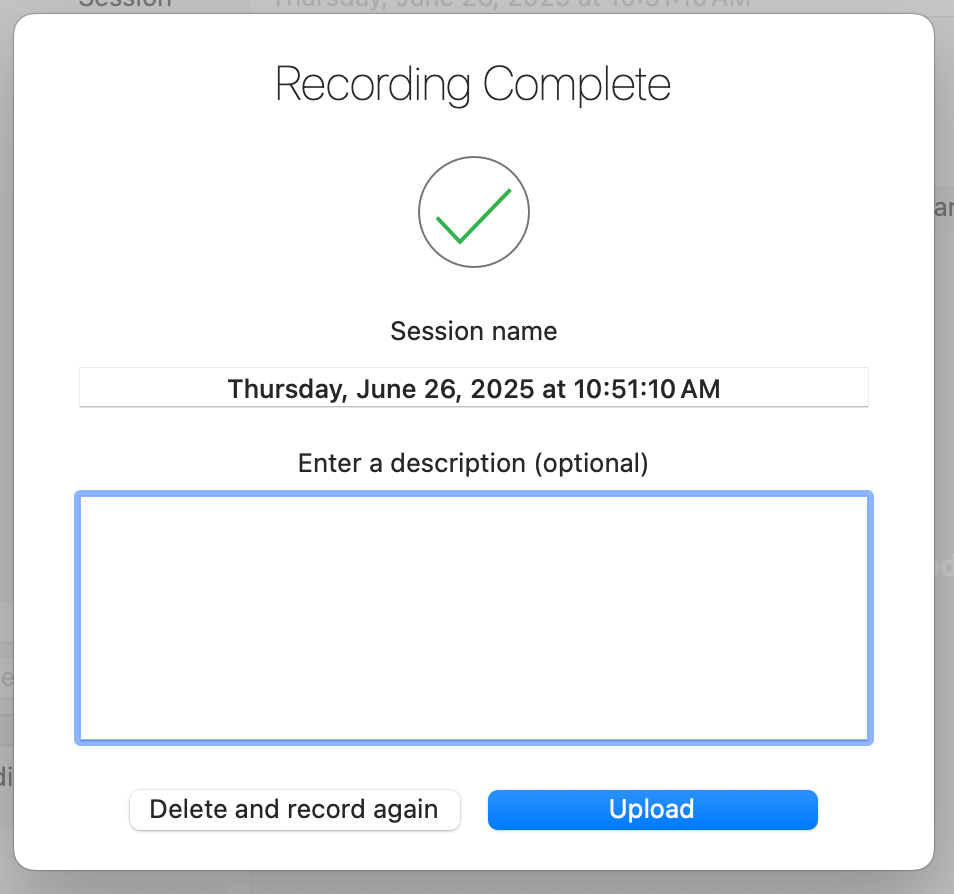
After clicking Stop, you can either delete your recording or upload it by clicking on “Upload”:
- You are also able to edit the Session Name and add a description to the recording. By default, the Session Name is the date and time of the recording.
Managing Recordings

- A: “Create New Recording” will take you to the recording page.
- B: “Manage Online Recordings” will take you to the Panopto web interface.
- Here is our tutorial on the Web Interface: https://ctl.wustl.edu/panopto-tutorials-online/
- C:
- Share allows you to view sharing options for the video on the Panopto web interface.
- Here is our tutorial on sharing: https://ctl.wustl.edu/panopto-tutorials-sharing/
- Edit allows you to edit the video on the Panopto web interface.
- Here is our tutorial on editing: https://ctl.wustl.edu/panopto-tutorials-edit
- View Online allows you to view the video on the Panopto web interface.
- Here is our tutorial on the Web Interface: https://ctl.wustl.edu/panopto-tutorials-online
- Share allows you to view sharing options for the video on the Panopto web interface.
- D:
- Delete will delete your recordings.
- The Actions menu allows you to make a local copy of the recording and will take you to the Panopto video (MP4) file stored locally on your computer.
You can also re-upload a corrupted recording on the app. You will know something went wrong if you have the Retry option:
