Panopto Tutorials:
How To Create Recordings (Windows)
Tutorial on how to create recordings in Panopto.
Creating New Recordings
- Go to the Panopto tab on your Canvas course, click on “+ Create” and then select “Panopto for Windows”:
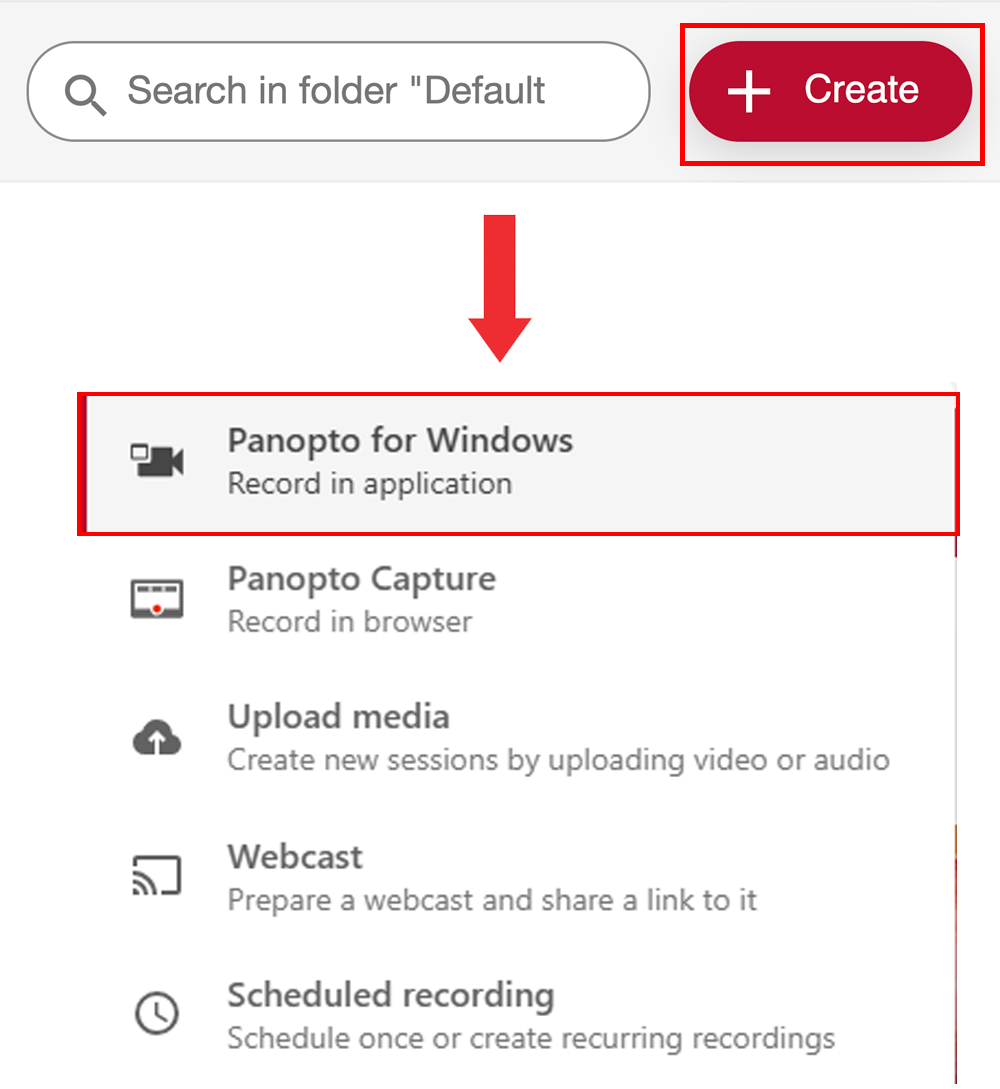
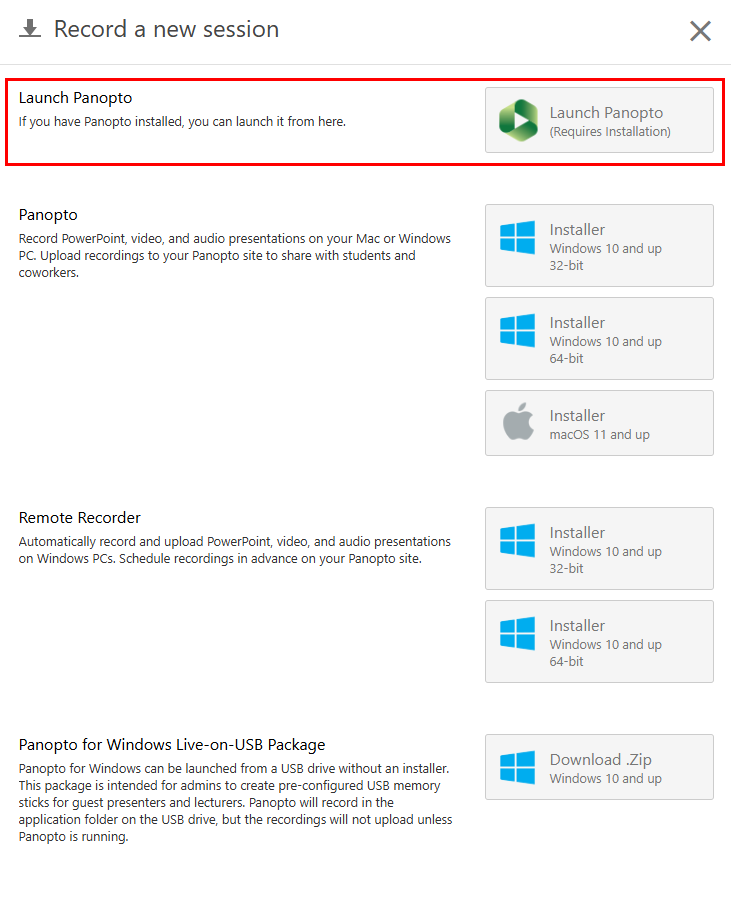
- If you already have the app installed, click on “Launch Panopto”. If not, select one of the Windows Installers and follow the installation instructions. Most users should select the Windows 10 and up 64-bit Installer.
- Once the app loads, you will be brought to the recording page:

Make sure to do the following before clicking the “Record” button:
- Select the correct Folder.
- NOTE: When you launch Panopto from within a course, it will default to your course folder.
- Select the correct Video and Audio sources.
- Enable or Disable PowerPoint/Keynote and/or Screen recording.
- You can add a second stream for screen recording by clicking on “Add Another Video Source” and selecting a source.
Once you are done with your recording, click “Stop”.
- You can also click “Pause” to pause and then resume your recording at a later time.

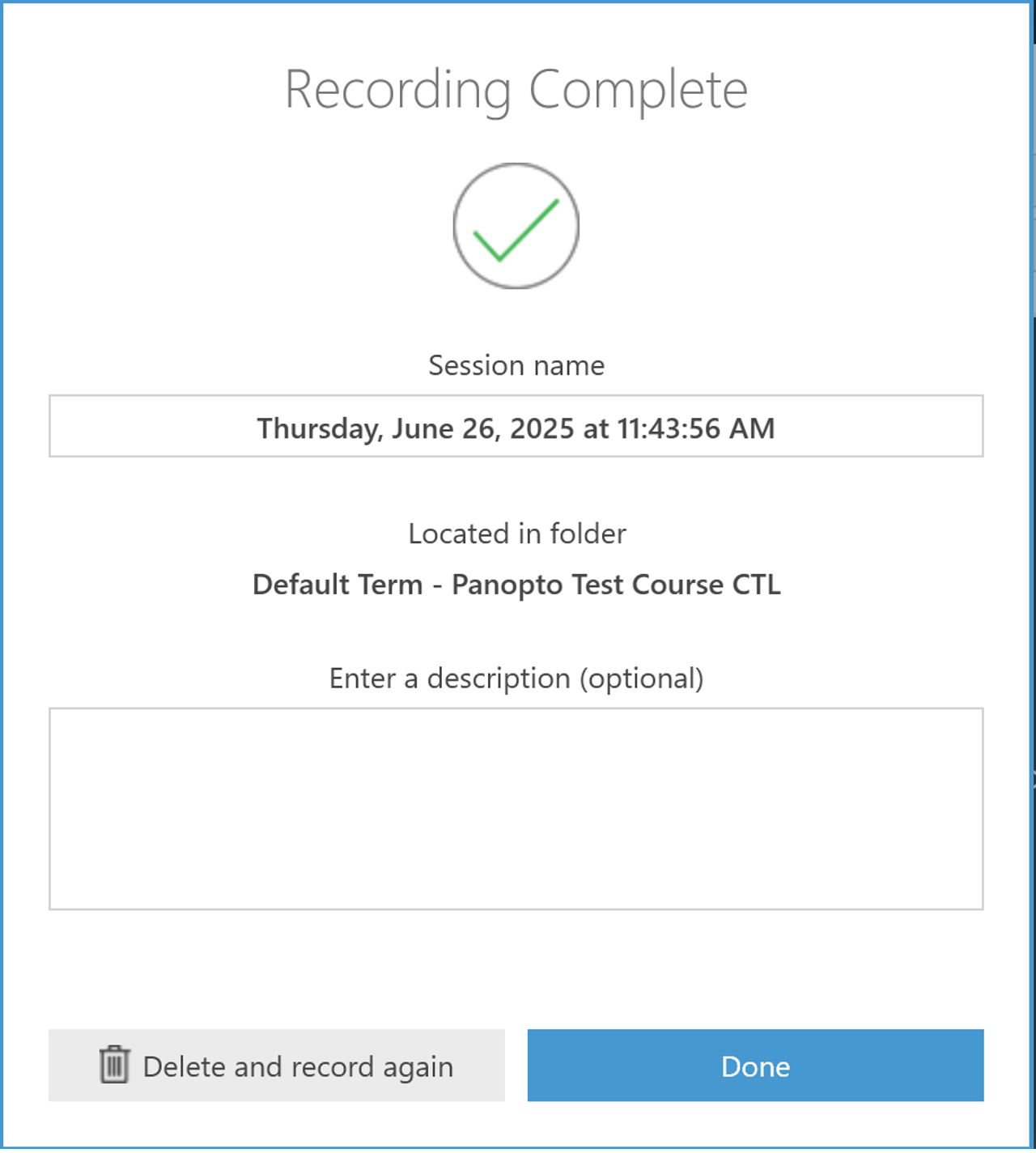
After clicking Stop, you can either delete your recording or upload it by clicking on “Done”:
- You can also edit the Session Name and add a description to the recording. By default, the Session Name is the recording date and time.
Managing Recordings
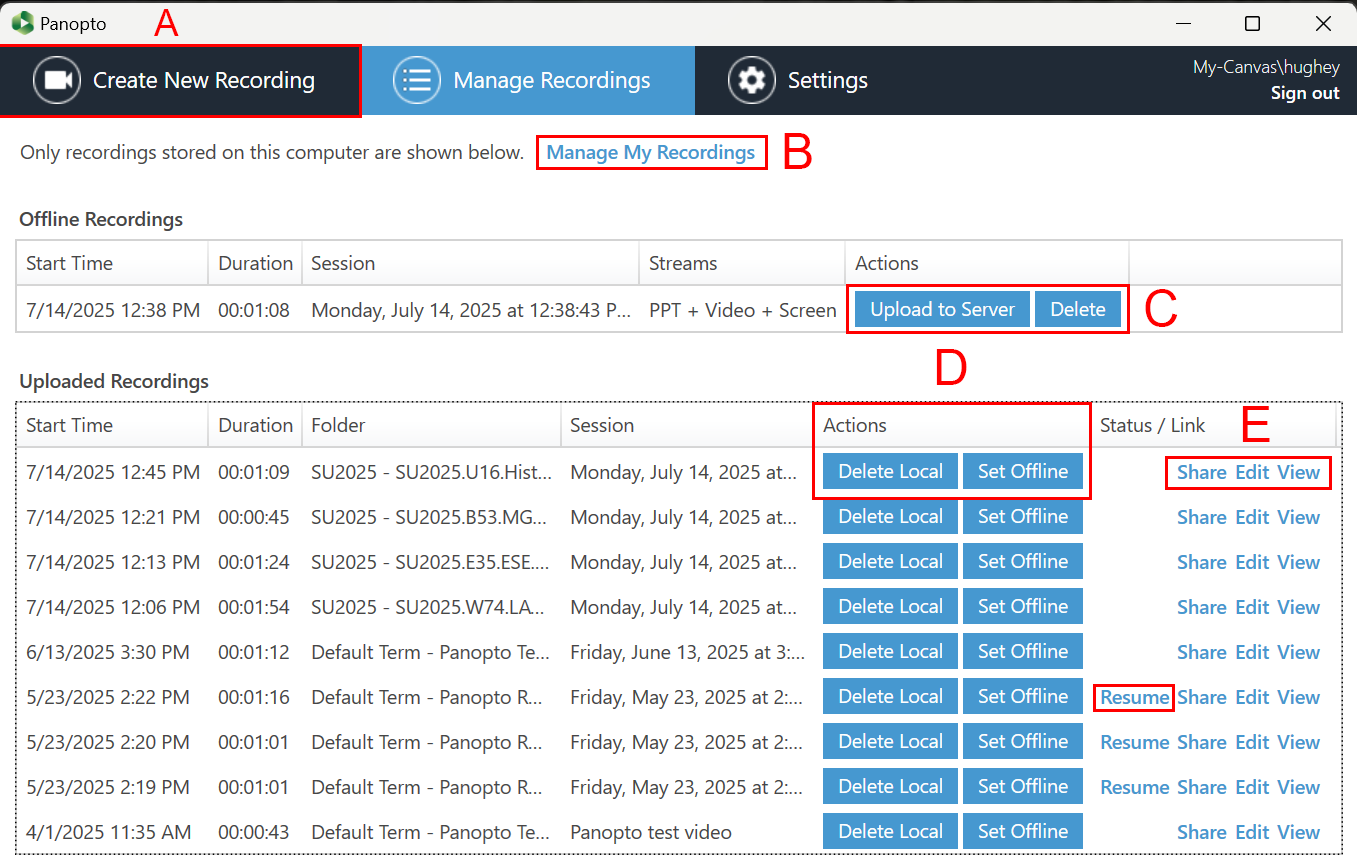
- A: The “Create New Recording” tab will take you to the create a recording page.
- B: “Manage My Recordings” will take you to the Panopto web interface.
- Here is our tutorial on the Web Interface: https://ctl.wustl.edu/panopto-tutorials-online/
- C: This section affects your Offline Recordings, which are only stored on your local computer hard drive.
- Upload to Server will upload an offline recording to the online server.
- Delete will permanently delete the recording.
- D: This section affects your Uploaded Recordings.
- Delete Local will delete the local copy of any recording. The uploaded copy stored on the server will remain. Delete Local is useful if you need to free up space on your computer hard drive.
- Set Offline will remove a recording from the online server but keep a local copy on your computer hard drive.
- E: This section affects your Uploaded Recordings.
- Share allows you to view sharing options for the video on the Panopto web interface.
- Here is our tutorial on sharing: https://ctl.wustl.edu/panopto-tutorials-sharing/
- Edit allows you to edit the video on the Panopto web interface.
- Here is our tutorial on editing: https://ctl.wustl.edu/panopto-tutorials-edit
- View allows you to view the video on the Panopto web interface.
- Here is our tutorial on the Web Interface: https://ctl.wustl.edu/panopto-tutorials-online/
- Resume will finish uploading recordings that were interrupted.
- Share allows you to view sharing options for the video on the Panopto web interface.