Panopto Tutorials:
How To Manage Media
Tutorial on how to manage media in the Panopto Canvas/WuEx integration.
Deleting Media
- Go to the correct folder and check the recording(s) you want to delete and then click on the “Delete” icon at the top:
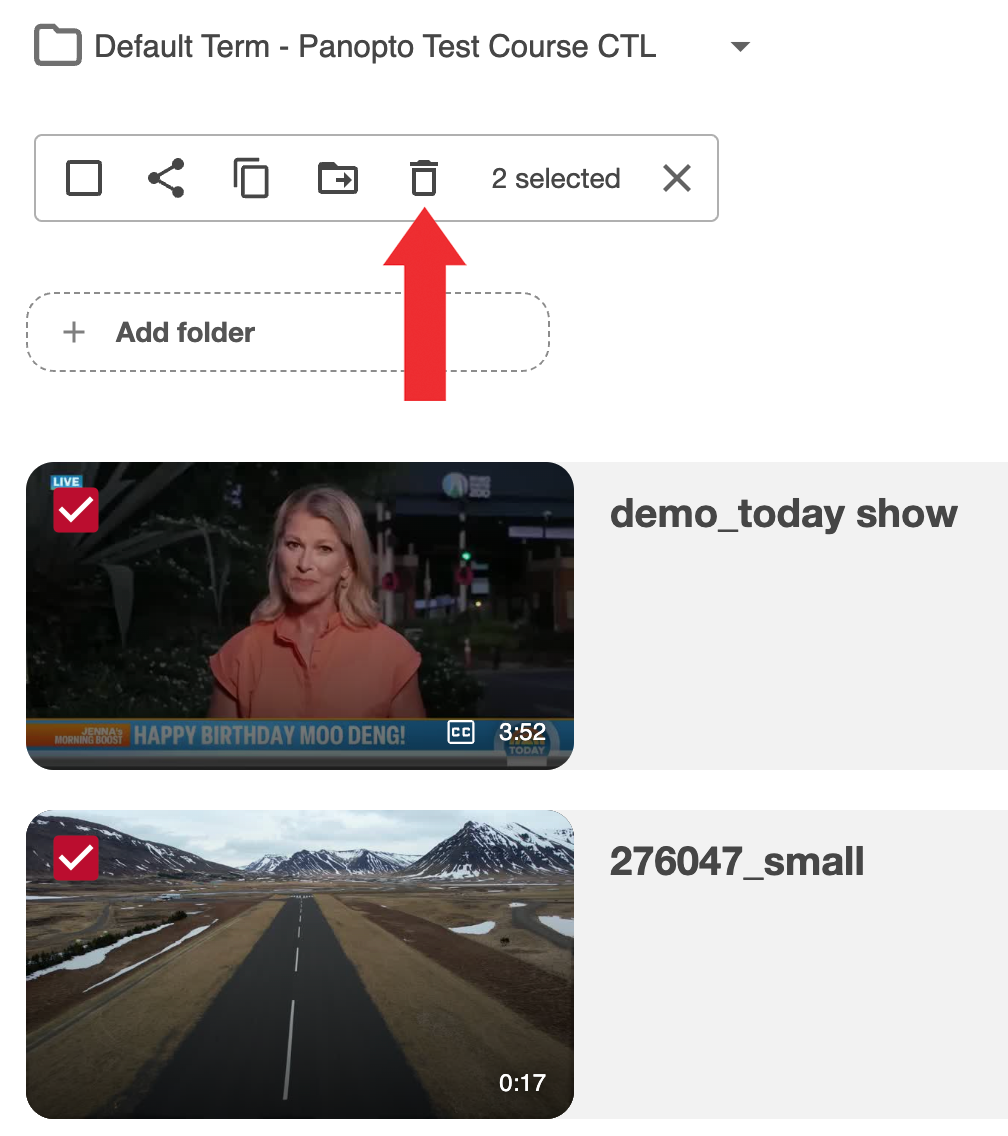
- Click “Ok” on the pop-up box:

Copying Media
Copying a video allows you to keep the original in the current folder while creating a copy in another one.
- Go to the correct folder, check the recording(s) you want to copy, and then click on the “Copy” icon:
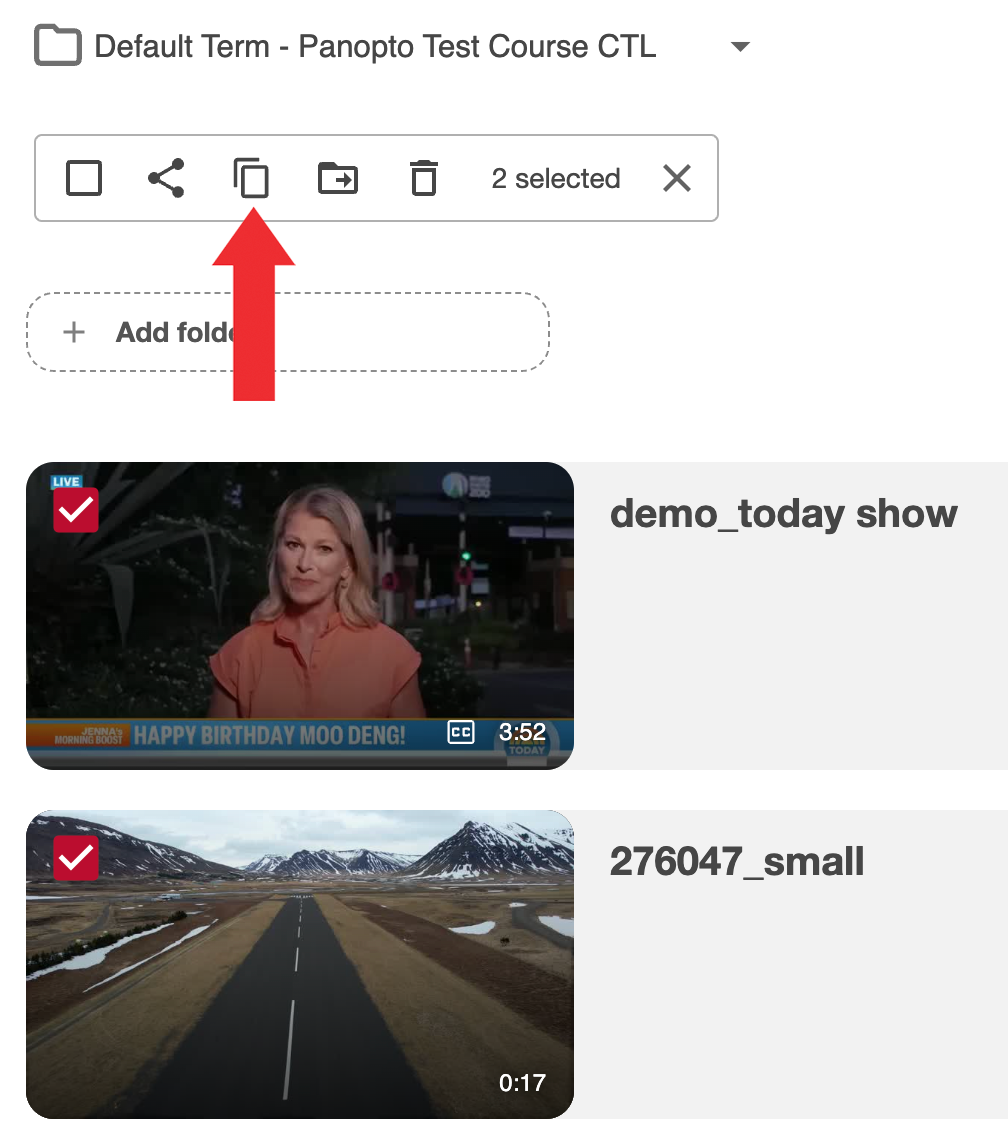
- Select the correct folder from the “Copy video(s) to” drop down and click “Copy”:

Moving Media
Alternately, you can move the original video to a different folder.
- Go to the correct folder and check the recording(s) you want to move and then click on the “Move” icon:
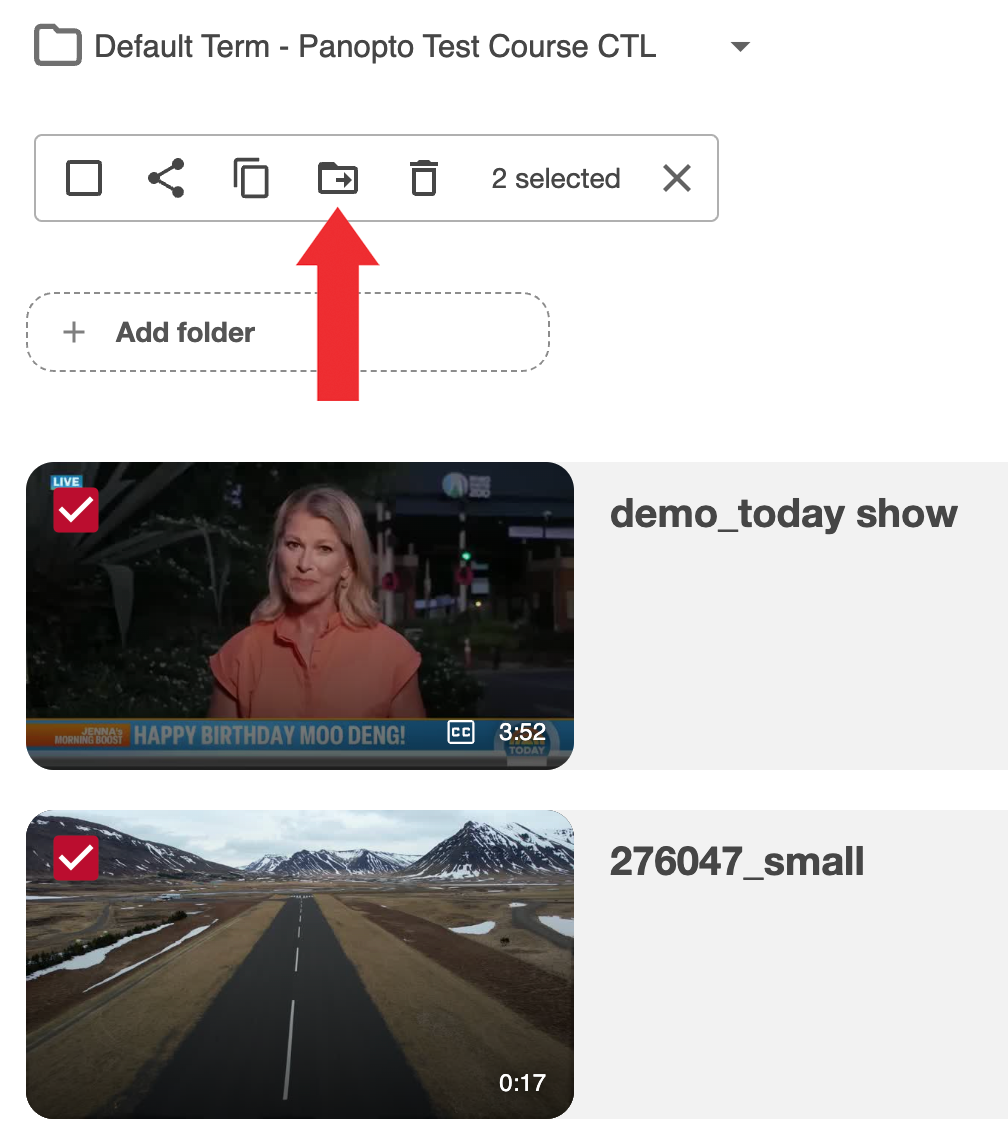
- Select the correct folder from the “Move video(s) to” drop down and click “Move”:

Adding a New Folder
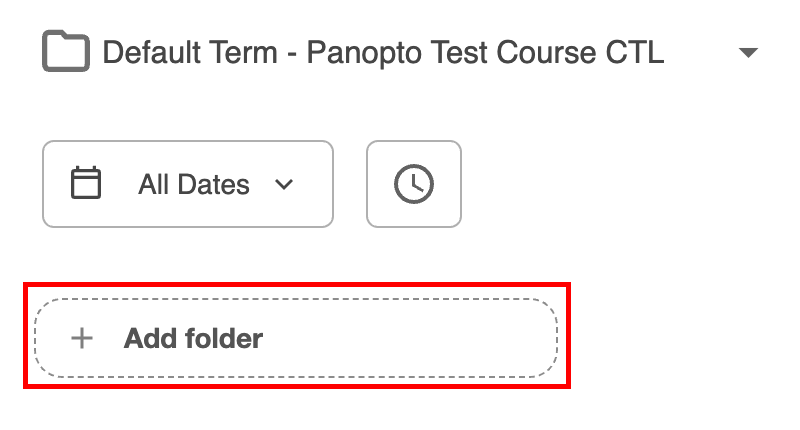
- To add a new folder, click “+ Add Folder”, enter a name and click “Enter”:
- Note that it will become a sub-folder of whichever folder you are currently in.
- Note that it will become a sub-folder of whichever folder you are currently in.
- To manage a folder, click on the “More Actions” icon (3 vertical dots) :
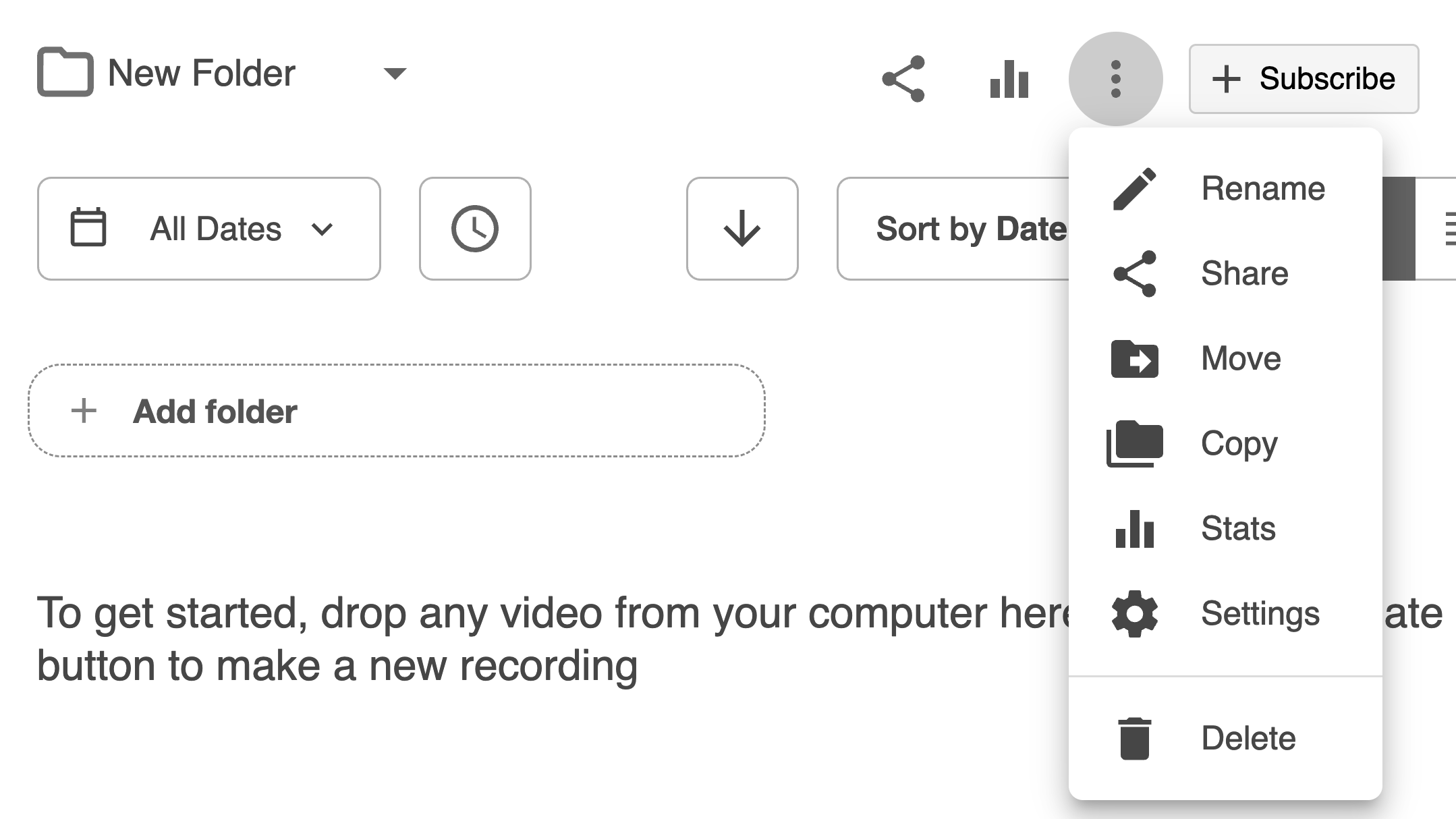
- Rename allows you to rename the folder.
- Share takes you to the sharing options for the folder or playlist.
- Move allows you to move the folder.
- Copy allows you to copy the folder.
- Stats will display the viewing analytics for the folder.
- Settings will display the settings page for the folder.
- Delete allows you to delete the folder.