Panopto Tutorials:
How to Locate your Kaltura Media
Tutorial on how to access your migrated Kaltura content and copy or move them to the appropriate folders.
Need technical support?
Call us
Email us
As part of the transition to Panopto, we have copied over all video content from Kaltura that matches certain criteria. It was not possible to copy the Kaltura content directly from previous Canvas courses into the corresponding new Canvas courses. So, we have saved all of the copied Kaltura videos into user folders within a folder called Kaltura migrations.
When you perform a Course Copy in Canvas, Panopto will make a reference copy of the videos from your previous course into the new course. You simply click on Panopto in the new course, and the videos will transfer over from the old course to the new course. However, for this to work, the videos need to first exist in the old course folder.
That’s where this tutorial comes in: You will need to perform this one-time process to copy your previous Kaltura videos into Panopto for your current semester courses. Once this process is complete, reference copies of your videos will carry forward when you perform a Course Copy in Canvas.
Follow these instructions to move your videos from the Kaltura Migrations folder to the appropriate course folder:
- Go to the Panopto tab in any of your courses and click on the “Open in Panopto” icon:

- Click on the Browse tab, navigate to “My Folders” and locate the “Kaltura Migrations” folder:

- Expand the folder and click on the sub-folder containing your username:

- Under the “WUSTL_Danforth_Canvas” sub-folder you will find your course folders. The numbers refer to the number in the Canvas URL for that course:

- Click on a folder and make sure to check the “InContext” sub-folder as well. Your videos will be found in there:
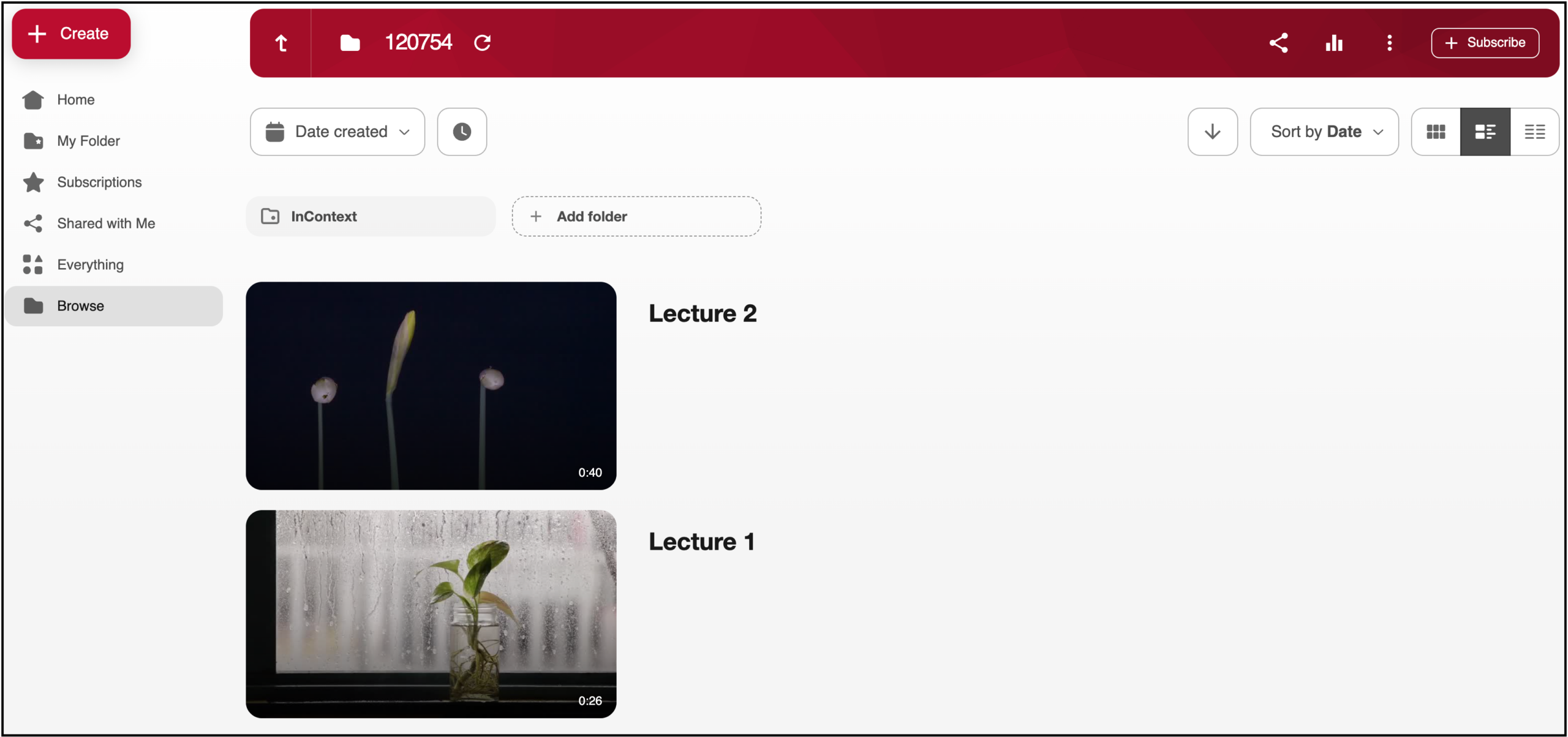
- You are now ready to move your media to the appropriate course folder. Follow these instructions to do so:
- Select the recording(s) you want to move, and then click on the “Move” icon:
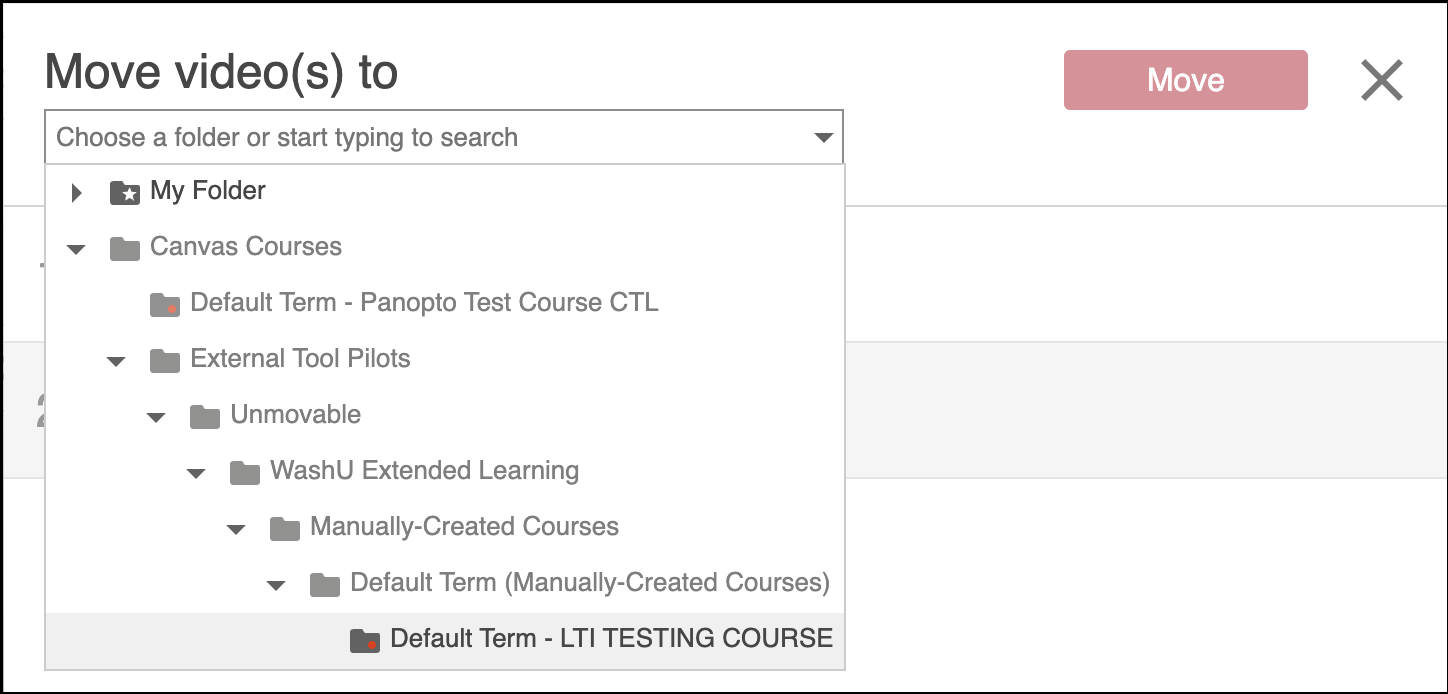
- Select the course folder from the “Move video(s) to” drop down and click “Move”:
- Select the recording(s) you want to move, and then click on the “Move” icon: