Panopto Tutorials:
How to Have Students Submit a Panopto Video as a Canvas Assignment
Tutorial on providing students instructions for submitting a Panopto video as an assignment in Canvas
If you would like your students to use Panopto to record a video that they can submit as part of an assignment, you’ll first want to ensure that your assignment is properly set up in Canvas.
Setting Up the Canvas Assignment
- Start by creating a new Canvas assignment. Adjust your points, due dates, and other assignment criteria however you’d like.
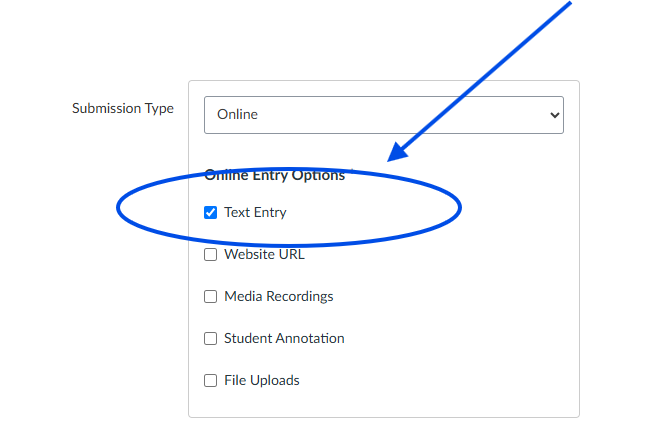
- Under the “Submission Type” option, make sure you select “Online” from the dropdown. Then, ensure that the “Text Entry” option is toggled on. This setting will allow students to use the Canvas Rich Content Editor, which includes the Panopto embedding tool they will need to use.
- Once you’ve set up your assignment, make sure to click the “Save & Publish” button in Canvas.
Instructions for Students
After you’ve created an assignment asking your students to submit a Panopto video, you may wish to provide them with the instructions below.
- In Canvas, navigate to the assignment as directed by your instructor. Then, click the red “Start Assignment” button.
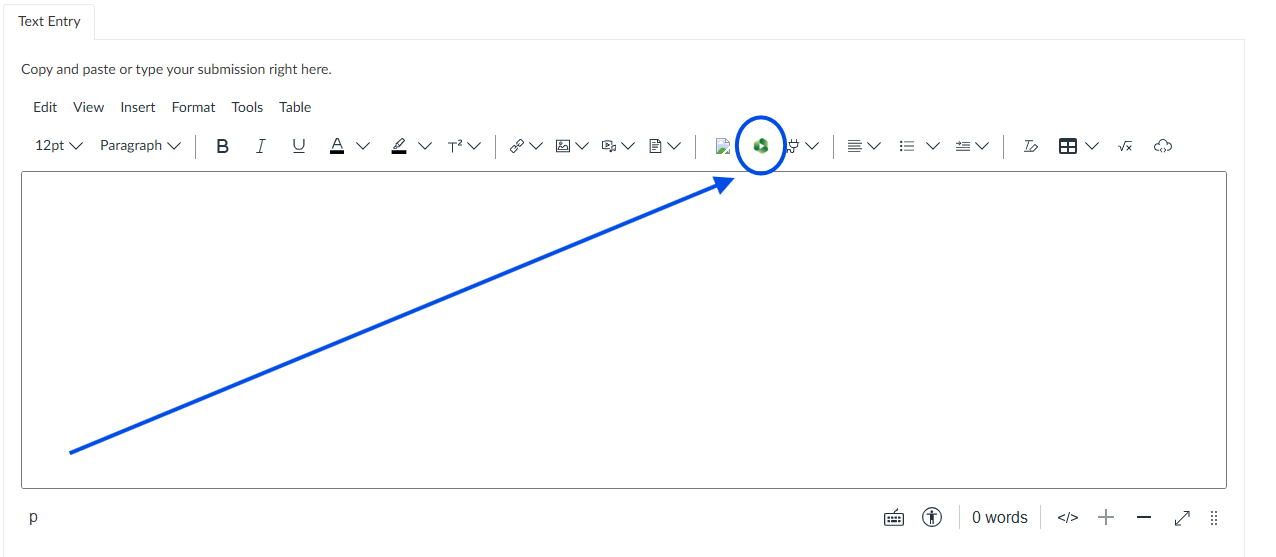
- In the Canvas Rich Content Editor, select the green, circular icon. This icon will be labeled “Panopto” if you hover your mouse over it.
- In the pop-up window, select the “Record” tab.
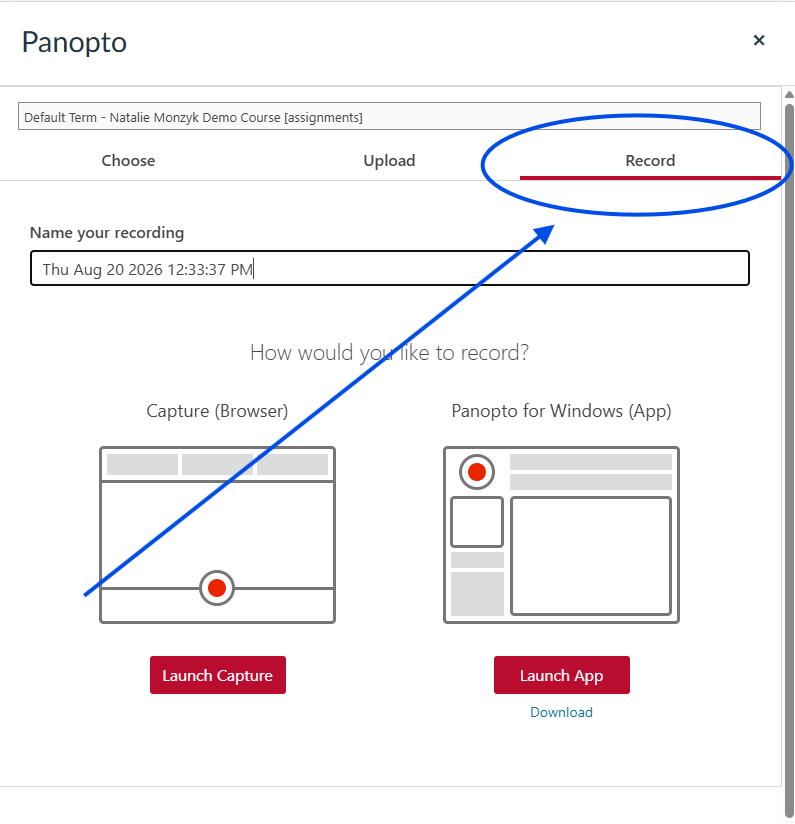
- Choose whether you would like to record using the Panopto Capture browser tool or the Panopto desktop app (for Windows or for Mac). If you select the Panopto desktop app, you may need to download the app first. Depending on which option you choose here, Panopto will either launch a new tab in your browser (Panopto Capture browser tool) or open the Panopto desktop app for your operating system.
- Record your video. When you are finished, return to the Canvas assignment page (where you started). You will see the message “video will be ready shortly.”
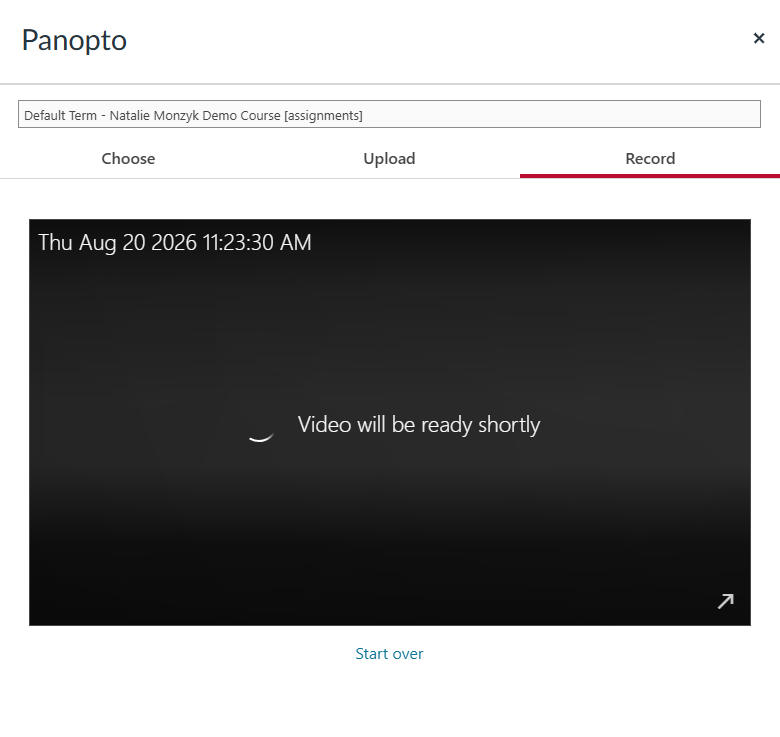
- When your video has processed, the “video will be ready shortly” message will be replaced by an image preview of your video. Most videos process in under 1 minute, but longer videos may take longer.
- To embed your video into your assignment, click the red “Insert” button. When you’re completely finished with the assignment, make sure to click the “Submit Assignment” button in Canvas.