Panopto Tutorials:
MyCanvas to WUEx Shared Content Workaround
Work around for sharing MyCanvas course content to WUEx.
Sharing a Course Folder in MyCanvas
- Log into WashU MyCanvas and go to the Panopto tab in the course you want to share content from.
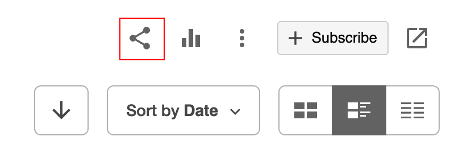
- Click on the share icon:
- Click “Change” under “People and Groups” if needed:

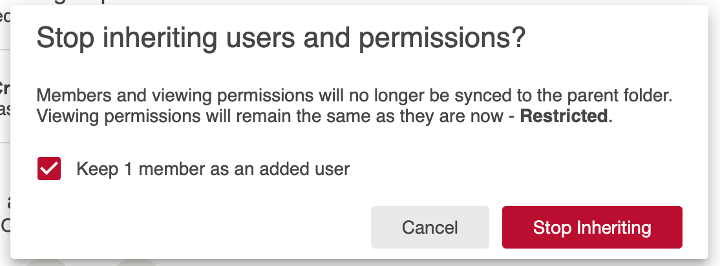
- Check the “Keep 1 member as an added user” box and then click “Stop Inheriting”:
- Change “Viewer” to “Creator” on the drop-down menu. Then look up your name in the “Add people and groups” tab and select your WashU-Extended-Learning account:

- Click “Save”.
The process to share Panopto content from WUEx to MyCanvas is the same, just invert the account you are selecting in step#1.
Adding Content into the WUEx Course
Once you have completed the steps above, you will have access to the course folder both in MyCanvas and WUEx. Here is how you can add content to the WUEx course:
Copying Videos
Copying a video allows you to keep the original in the current folder while adding a copy to the shared folder:
- Log into WUEx.
- Locate the MyCanvas course folder:
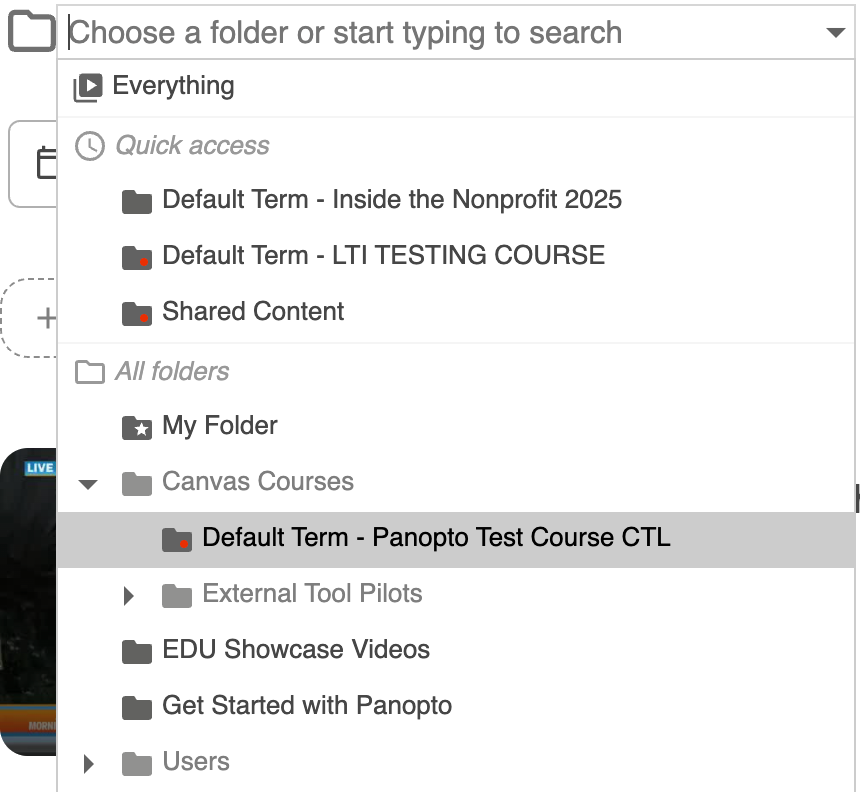
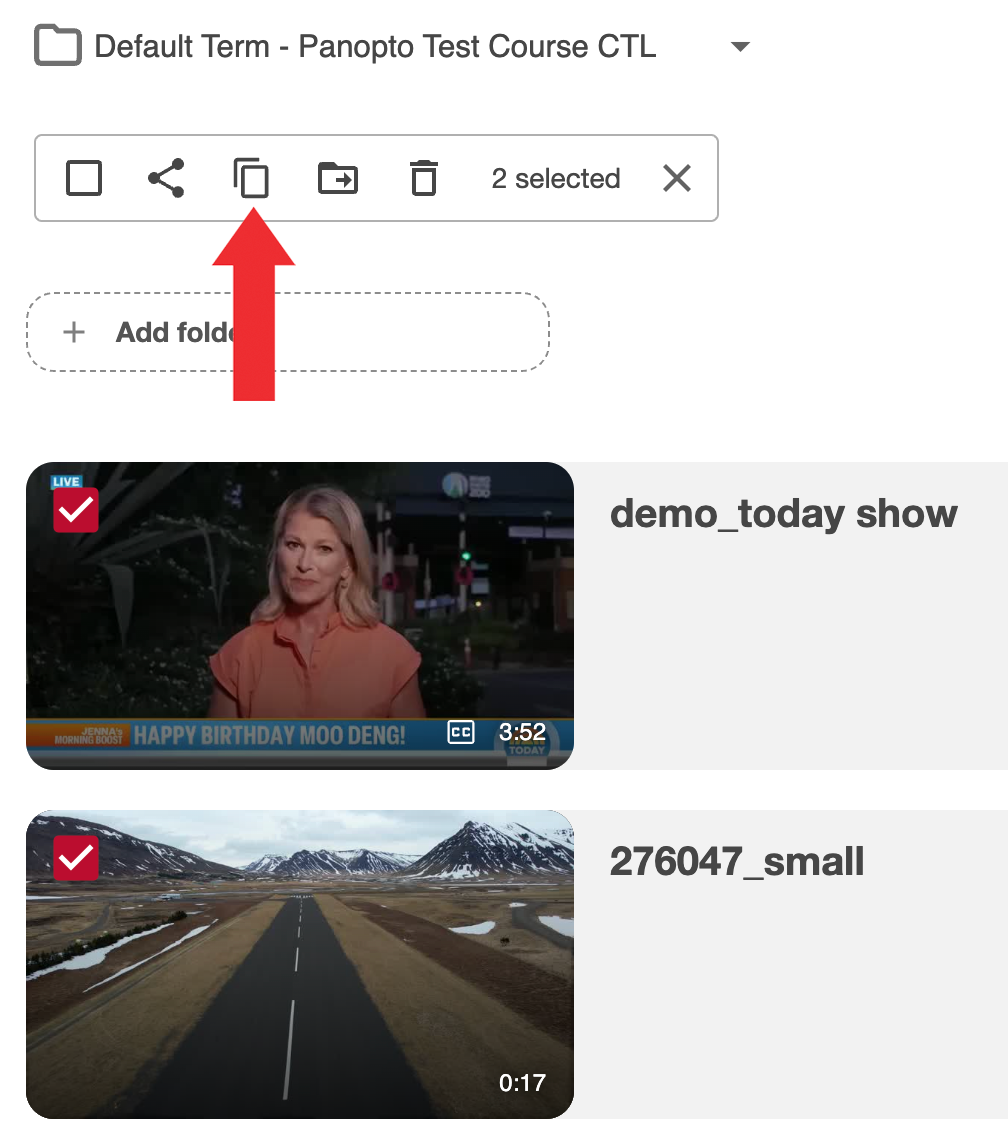
- Check the desired videos and then click on the copy icon:
- Select the desired WUEx course folder from the drop down and click “Copy”:

Moving Videos
Alternatively, you can move existing videos to a WUEx course:
- Log into WUEx.
- Locate the MyCanvas course folder:
- Check the desired videos and then click on the move icon:
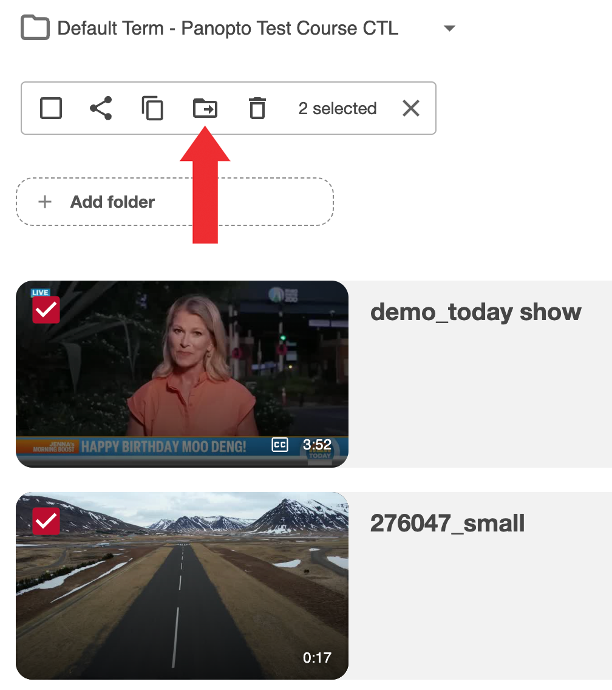
- Select the desired course folder from the drop down and click “Move”:

You can copy and move content from a WUEx Course to a MyCanvas course in the same way.
Uploading Videos
To upload videos to the shared folder:
- Go to the Panopto tab on your MyCanvas course, click on “+ Create” and then select “Upload media”:

- Make sure you have selected the desired folder from the drop-down menu:
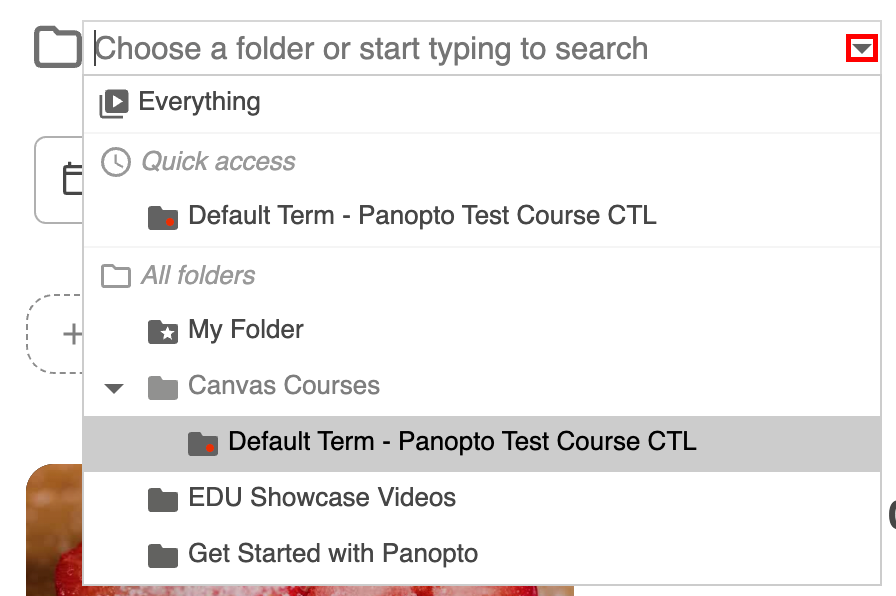
- You can now either choose to drag and drop the media between the dashed lines or click within the dashed lines to select a file from your computer:

Creating Videos
- How to Create Video on Mac: https://ctl.wustl.edu/panopto-tutorials-create-mac/
- How to Create Videos on Windows: https://ctl.wustl.edu/panopto-tutorials-create-windows