Panopto Tutorials:
Zoom Opt In
Tutorial on how to Opt in for your Zoom recordings to automatically import into Panopto.
NOTE: When you choose automatic import from Zoom, all Zoom video recordings will automatically transfer over to Panopto for long term storage. Your Zoom recordings will not immediately delete from your Zoom account. With that said, Zoom recordings are regularly deleted after a period of time. So if you do want to save your Zoom recordings, automatically importing them into Panopto is a great way to do this.
- Go to the Panopto tab in a course and click on the “Open in Panopto” icon at the top right:

↳ NOTE: If you’re a Firefox user, the app will not automatically redirect you:- You will be asked to sign in. Make sure “My-Canvas” is selected from the dropdown and then click on sign in:

- You will be asked to sign in. Make sure “My-Canvas” is selected from the dropdown and then click on sign in:
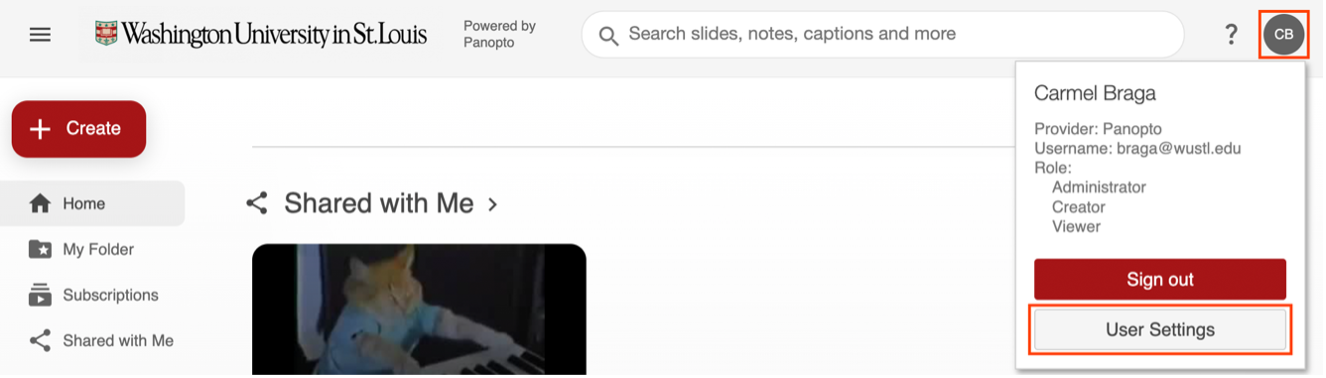
- Once you have been redirected to the WashU Panopto Site, click on the icon with your initials on the top right corner and then on “User Settings”:
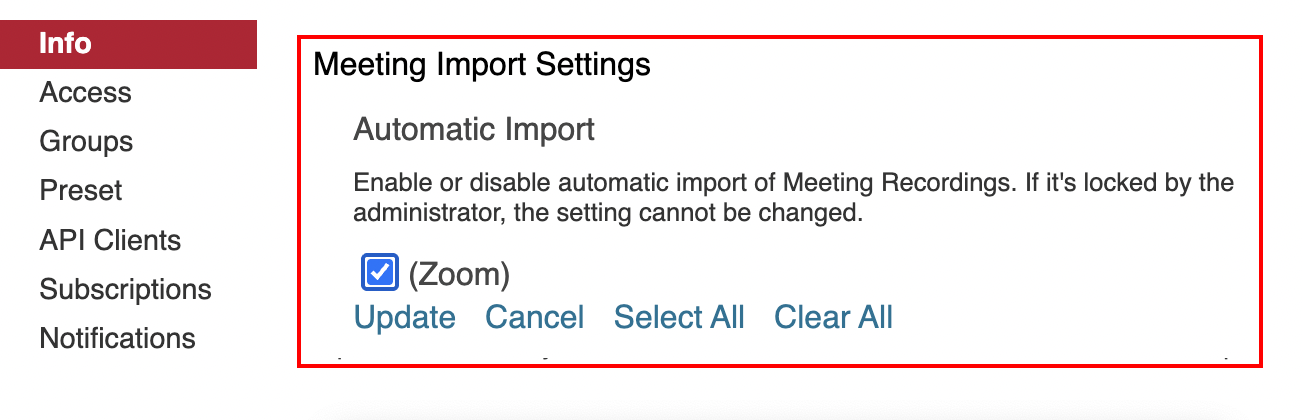
- Scroll to the “Meeting Import Settings” section on the “Info” tab:
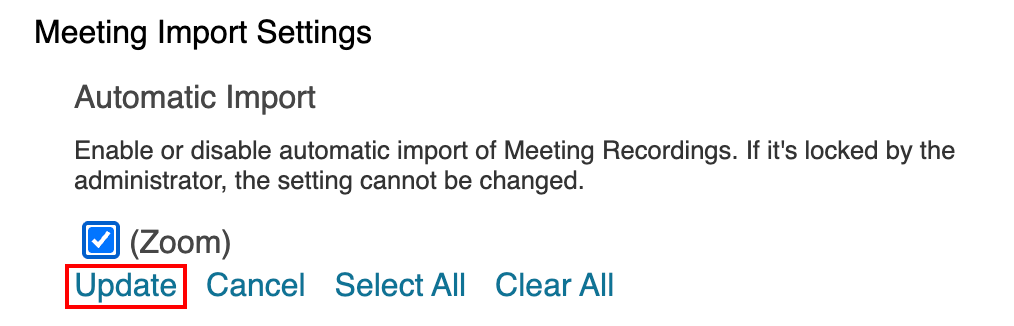
- Click the checkbox next to “(Zoom)” and then click “Update”: