Poll Everywhere Tutorials:
Course Management
The Course Management feature allows you to create Poll Everywhere assignments that can be synced to your Canvas gradebook. Assignments can be scored based on correctness and/or participation.
Before getting started with Course Management, make sure that you’ve connected Poll Everywhere to your Canvas course.
Accessing Course Management
- Log in to your account at www.polleverywhere.com
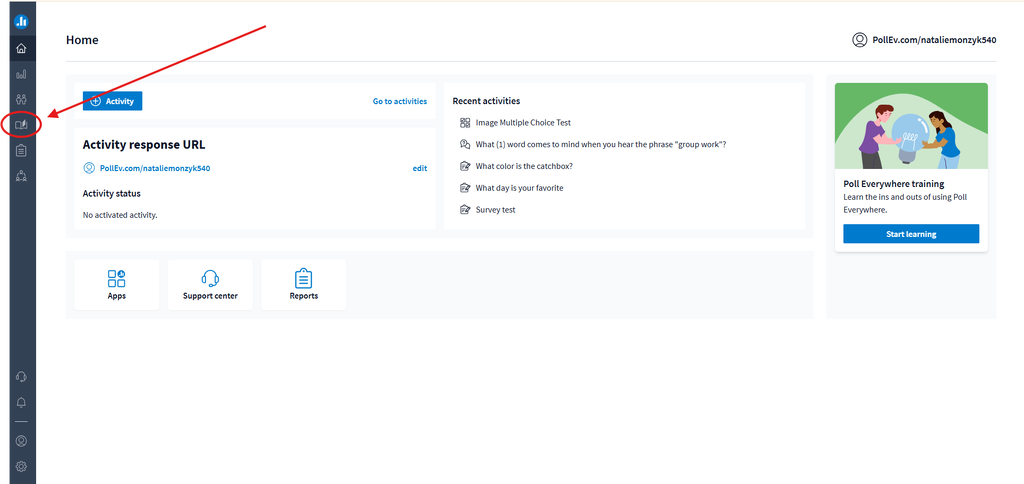
- Click on the courses icon on the navigation bar:
-
Select the appropriate course from the list:

Creating Assignments
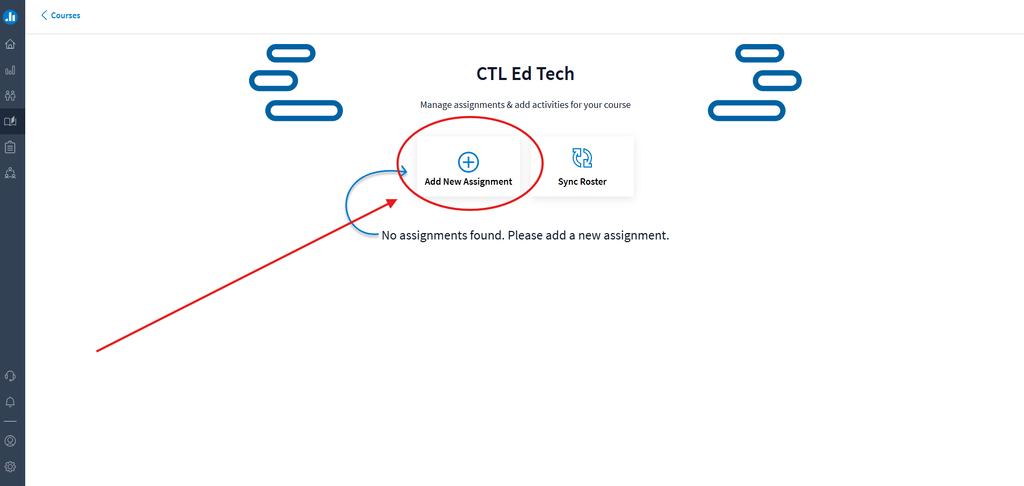
- Once you’ve entered your course, click the “Add New Assignment” button:
- Enter a title for your assignment. The title you enter here will also be the title for this assignment in your Canvas gradebook.

- Customize your assignment’s grading options by choosing “Participation” or “Correctness.”

-
- Selecting “Participation” will assign credit for completing the activity.

- Selecting “Participation” will assign credit for completing the activity.
-
- Selecting “Correctness” will assign credit based on students’ providing the correct answer.

- Selecting “Correctness” will assign credit based on students’ providing the correct answer.
↳ NOTE: You can choose to select both “Participation” and “Correctness,” but these scores will sync as two separate grade columns in Canvas.
- Save your assignment.
- Locate your assignment on the Courses page and select “+ Activity”

- Select one or more activities to add to your Poll Everywhere assignment. You can also choose to create a new activity for this assignment by clicking “Create New Activity.” When you’re finished, click the “Save” button.

- After adding activities to your assignment, you’ll be returned to your course page, where you’ll see the new activities have appeared in your assignment.
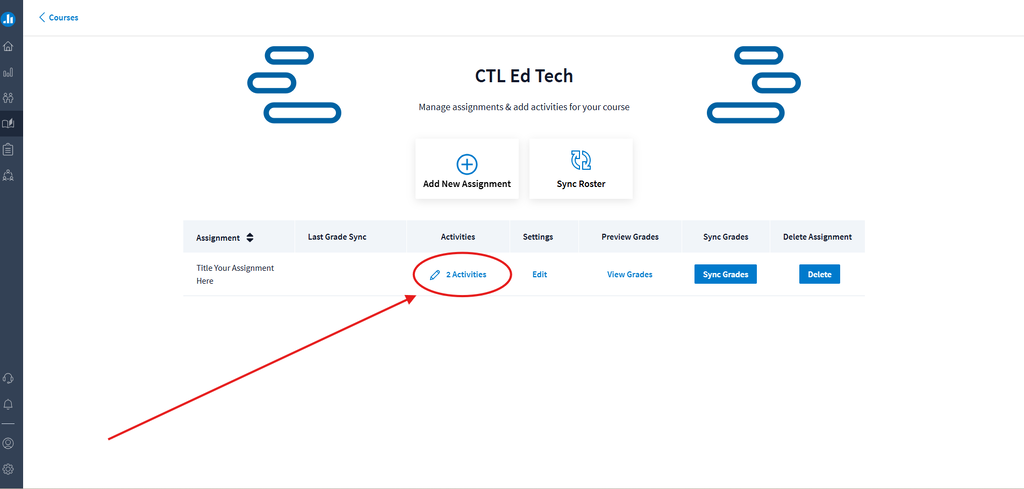
- After your students have completed the assignment, you’ll return to this page to push their grades to Canvas by clicking the “Sync Grades” button.

- When your grades have finished synching, you’ll see a time and date appear under the “Last Grade Sync” column. NOTE: Large classes may take 3-5 minutes to sync.

- If students complete the assignment after your first sync and you’d like to update your Canvas gradebook, return to the course page and click “Sync Grades” again.