Panopto Tutorials:
How To Download Media
Tutorial on how to download media on Panopto.
Downloads are enabled by default for media owners in Panopto. Media owners can also grant download access to a video folder or to an individual video to other users. The following tutorials will instruct you on how to do the following:
- How to download media that has download access
- How to grant download access to other users for all videos in a folder
- How to grant download access to other users for an individual video
How To Download Videos
- Navigate to the video you want to download and click on it.
- The video will open in a different tab. Click on the three-dot icon in the top right corner and then on “Download podcast”:
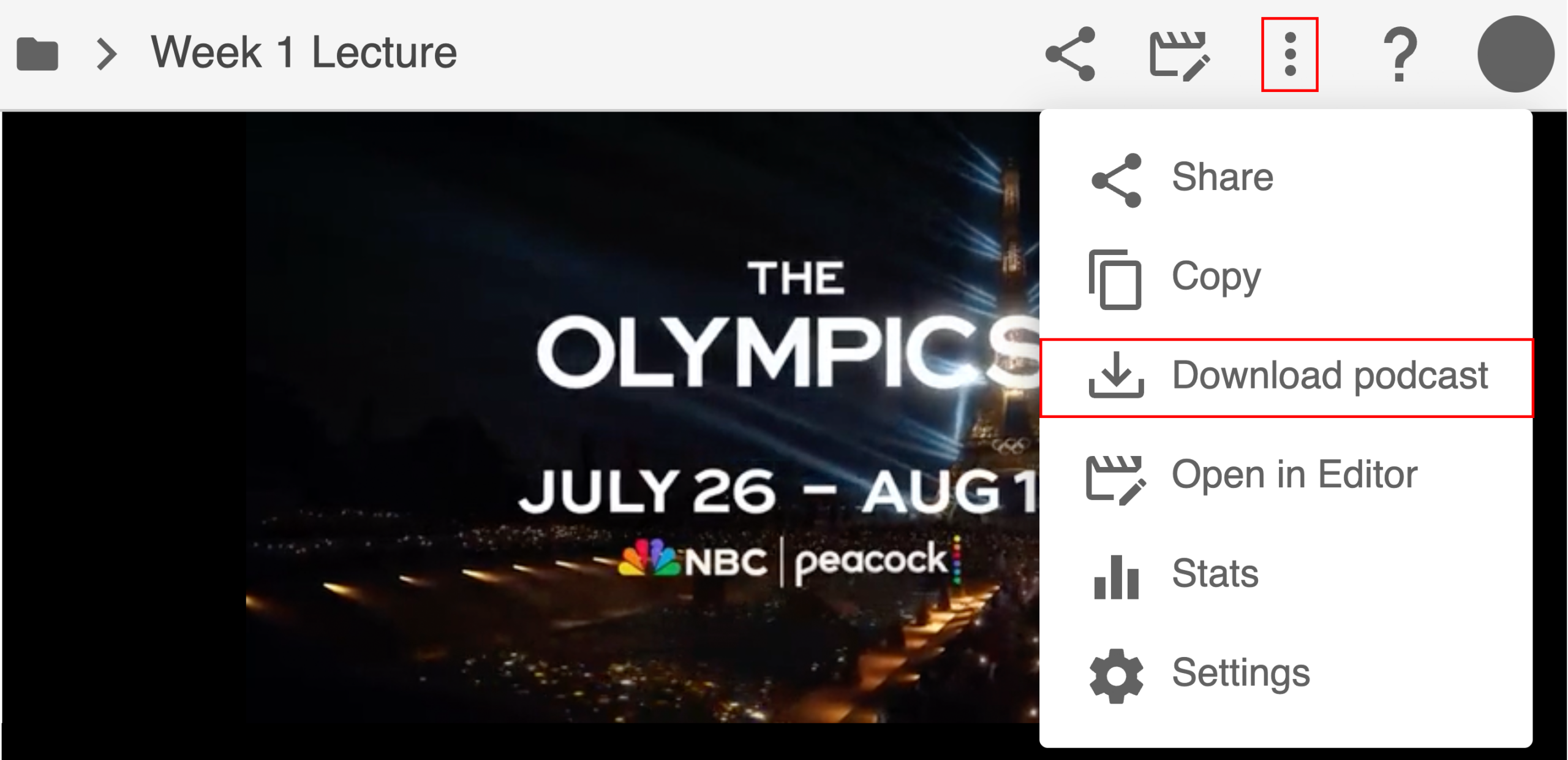
- Your download will automatically start.
How To Grant Access to Other Users for all Videos in a Folder
- Go to the Panopto tab in the course you want to grant download access to.
- Click on the three-dot icon and then on Settings:
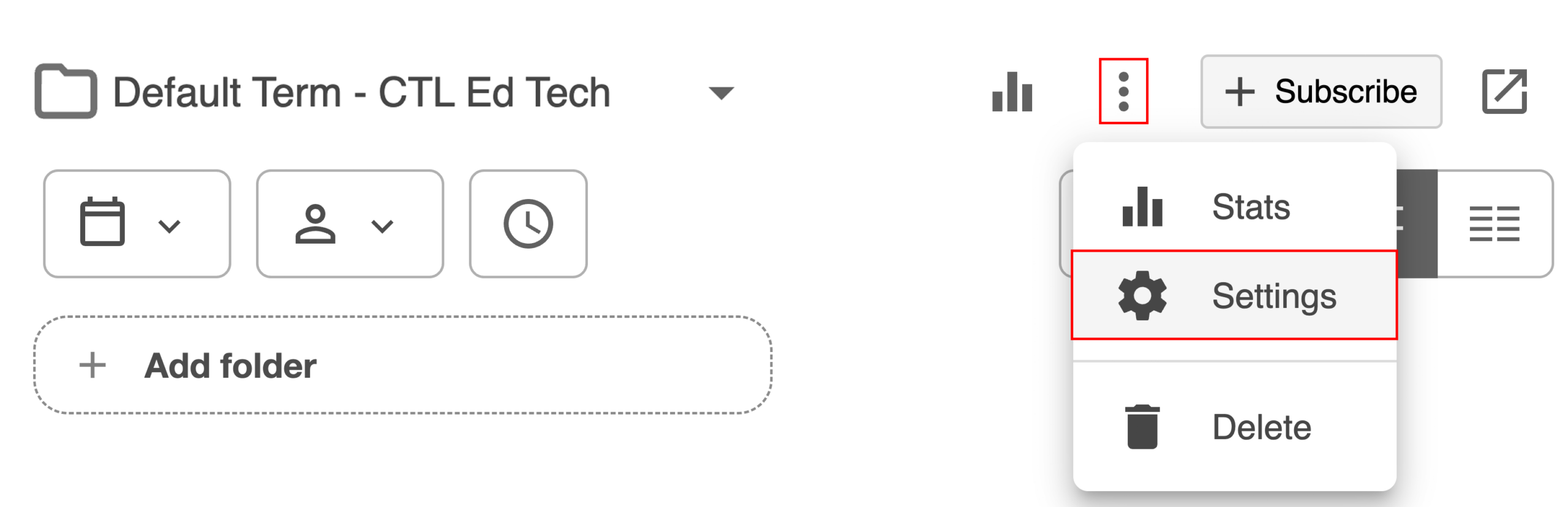
- Go to the Settings tab and scroll down until you find the Downloads section. Click on the dropdown and choose the “Authenticated users with access option”:

- Close the Settings page to apply the changes.
↳ NOTE: The top-level folder download permission does not cascade down to sub-folders. If you have sub-folders, you will need to follow the same process in the sub-folders to grant download access.
How To Grant Access to Other Users for an Individual Video
- Go to the Panopto tab in the course you want to grant download access to.
- Scroll down to the video you want to grant download access to and click on the Settings icon:
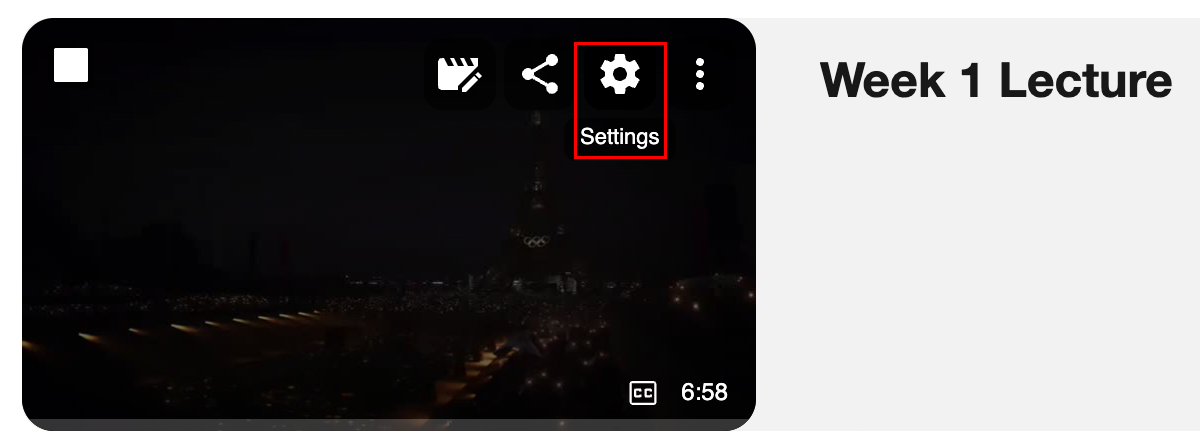
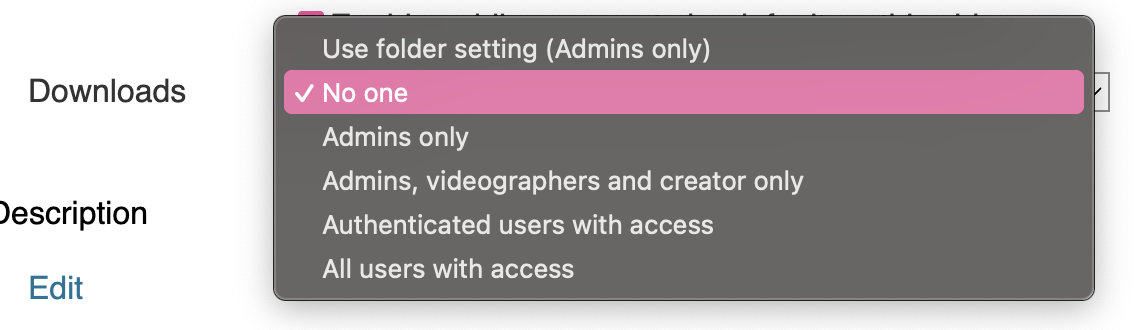
- Go to the Overview tab and scroll down until you find the Downloads section. Click on the dropdown and choose the “Authenticated users with access option”:
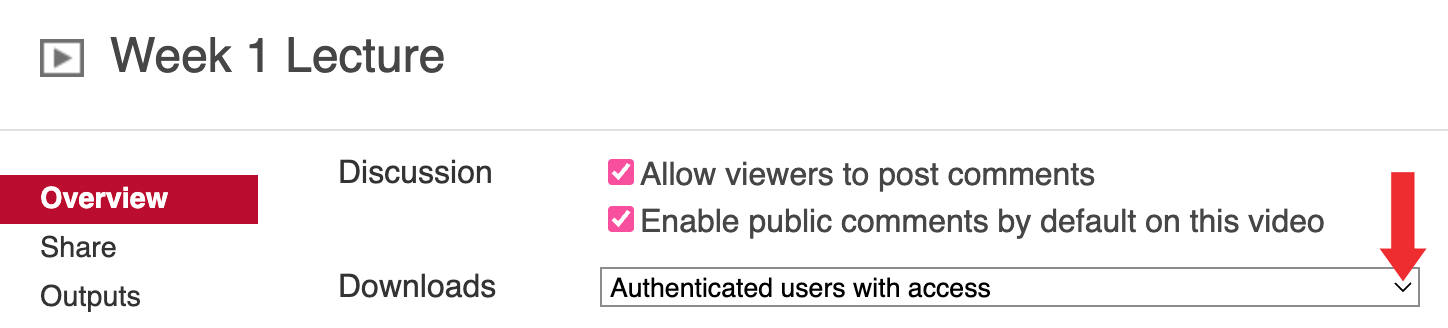
↳ Alternatively, if you want to disable downloads for a video in a folder where downloads are turned on, you can select the “No one” option:
- Close the Settings page to apply the changes.