Panopto Tutorials:
How To Download Media
Tutorial on how to download media on Panopto.
Downloads are disabled by default in Panopto. Media owners can grant download access to a video folder or to an individual video. The following tutorials will instruct you on how to do the following:
- How to create a personal download folder
- How to grant download access to other users for all videos in a folder
- How to grant download access to other users for an individual video
- How to download media that has download access
How To Create a Personal Download Folder
By default, every Panopto user is assigned a personal folder titled “My Folder”. You are the only user with access to it, which ensures you will be the only user able to download any media from it. To give yourself download access in your personal folder:
- Go to the Panopto tab in any of your courses and click on the down arrow dropdown icon next to the course folder name:

- Look for “My Folder” and click on it once it pops up:

- Click on the three-dot icon and then on Settings:
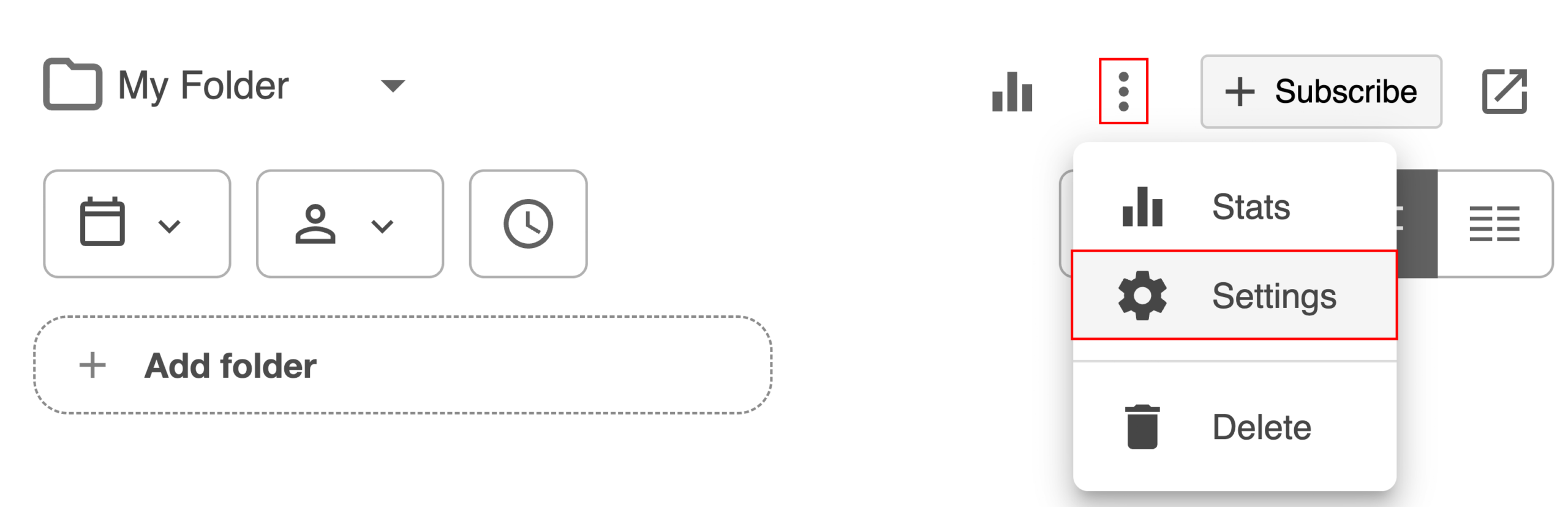
- Go to the Settings tab and find the Downloads section. Click on the dropdown and choose the “Authenticated users with access option”:

- Close the Settings page to apply the changes.
You’re done! Whenever you want to download a video, you can either copy or move the video into your personal folder. Follow these tutorials to copy or move videos:
How To Grant Access to Other Users for all Videos in a Folder
- Go to the Panopto tab in the course you want to grant download access to.
- Click on the three-dot icon and then on Settings:
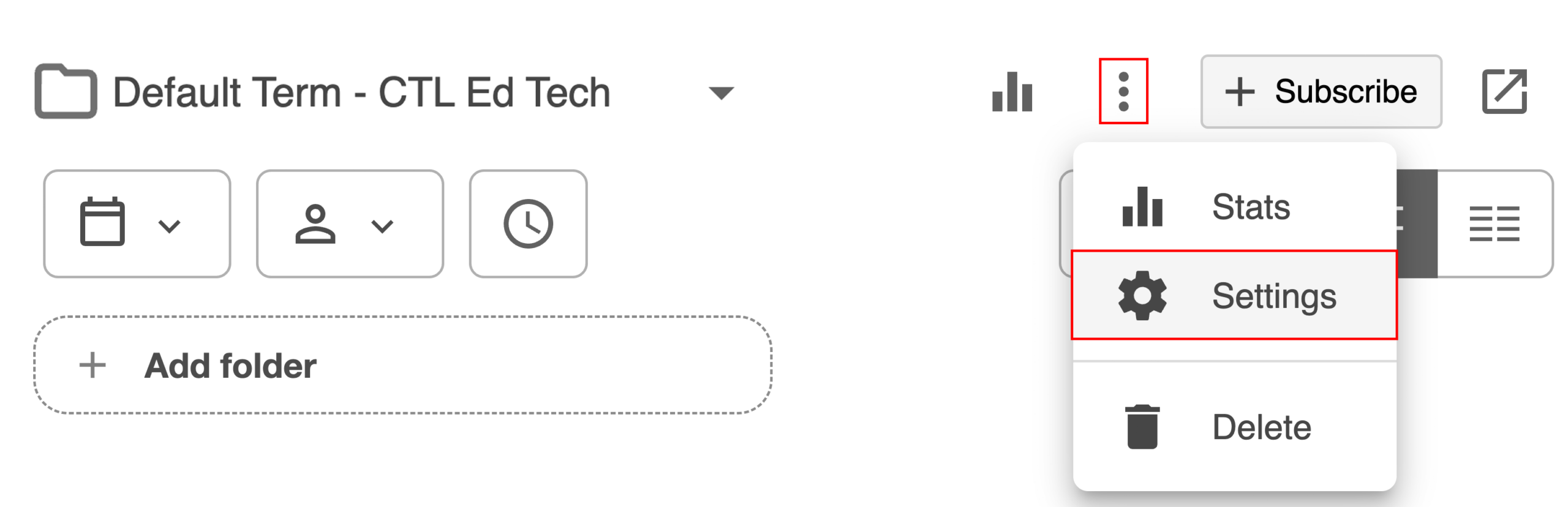
- Go to the Settings tab and scroll down until you find the Downloads section. Click on the dropdown and choose the “Authenticated users with access option”:

- Close the Settings page to apply the changes.
↳ NOTE: The top-level folder download permission does not cascade down to sub-folders. If you have sub-folders, you will need to follow the same process in the sub-folders to grant download access.
How To Grant Access to Other Users for an Individual Video
- Go to the Panopto tab in the course you want to grant download access to.
- Scroll down to the video you want to grant download access to and click on the Settings icon:
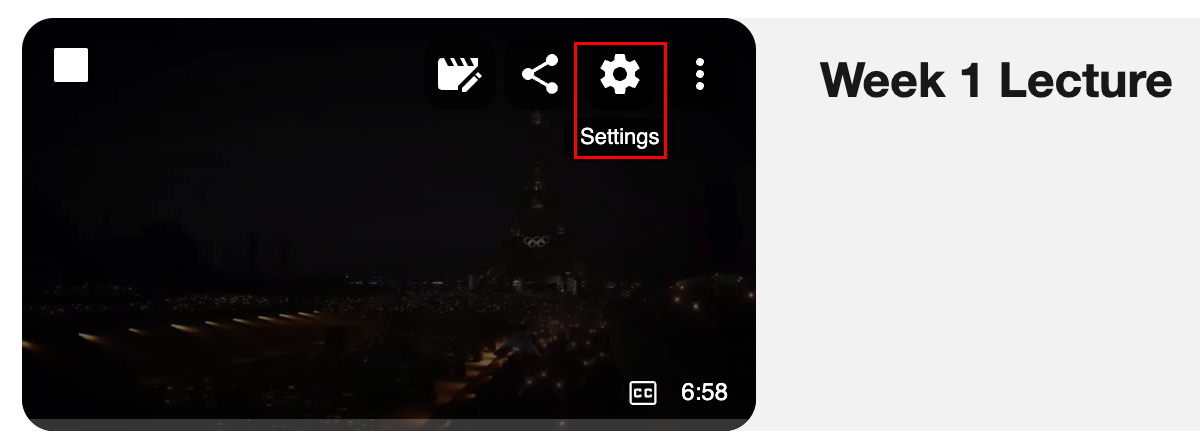
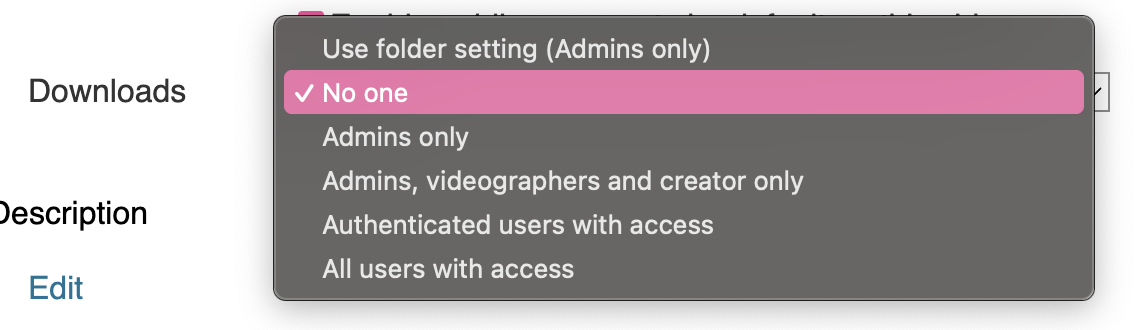
- Go to the Overview tab and scroll down until you find the Downloads section. Click on the dropdown and choose the “Authenticated users with access option”:
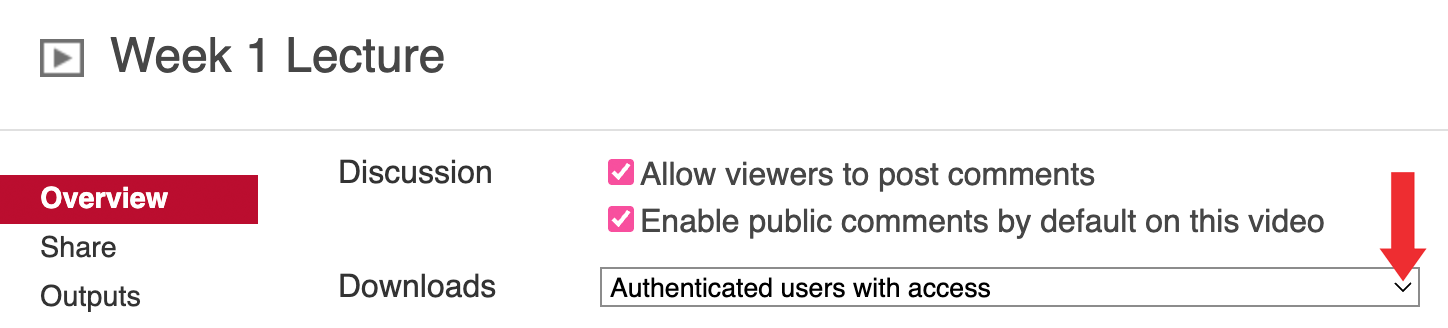
↳ Alternatively, if you want to disable downloads for a video in a folder where downloads are turned on, you can select the “No one” option:
- Close the Settings page to apply the changes.
How To Download Your Videos
- Navigate to the video you want to download and click on it.
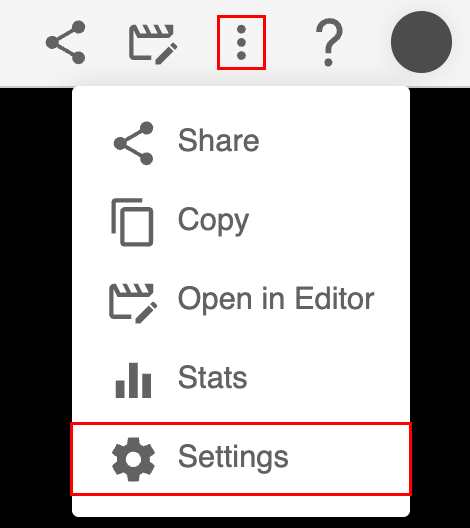
- The video will be opened in a different tab. Click on the three-dot icon on the top right corner and then on “Settings”:
- Go to the Overview tab and scroll down until you find the Downloads section. Click on the dropdown and choose the “Admins, videographers and creator only” option:

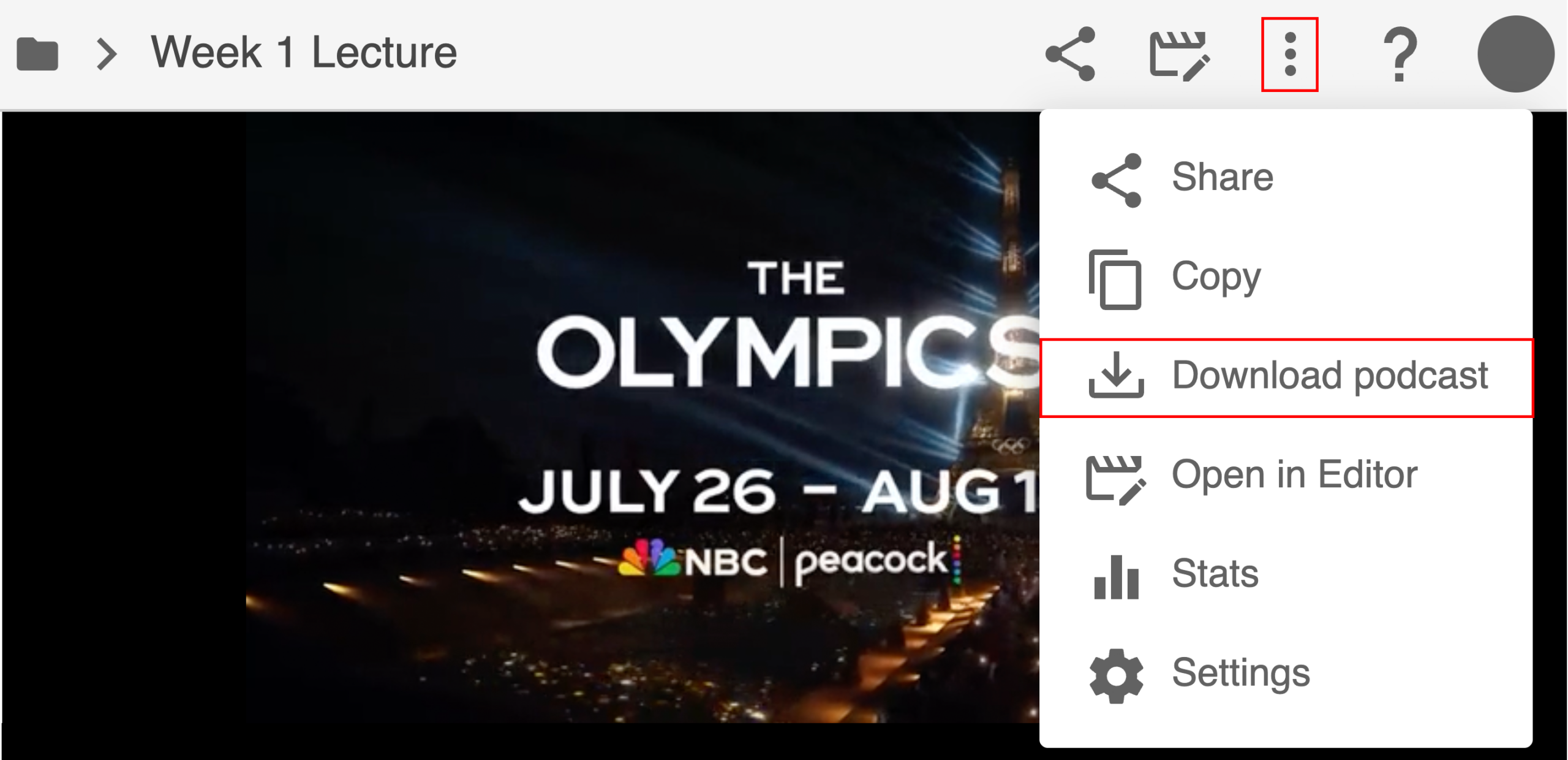
- Close the settings page and then refresh the video page. You will now have a “Download podcast” option when you click on the three-dot icon:
- Your download will automatically start.