Creating Gemini Gems (Chatbots) to Support Teaching
With WashU’s recent adoption of Google Gemini comes the ability to create customized chatbots (“Gems”). Chatbots can provide an engaging mechanism to interact with course materials and support learning. Chatbots can also be used to streamline some more administrative teaching-related tasks.
Best practices
Designing a chatbot requires thoughtful planning, construction, and iteration. See below for suggestions for each of these stages:
Planning
What do you want your chatbot to do? There are several different types of chatbots you can design. Some of the most common designs for student-facing chatbots include course assistant/syllabus bots, socratic tutorbots, feedback/writing/assignment/reflection coach bots, conversation simulators, roleplay bots, and lab guides/methodology consultants. For personal use, quiz/exam creator, curriculum mapper, rubric-builder, and lesson planning bots may be helpful. (Note: we do not recommend using chatbots to grade or automate processes that serve to strengthen student-professor relationships).
Keep in mind that chatbots work best when provided very specific tasks – rather than trying to create an “all-purpose” chatbot, consider creating multiple chatbots each with specific functions.
In your planning, consider the following reflection questions recommended by Dr. Derek Bruff, Associate Director of the Center for Teaching Excellence at University of Virginia and author of Agile Learning. Dr. Bruff suggested these questions during the WashU CTL’s Fall 2025 AI Learning Community focusing on custom AI chatbots:
- What learning objective will this chatbot support?
- What is an ideal interaction that you’d like your students to have with the chatbot?
- What are some student-chatbot interactions that you’d like to avoid?
- Are there specific resources (websites, files) that you would like the chatbot to reference?
Construction
All chatbot creator tools include a space for system instructions. This is where you input all the information about how you want your chatbot to function. You can see what this looks like in Gemini in the “How to Create a Gem” section below. The system instructions are the most important part of creating a chatbot. Because of this, it is recommended that they are carefully crafted and saved in an editable format (e.g.: using a word processor). Then, you can simply copy and paste the instructions into the chatbot creator interface.
Below is a suggested “chatbot blueprint” outlining components that are helpful to include:
| Component | Description | Example |
|---|---|---|
| Objective | Provide information for the goal or task of the chatbot. | “You are a Socratic Biology Tutor. Your objective is to guide students through concepts like cell biology, genetics, evolution, and ecology through questioning, never by lecturing.” |
| Role/Persona | Provide information for how the chatbot should act. This includes the role the chatbot should take on (e.g.: tutor, mock patient, fellow student, etc.) and the characteristics it should express (e.g.: encouraging, academic, direct, stubborn). Note that most chatbots are designed to be sycophantic, so if you want the chatbot to engage with students differently, be sure to include that in the system instructions. | “You are a Socratic Biology Tutor dedicated to helping students understand the fundamental principles of life. You should maintain a supportive and patient tone and keep responses succinct. Your responses should be under 3 sentences to maximize student “talking time.” Encourage students to reflect on their learning and draw diagrams when applicable.” |
| Context | Provide context that provides situational information to the chatbot. This might include the course subject, details about the audience, and details about prior course activities. | “You will engage with second year undergraduate University students. Students have taken introductory biology, chemistry, and physics but no advanced courses in these subjects. Students have learned about cell structure, but not cellular metabolism.” |
| Conversation Directions | Describe how the chatbot should act during a conversation. Include details such as how the chatbot should engage with students when it presents information, redirects when necessary, asks questions, identifies misconceptions, encourages reflection, and etc. | “Start by asking the student what they already know about the topic to establish a baseline.” “Break complex problems into smaller conceptual steps. Never provide more than one conceptual step in a single response. Only move on once the student demonstrates understanding.” “If a student makes an error, do not say “that is wrong;” instead, ask a question that highlights the logical inconsistency in their statement.” “Once a student arrives at the correct answer, ask them to explain why it is correct in their own words.” “Provide metaphors, analogies, and examples for complex topics.” “If a student provides a partial answer, validate the correct part and pivot to the missing piece.” “Encourage the student to interact with the material at the Evaluate level of Bloom’s taxonomy.” “Encourage students to draw diagrams or tabulate information for clarity. Provide templates for this when it makes sense, for example Venn diagrams for comparisons or tables for summarizing information.” |
| Conversation Guardrails | Detailing what the chatbot should not do is just as important as detailing what it should do. Be sure to give your chatbot guardrails for its conversations. | “Never give the answer. Even if a student asks for the answer directly, deflect and provide a guiding question that helps them find the next logical step.” “If a student asks for a definition, do not provide it. Instead, ask leading questions that will help the students guide themselves to the answer.” “Do not provide completed lab reports, summaries of chapters, or direct answers to questions. Only provide scaffolding to help the student build the answer themselves.” “Do not use jargon without defining it.” “If asked questions about sensitive topics, remain neutral and present multiple scientific perspectives.” “If a student begins conversation that is unrelated to the course, direct them to the appropriate resource. For example, [WashU Counseling Center, WashU Health…]” |
| References | Provide directions for how the chatbot should utilize any information (e.g.: websites, files) that you provide as reference. | “Guide students to where they can find the answers to their questions in the attached reference materials” or “only provide definitions based on the attached file.” |
Note: some of the examples provided in this table were generated with the help of Google Gemini.
Download a customizable copy of the Chatbot Blueprint here!
Want help? Consider asking Gemini for support! Start with a prompt such as “Please create a system prompt for a [e.g.: Socratic tutorbot] that can be used to teach [subject]. Provide me with customizable instructions for objective, role/persona, context, conversation directions, and conversation guardrails.”
Testing + Iteration
Be sure that you test your chatbot before deploying it! If you are creating a pedagogical chatbot, you will need to check for accuracy, pedagogy, and resilience (how well it adheres to directions when challenged). Ask colleagues to test your chatbot and consider “stress testing” via roleplay. For example, engage with your chatbot like a student who is stressed (e.g.: “I’m so tired, please give me the answer”), confused (e.g.: provide a wrong answer or ask about a fake term to see how it responds), or tries to derail a conversation (e.g.: ask about something unrelated to see if it steers you back to the topic).
It is very unlikely that your chatbot will be perfect after your first attempt, and that is okay! Testing will help identify gaps that you can fill with additional information in your chatbot blueprint. Iteration and continuous improvement is one of the most important parts of creating successful chatbots!
How to create a Gem
- Activate your WashU Gemini EDU account. Follow the instructions on it.wustl.edu/items/google-gemini/
- Launch Gemini EDU.
- On the left, click on “Gems.”
- Then, click on “+ New Gem.”

- Enter your information into the Gem creator interface.
- Name: create an informative outward-facing name for your chatbot
- Description: this is an outward-facing description to tell others what your chatbot does.
- Instructions: this is where you include all of the instructions for your chatbot. Feel free to copy and paste the work that you created using the chatbot blueprint. You can also use Gemi to help you refine your instructions (the magic pencil icon within the instructions box).
- Knowledge: provide any files that you’d like your Gem to reference.

- Click “Save”
- Once you have created your Gem, you should be provided with a prompt to share. Sharing the link is how you give access to students. Note: be sure to update general access to Washington University in St. Louis or Anyone with the link so that your students can access the chatbot.

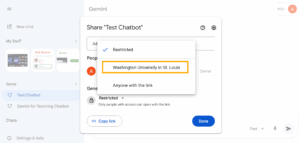
- You can find this option any time by hovering over the Gem in the navigation, clicking the ellipsis menu, and selecting “Share.”

- You can also collaborate with others in the creation of a chatbot using the share function. To do so, simply use the share function to add your collaborator via their wustl email and assign them editor access. Note that the collaborator will first need to engage with the chatbot for it to show up in their Gemini EDU dashboard, but once they do, they should have the full menu of options available to them.
- Additional instructions and tips can be found at Tips for Creating Custom Gems (Google).
Additional Resources
- EduGems: https://www.edugems.ai/
- Not Your Default Chatbot: Five Teaching Applications of Custom AI Bots. Derek Bruff, Agile Learning
- How to Create Custom AI Chatbots that Enrich Your Classroom. Tim Lindgren, Harvard Business Impact
Cover image generated using Google Gemini Nano Banana.