Panopto Tutorials:
Panopto Capture
Tutorial on how to use the Panopto web recorder.
If you are not able to install the Desktop app, you can use the Panopto web recorder as another option.
Please note: the Panopto Capture web recorder uses failsafe recording, where your captured media is stored on the local file system using a database within the web browser. This means that even if your browser crashes or your computer turns off, your video will finish uploading the next time you launch Capture. With that said, WashU strongly recommends that you use the desktop application if at all possible.
To use Panopto Capture:
- Go to the Panopto tab on your Canvas course, click on “+ Create” and then select “Panopto Capture”:

- The Panopto Capture window will open:

- A: Choose your audio source, or remove audio.
- B: Choose your video source, or remove video.
- C: Choose your secondary source to screen record, or remove secondary source.
- D: Start recording.
- E: Change recording settings:
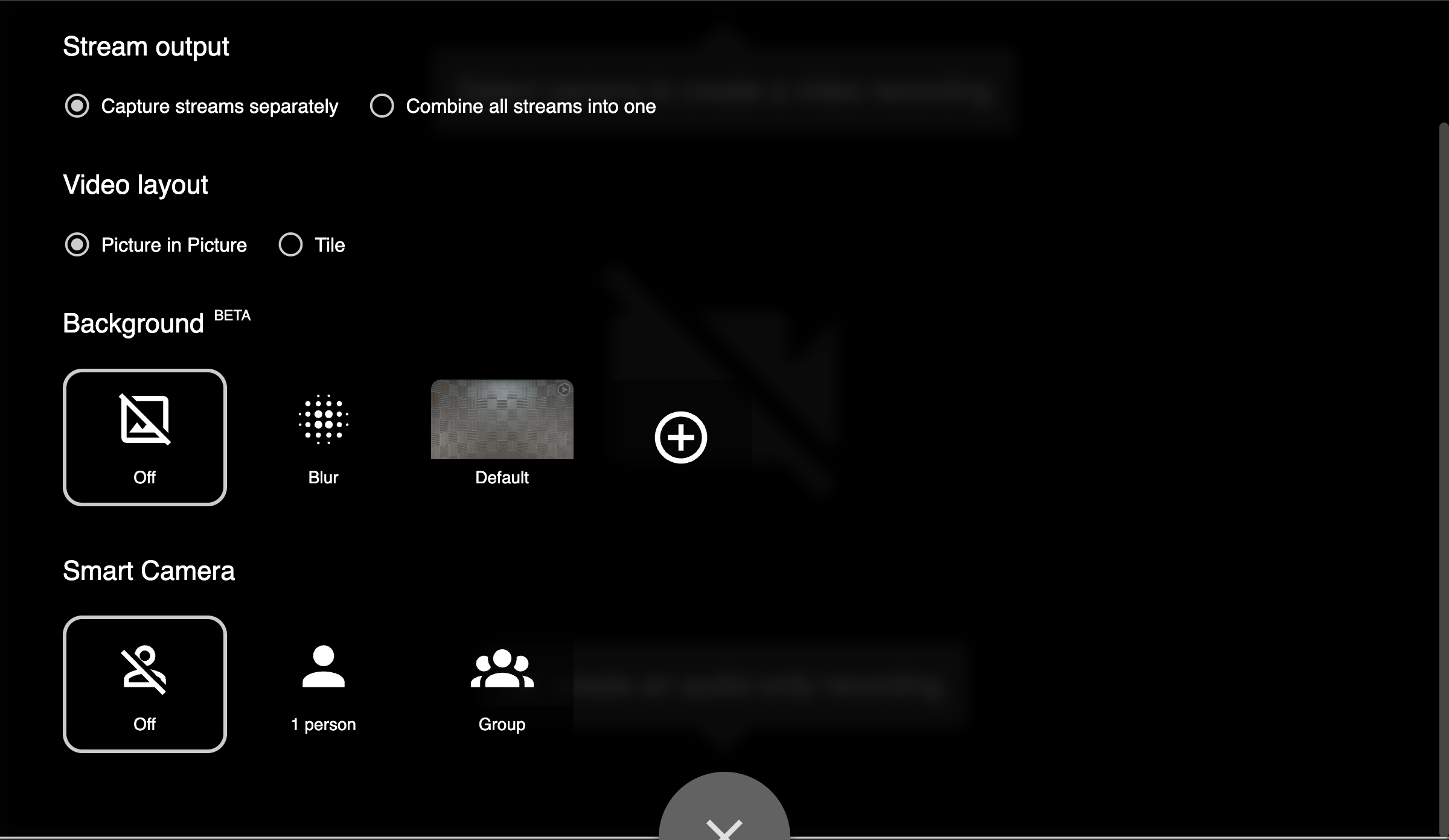
- Click the stop button when you’re done. You will now have the following options:
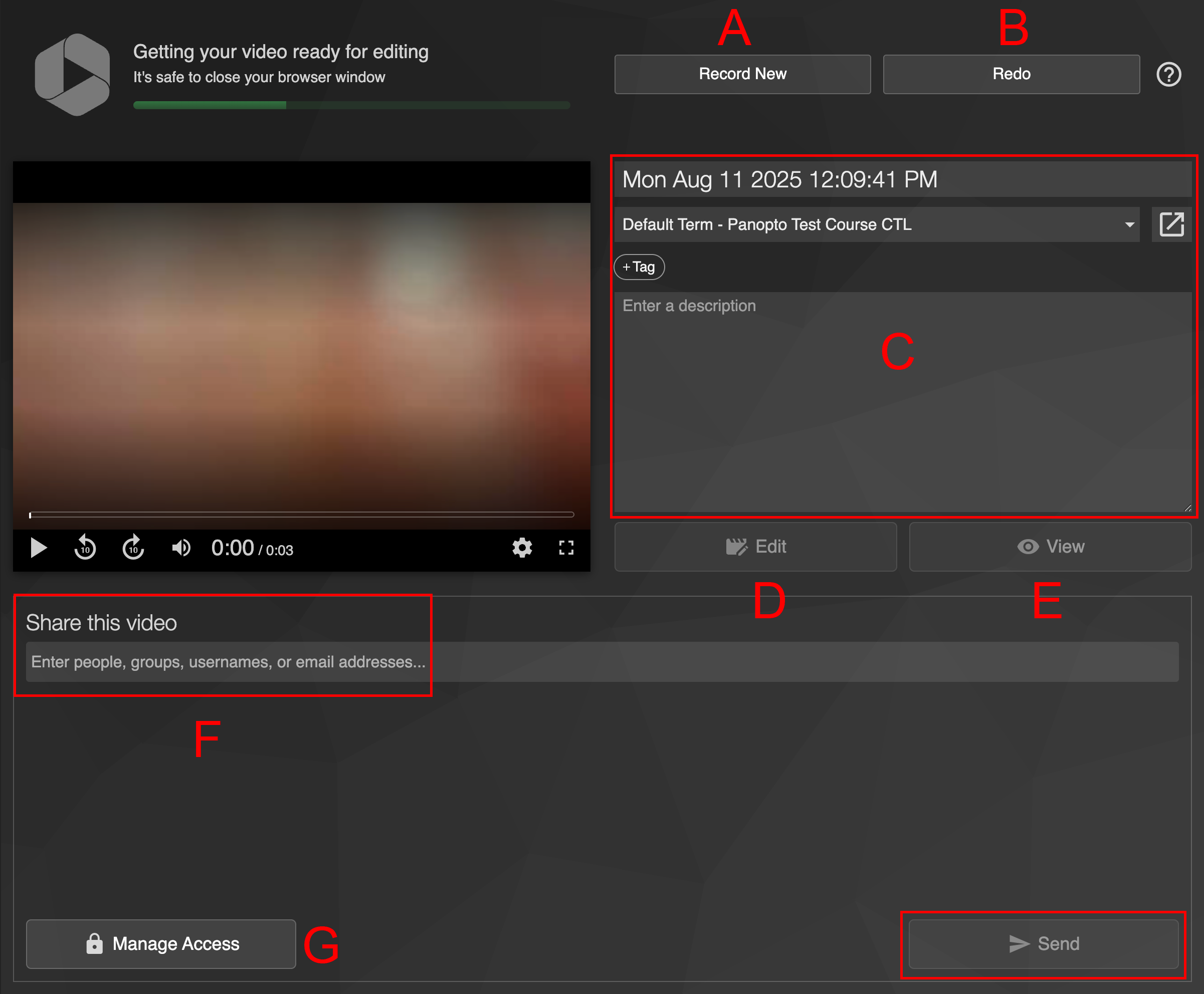
- A: Start a new recording.
- B: Delete current recording and record again.
- C: Edit the recording’s description.
- D: Go to the online editor.
- E: View recording on the web interface.
- F: Share video with other users.
- Enter the user’s name in the textbox and then hit “Send”.
- G: Go to the sharing options in the web interface.