Panopto Tutorials:
How To Upload Media
Tutorial on how to upload media to Panopto.
Method One: Media Upload
- Go to the Panopto tab on your Canvas course, click on “+ Create” and then select “Upload media”:

- Use the default course folder, or select a different folder as desired from the drop down menu:

- You can now either choose to drag and drop the media between the dashed lines or click between the dashed lines to open a window and select a file from your computer:

- Once the upload is complete, you will have a few options:

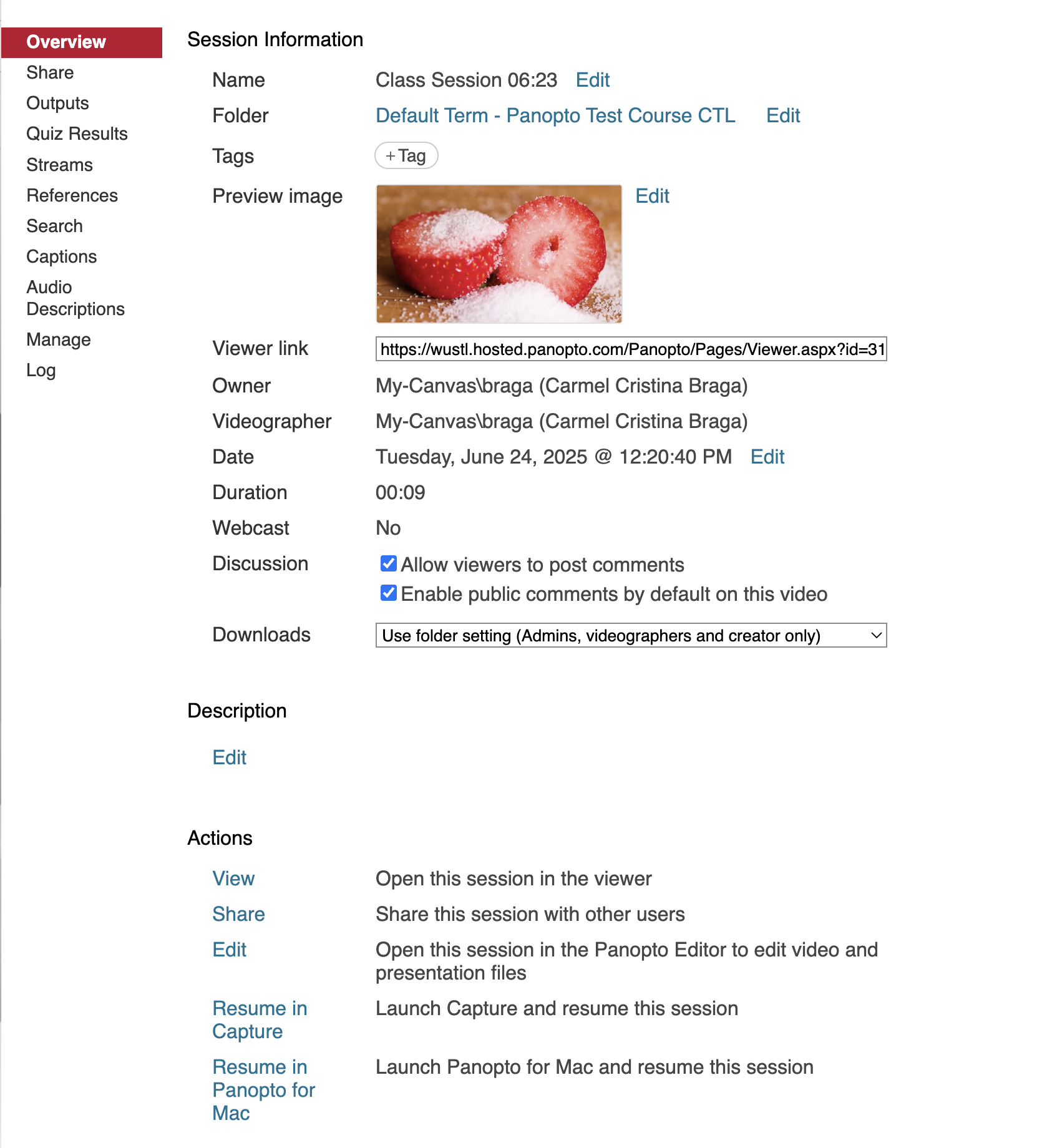
A. Overview: The  icon will take you to the overview page where you can make changes to the media metadata, add tags and explore the other tabs that offers features such as ordering captions and changing output formats.
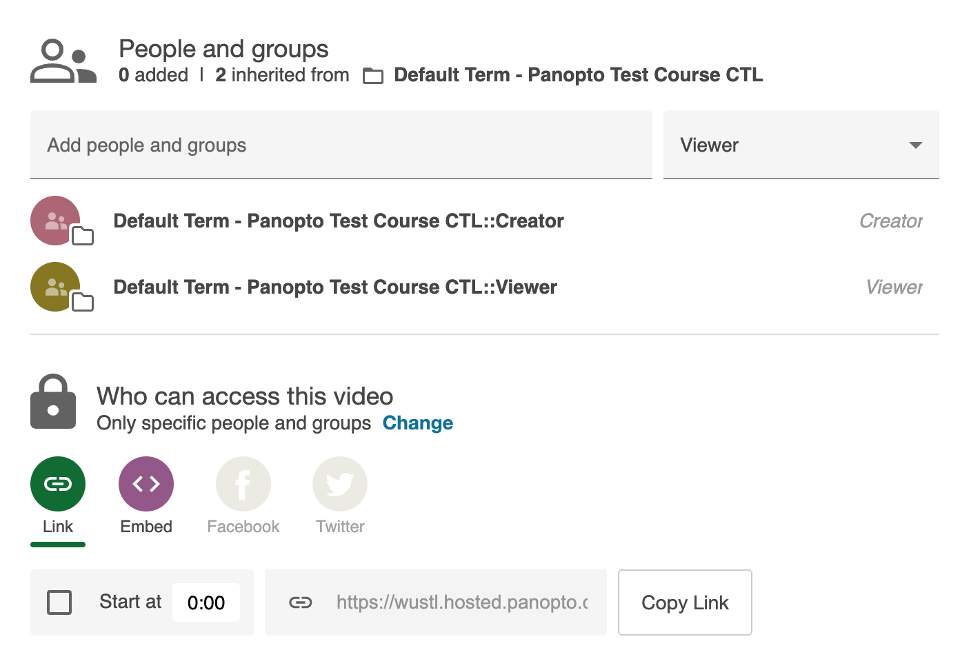
B. Share: The  icon will take you to the share page where you can change the sharing settings and generate embed codes and sharable links.
C. Edit: The  icon will take you to the Panopto Editor. You can find a tutorial on how to use the editor here: https://ctl.wustl.edu/panopto-tutorials-edit/
D. Play: The  icon will take you to the Player to watch the video you just uploaded.
E. Delete: The  icon will delete the video and cancel the upload.
Method Two: Drag & Drop
NOTE: If you want to upload media to the default course folder, please skip to step 3.
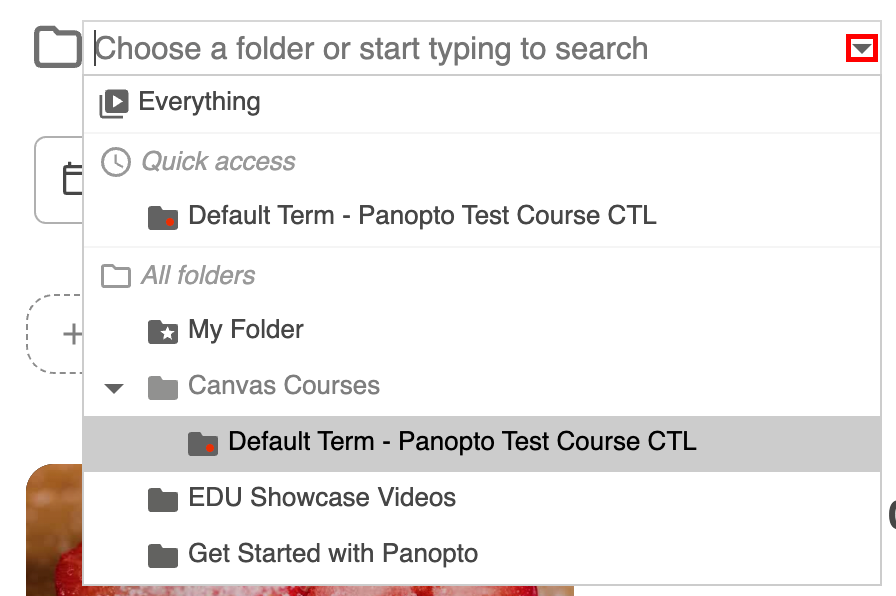
- Go to the Panopto tab on your Canvas course, and click on the Folder dropdown under the Search bar.
- Navigate to the folder you want to upload your media into:
- Drag and drop the video from a folder on your computer into the window:
