SensusAccess
Resource Overview
Guide to using the SensusAccess Canvas integration and standalone file converter
SensusAccess is a self-service media and document conversion service that allows students, faculty, and staff to easily convert documents into a range of alternate media. SensusAccess can also help make documents like image-only PDF files, PowerPoint presentations, and LaTeX projects more accessible. The SensusAccess tool is available as a Canvas integration and as a file converter on an external website.
For more ideas and technical support, email us or schedule a consult with a CTL staff member.
Overview
- Features
-
- Free to use with WashU institutional license
- Available as a Canvas integration or via a standalone website
- Create eye-guiding, color-gradient text with BeeLine Reader
- Turn text files into MP3 audio files
- Convert files into EPUB, EPUB3 and Mobi eBooks
- Create ready-to-emboss Digital Braille files
- Administered and supported by WashU CTL
- Reasons to use SensusAccess
-
- Improve the overall accessibility of your course
- Create content that offers multiple means of representation, a core principal of Universal Design for Learning (UDL)
- Promote learner autonomy by allowing students to choose how they engage with course materials
- Research has shown that all students benefit from accessible content, not only students with documented disabilities (Wilkins et al., 2021)
- Ideas for Teaching with SensusAccess
-
SensusAccess is new to our support portfolio, so we’ll add more to this section as we encounter new use cases. If you have an idea for teaching with SensusAccess, we’d love to hear from you! Please email ctl@wustl.edu.
Easy:
- Enable SensusAccess in your Canvas course
- Show students how to use SensusAccess in class and provide example ways they could use the tool to engage with course texts
Medium:
- Use SensusAccess to turn lecture slides into accessible, tagged PDFs
- Have students engage with the same content in different modalities (ex: text and audio) and reflect on how each format affects their comprehension and engagement with the material
Advanced:
- Encourage skill-building in digital publishing or web content creation by having students develop portfolios of accessible documents that can be shared with communities beyond the classroom
Tutorials
- Tips for Getting the Most Out of SensusAccess
-
- High-quality input documents will lead to higher-quality conversions. Try to use scans that are free from smudges, dark marks, and highlighted text, and make sure your scans are as centered as possible and do no have a “perspective skew,” where the part of the page closest to the camera appears larger than the part that is farther away. Off-center, skewed scans can make it difficult for the tool to successfully read and tag text.
- Be mindful with your use of tables. Like many accessibility tools, SensusAccess struggles with complex tables. Consider alternatives to tables when creating your own documents.
- Familiarize yourself with the SensusAccess Best Practice Guides for formats you use frequently.
- Activating and Using SensusAccess in Canvas
-
Activating SensusAccess for Canvas
To enable SensusAccess in Canvas, email ctl@wustl.edu and provide the name of your course as it appears in Canvas (example: Fall 2025.CWP.1506.18).
Using SensusAccess Inside Canvas
Step 1. Once SensusAccess has been enabled, go to an area of your Canvas course that contains content items (Modules, Pages, or Files are common areas that house content items).
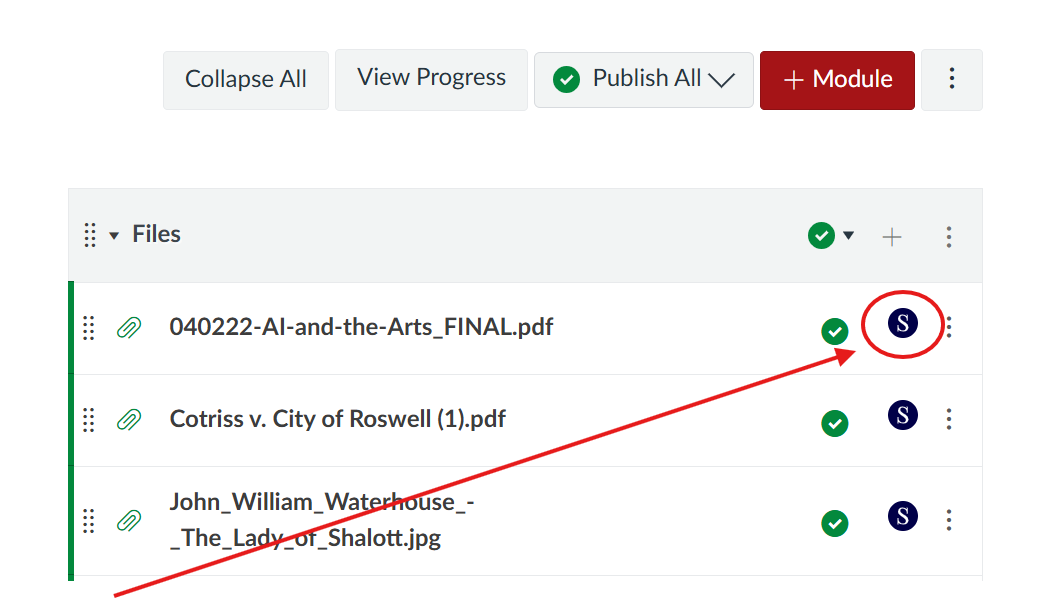
Step 2. Select the SensusAccess icon that appears to the right of the text you’d like to convert.
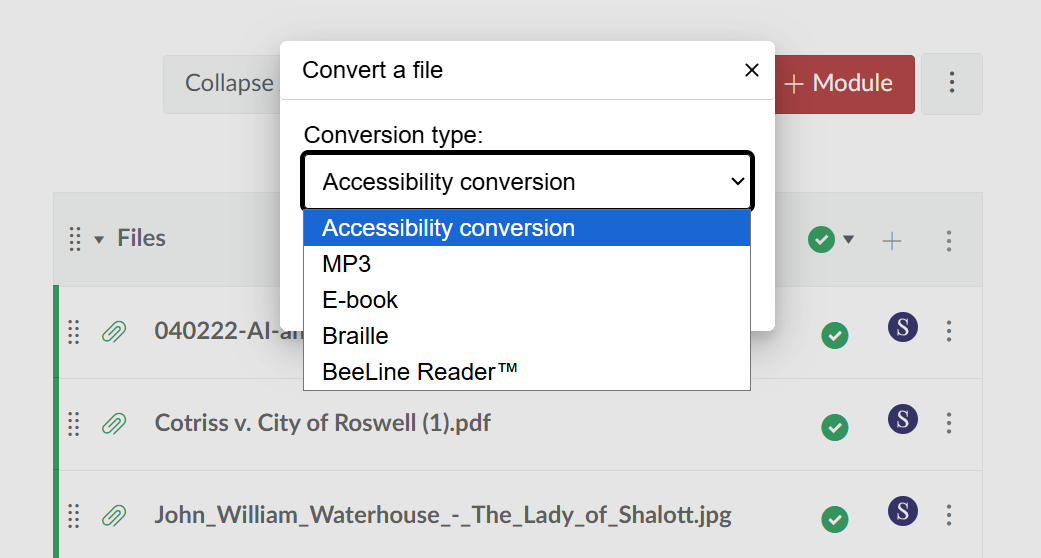
Step 3. Select your desired conversion type from the dropdown menu.
- Accessibility conversion. This option provides the widest range of choices for output file types, like CSV, DOC, DOCX, HTML, PDF, RTF, TXT, and XLS/XLSX. Available output options may depend on the original file type.
- MP3. MP3 files can be played by most users on devices like smartphones, tablets, or computers.
- eBooks. Properly formatted eBook files like EPUB and MOBI can be rendered to fit the display even when text is enlarged. These file options also allow the reader to change fonts, background and foreground colors, switch the scrolling direction, change line spacing, adjust the brightness, or increase the contrast of eBooks.
- Braille. SensusAccess can transcribe documents in a number of different Braille codes, including Unified English Braille, Spanish Braille, and more!
- BeeLine Reader. BeeLine Reader makes reading faster and easier by using eye-guiding colour gradients that help guide the reader’s eyes through the texts. This format is particularly useful for speed-reading and for users with reading-related disabilities.
Step 4. Customize your file output. Depending on your selected conversion type, you will be able to customize the file type (accessibility conversion) narrator speed and style (MP3), font size, (eBook), or lines and characters per line (Braille).
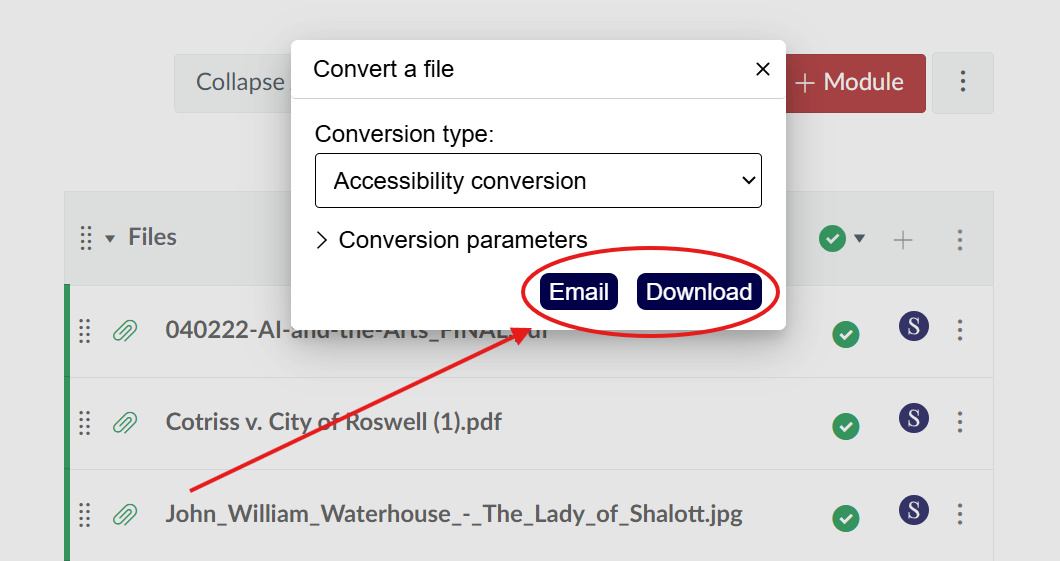
Step 5. Choose whether you would like the converted file to be sent to your email or if you’d like to download the file directly in your browser.
Tip: Depending on the file size, the “email” option often works more quickly than the direct “download” option. If you’re experiencing any issues with the download option, please try using the email feature instead.
- Using the SensusAccess Website
-
The SensusAccess website conversion tool is easy to use and free for all members of the WashU community.
Step 1: Visit the SensusAccess website and select your source type.
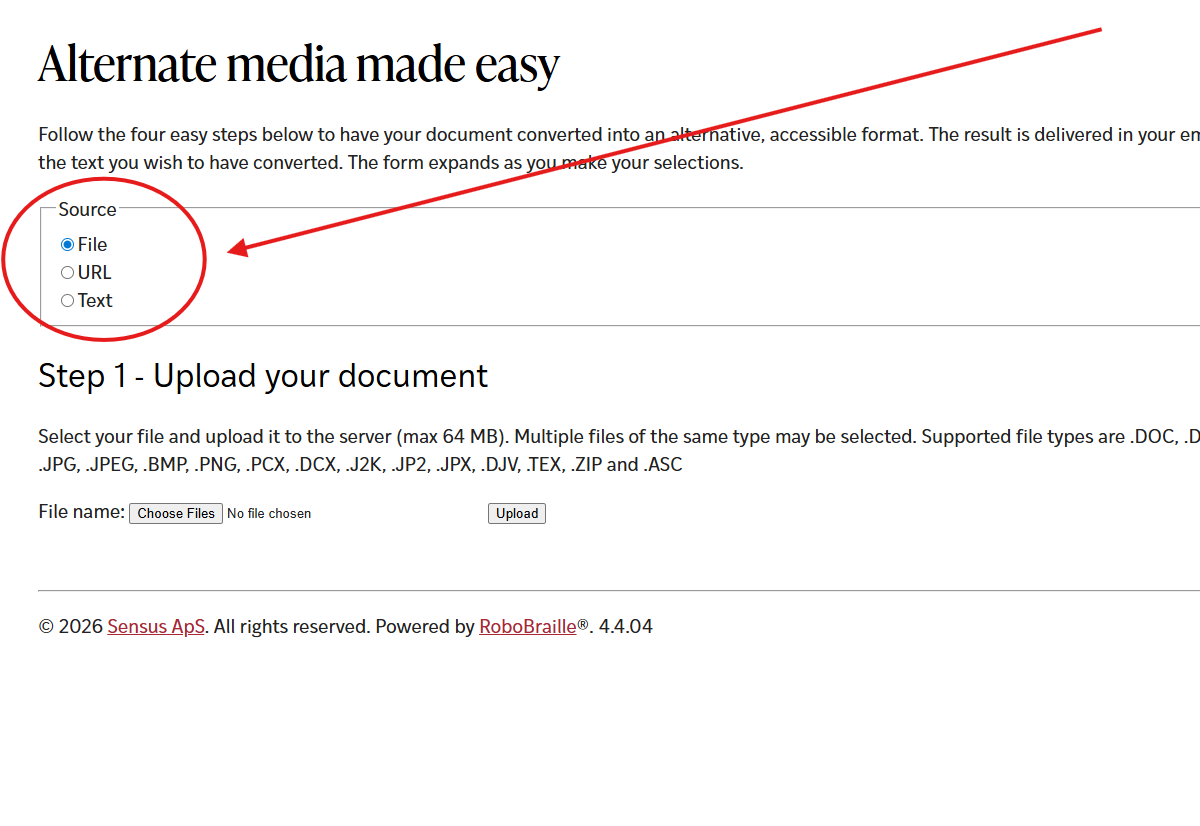
Step 2: Choose your file (or enter a URL or selection of text) and click “Upload.” Once your item is uploaded, you’ll receive a message that your document was successfully uploaded, and you’ll then be able to select your output format. NOTE: Output format options depend on the type of file you upload. For more information about all available output formats, please visit the SensusAccess target formats resource.
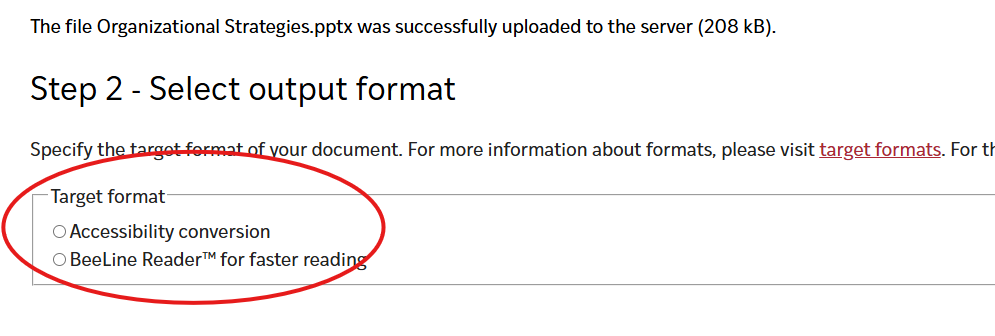
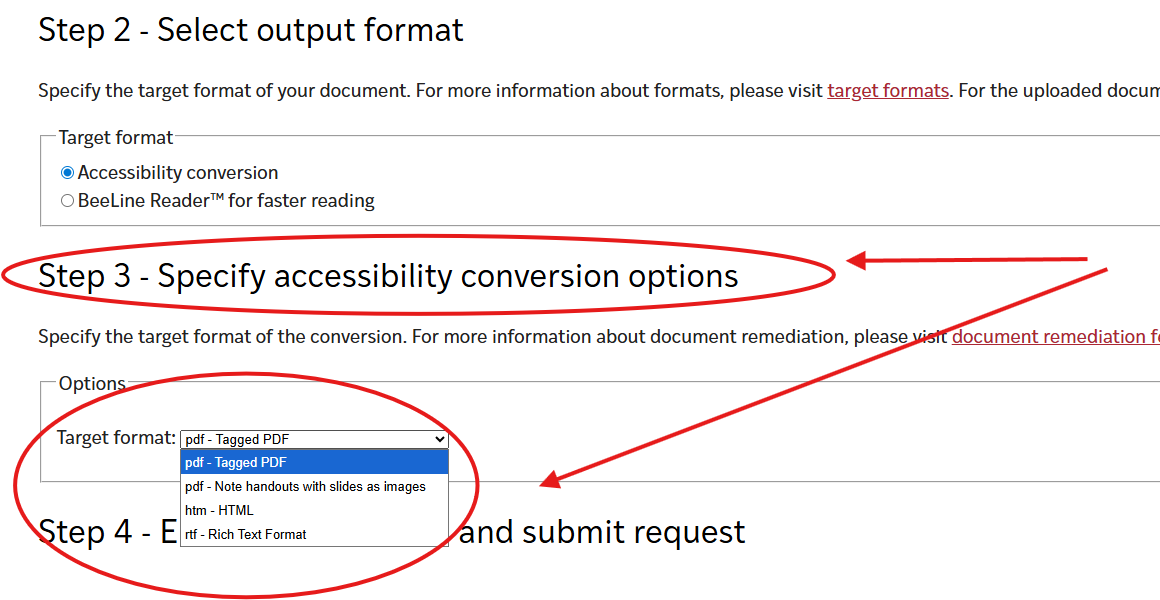
Step 3: Depending on the output format you choose, you may be asked to specify additional conversion options.
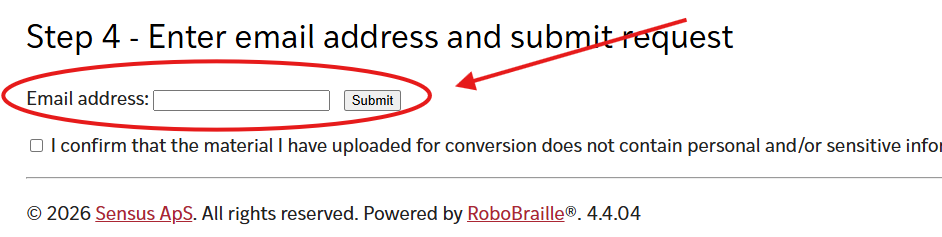
Step 4: In the final step, you’ll enter your WashU email address and confirm that the material you’ve uploaded does not contain any personal or sensitive information. Your converted document will be delivered to your email when it has finished processing.
- SensusAccess E-Learning Course
-
SensusAccess provides access to an e-learning course for universities with institutional subscriptions. All WashU students, staff, and faculty can access this asynchronous, 9-module course to become more familiar with SensusAccess and its various features.