Panopto Tutorials:
Kaltura Videos Didn't Relink Automatically in Panopto
Explanation of why your Kaltura videos may not have automatically relinked and how to re-add your video content to your Canvas course
As part of the transition to Panopto, Panopto ran an automatic relinking process to reconnect previously embedded Kaltura videos to their new Panopto counterparts. This process works by finding Kaltura videos embedded with the Kaltura embed tool in your Canvas course and swapping them for the matching Panopto video.
If you didn’t use the Kaltura embed tool in Canvas to add your video, the relinking process was not able to find and replace that video. This does not mean that your video content is lost. It just means that you’ll need to manually find the video in Panopto and embed it in Canvas yourself. The linked tutorials below walk you through both parts of that process.
- You’ll want to start by locating your Kaltura media by clicking the Panopto link in any of your Canvas courses. Your videos were copied into a folder called “Kaltura migrations,” organized by your user ID and course. For detailed instructions, see our tutorial on locating your migrated Kaltura content.
- Once you’ve located your content, you can move your media to your desired course’s Panopto folder.
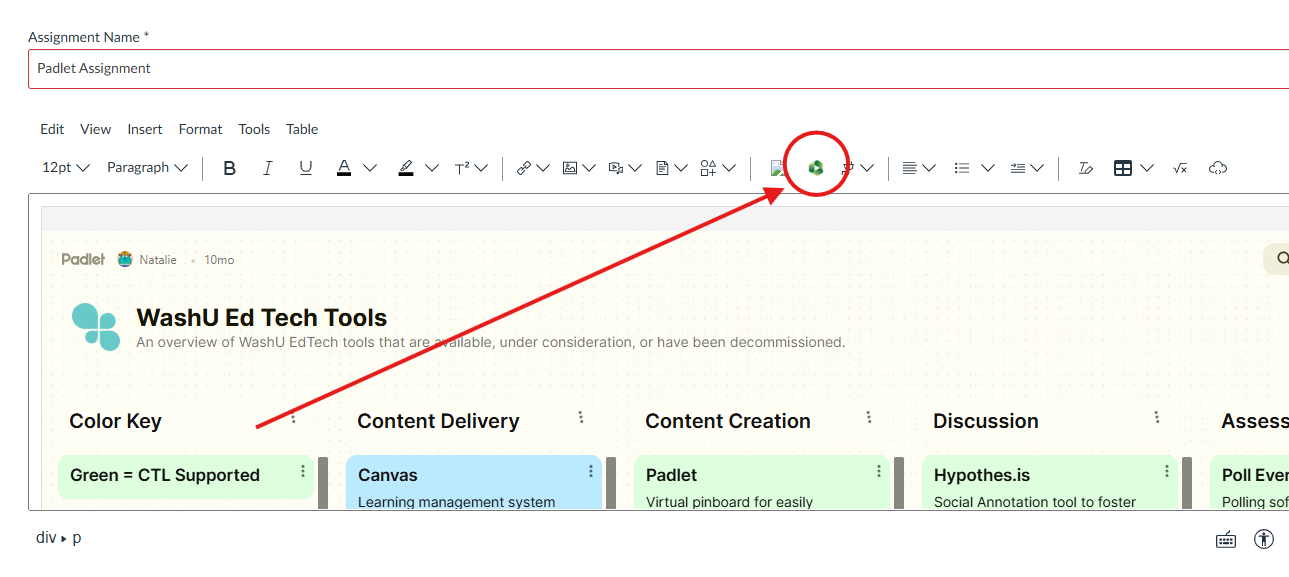
- Once your video is in your course’s Panopto folder, go to the Canvas page, assignment, or other area where you’d like the video to appear. Open the Canvas Rich Content Editor by editing your content or creating new content.
- In the Rich Content Editor toolbar, click on the green Panopto icon (see below).
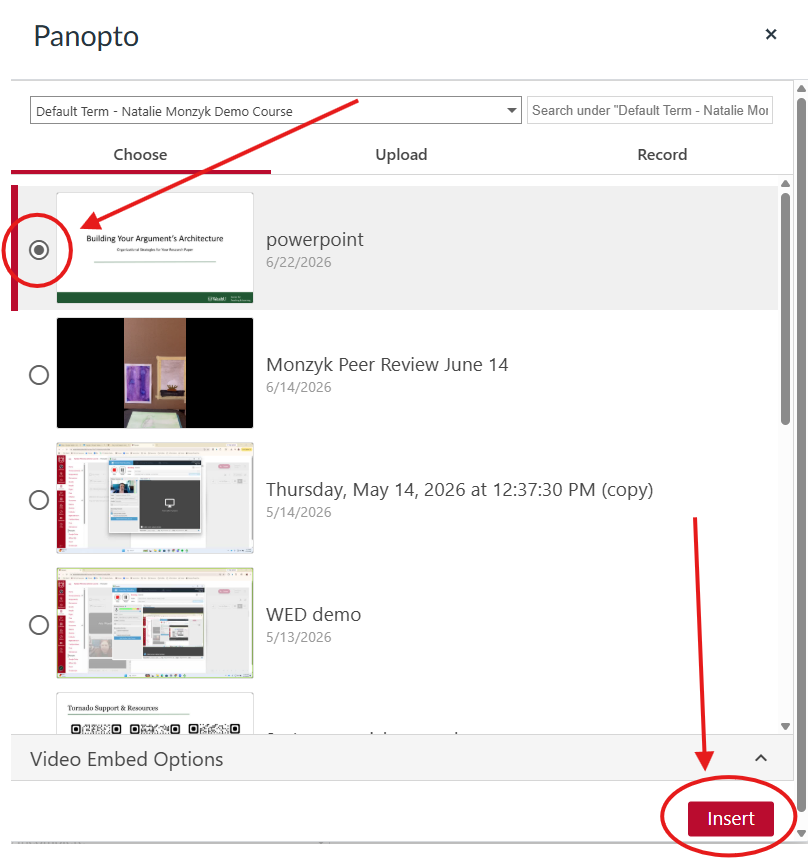
- Select the video you’d like to embed from the list, then click Insert.
- Click Save (or Save & Publish) on your Canvas page to finish.