Panopto Tutorials:
Folders
Tutorials on how to use folders in Panopto.
Course vs. Personal Folders
There are two main type of folders in Panopto:
- Course Folders: Each one of your courses will be automatically assigned a course folder that can be viewed by anybody in the course and your department administrator.
- Personal Folders: Every user will be automatically assigned a personal folder under the name “My Folder” that can only be viewed by you.
Accessing Folders in Canvas
To access a folder in Canvas, go to the Panopto tab in a course:
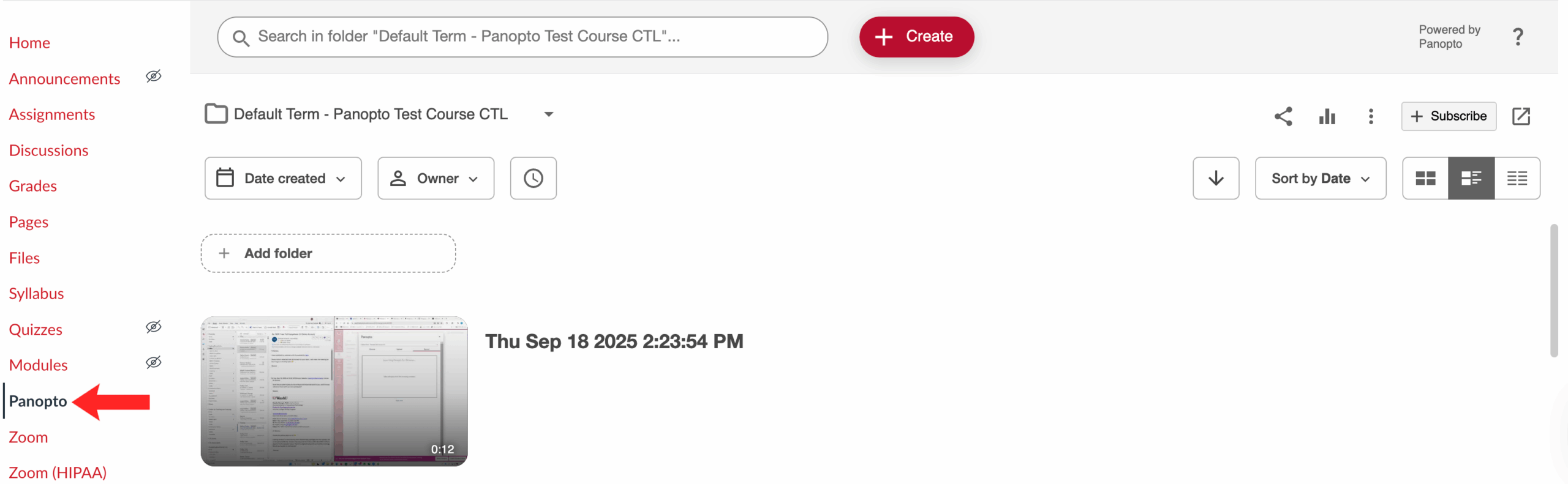
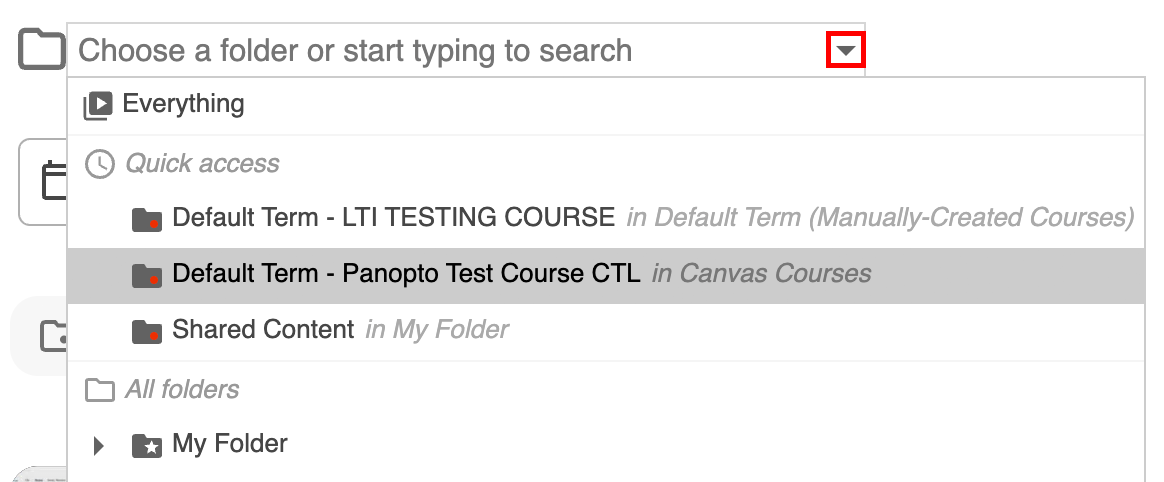
You can use the drop down to look through your folders. The folder will default to the course folder of the course you’re currently in:
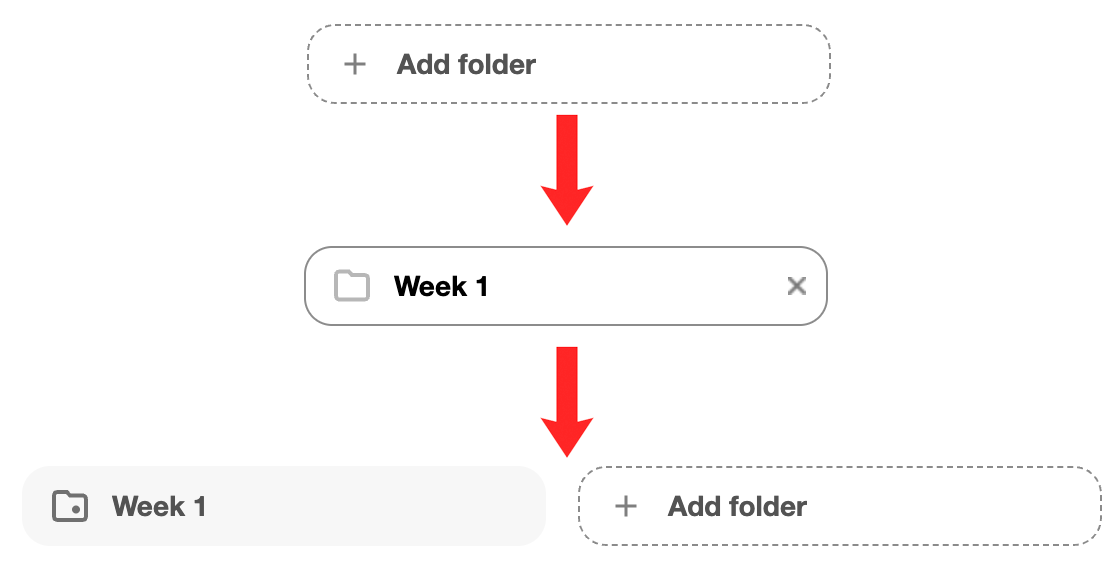
- To create a subfolder, click on “+ Add folder”, choose a name and press enter:
- The ellipse
 icon, will open the Actions menu: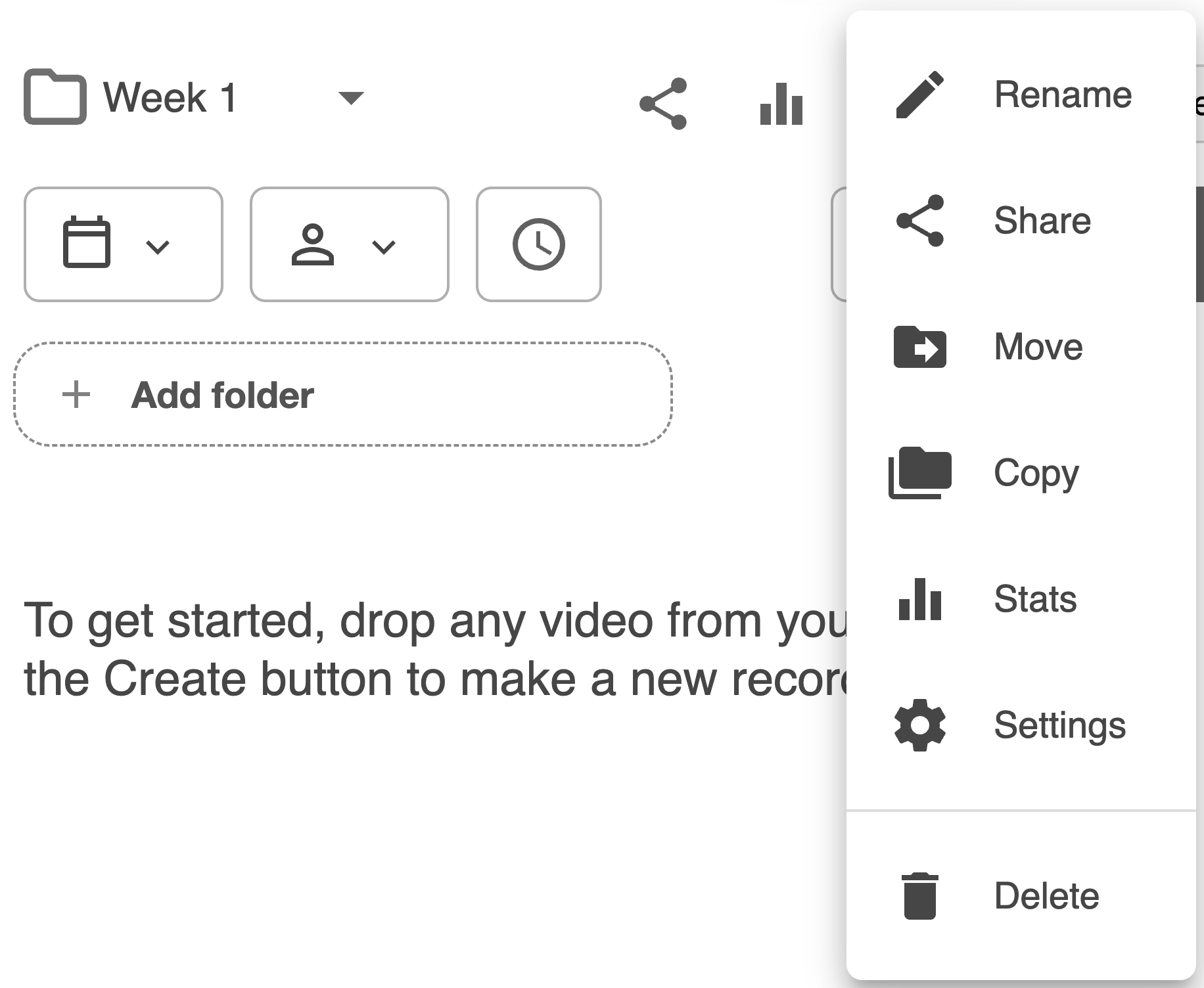
- Rename allows you to rename the folder.
- Share takes you to the sharing options for the folder.
↳ NOTE: Personal folders can not be shared. - Move allows you to move the folder.
↳ NOTE:You can not move top level folders.
- Select the new folder location from the dropdown and then click “OK:
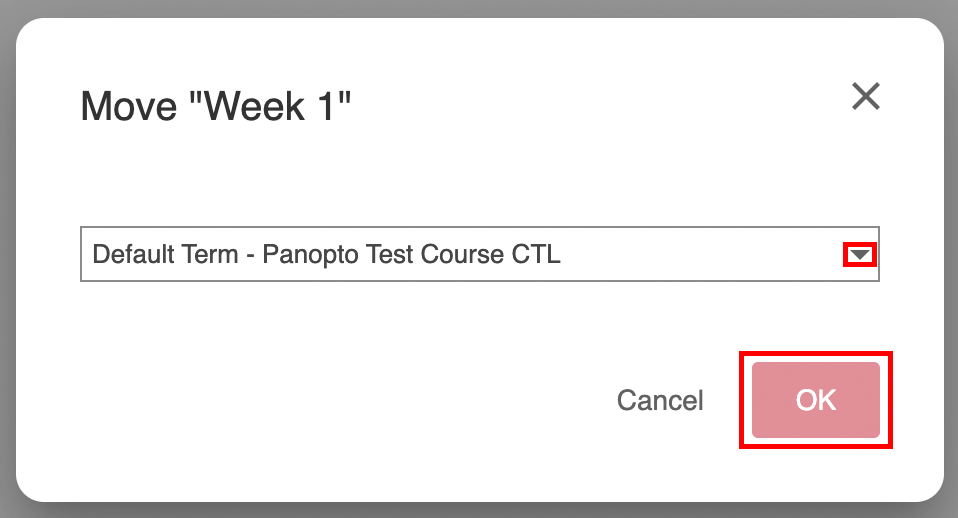
- Select the new folder location from the dropdown and then click “OK:
- Copy allows you to copy the folder:
↳ NOTE: You can not copy top level folders.
- Choose a name for your copy and click “OK”. The copy will be created inside the folder the original is in:
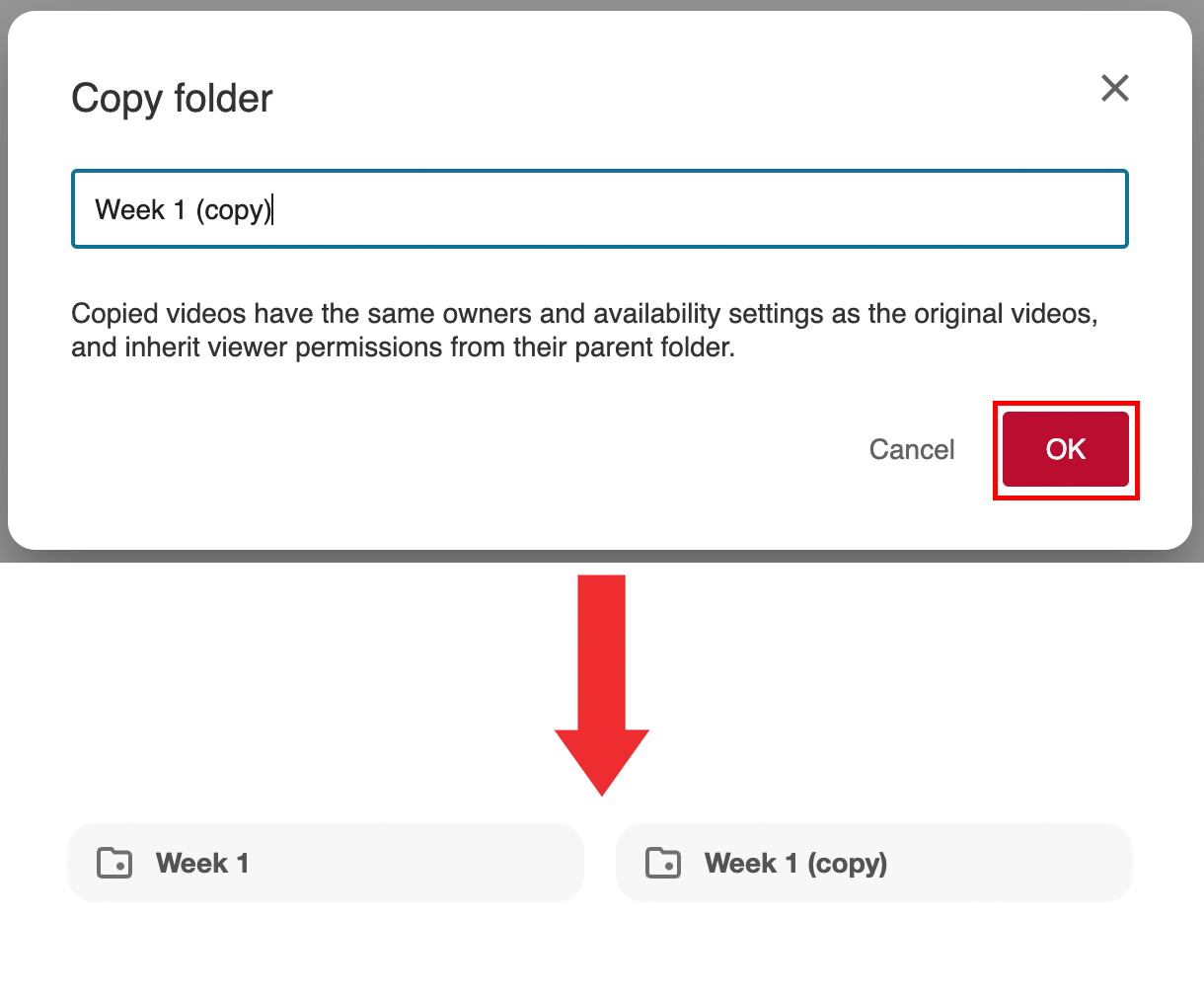
- Choose a name for your copy and click “OK”. The copy will be created inside the folder the original is in:
- Stats will display the viewing analytics for the folder.
- Settings will display the settings page for the folder.
- Delete allows you to delete the folder.
- Type in keywords in the Search Bar to find specific content:
- You can search words, and you will be shown instances where the word:
- appears in the title
- was spoken
- shown on screen
- shown in slides in a video
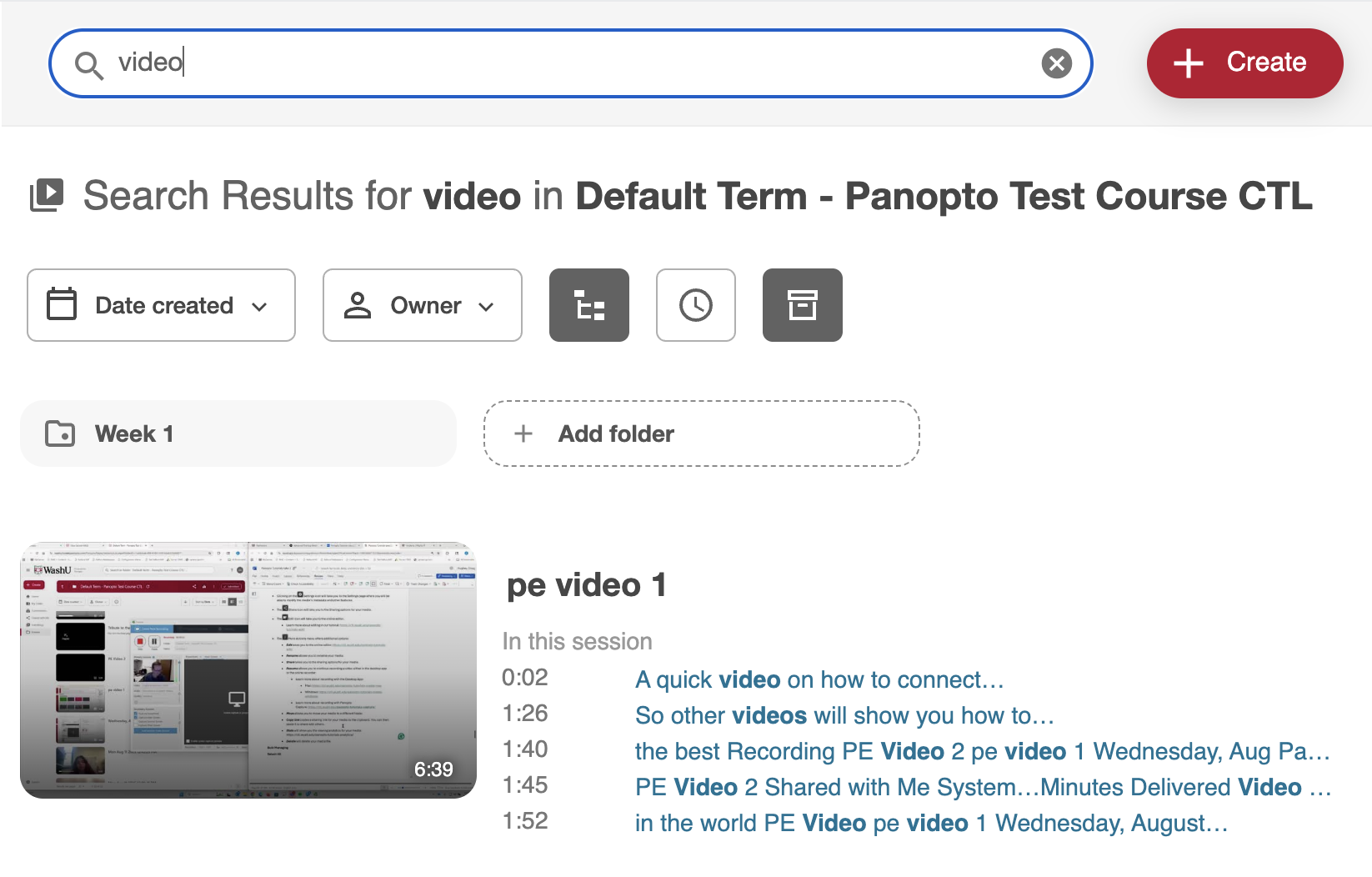
- You can search words, and you will be shown instances where the word:
- To add media to your folder, click the “+ Create” icon and follow these tutorials:
↳ NOTE: When adding media to a course, we recommend doing it directly to the designated course folder.
- How to Upload Media: https://ctl.wustl.edu/panopto-tutorials-upload/
- How to Create a Recording (Mac): https://ctl.wustl.edu/panopto-tutorials-create-mac/
- How to Create A Recording (Windows): https://ctl.wustl.edu/panopto-tutorials-create-windows/
Accessing Folders in the Web Interface
To access the Panopto web interface, login at: https://washu.hosted.panopto.com
- Click on “My Folder” to access your personal folder:
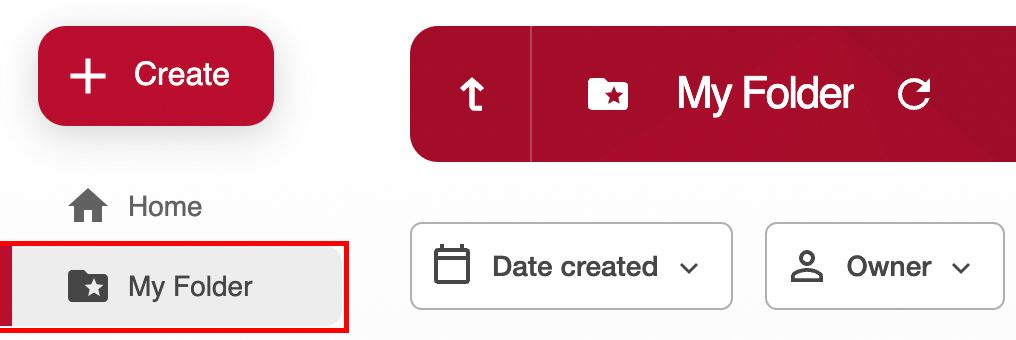
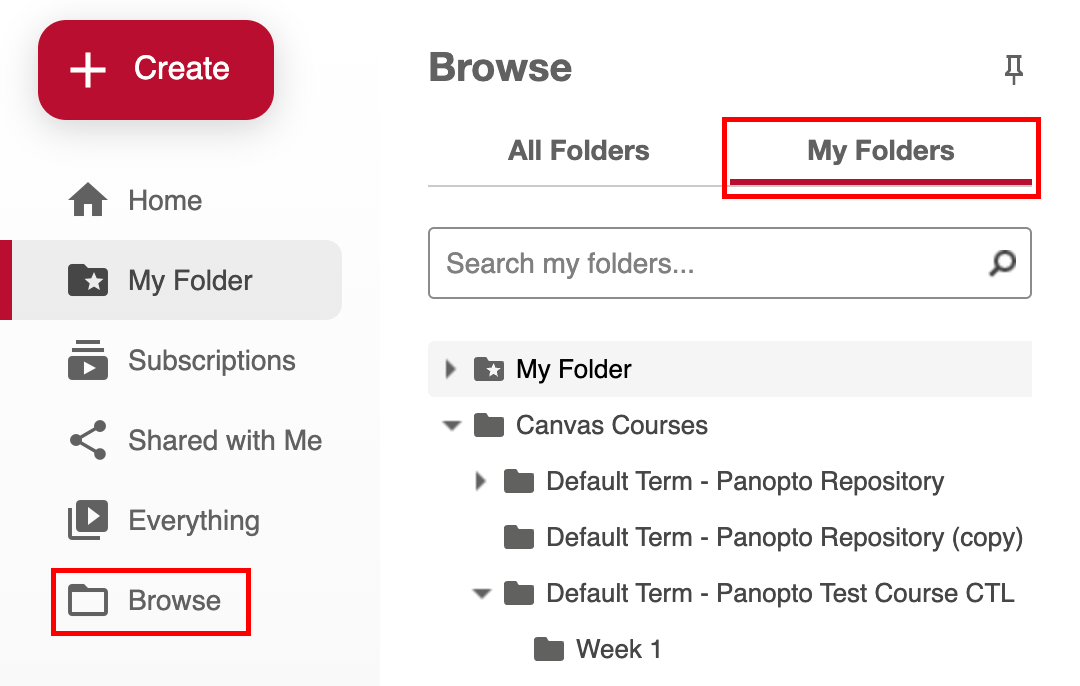
- Click on “Browse”, then “My Folders” and locate your course folder to access it:
- To create a subfolder, click on “+ Add folder”, choose a name and press enter:
- The ellipse icon, will open the Actions menu:
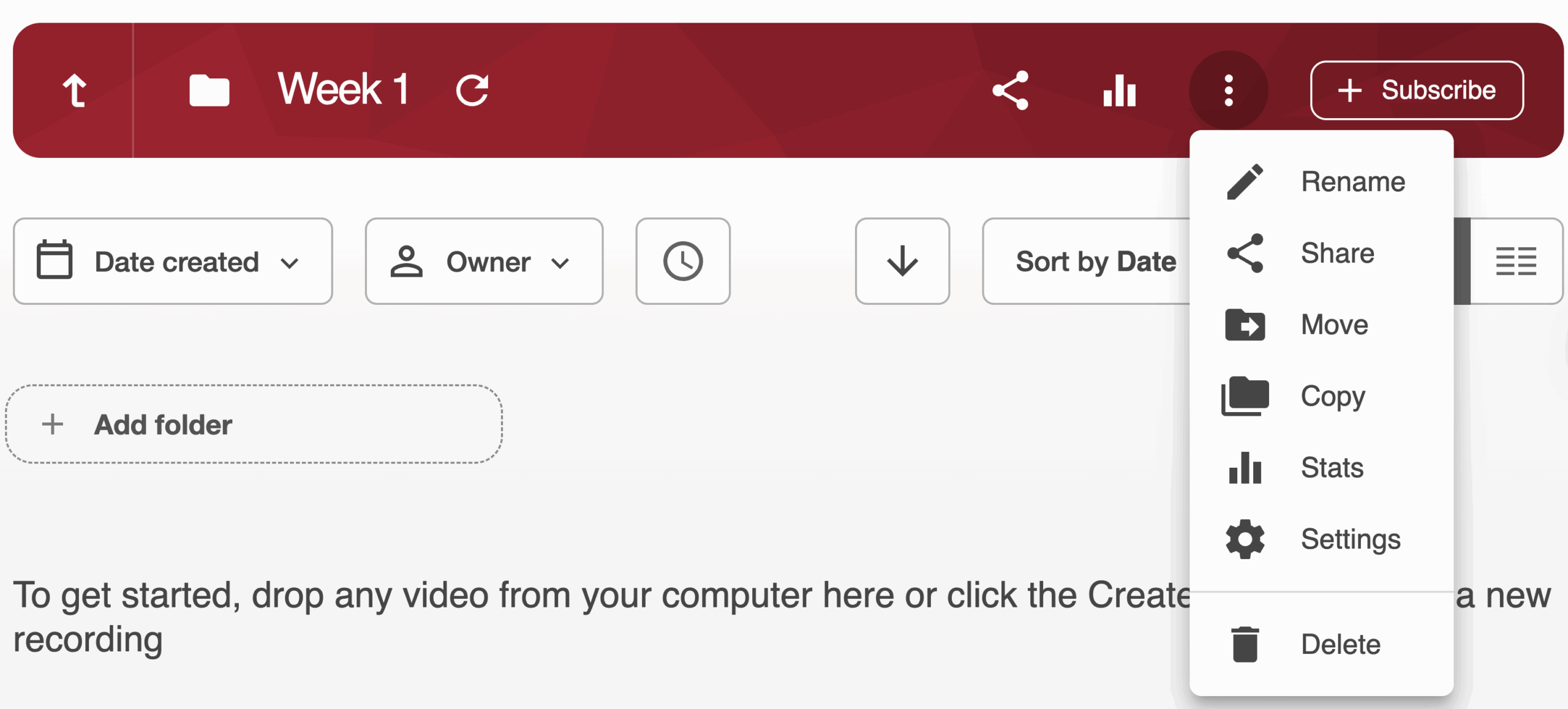
- Rename allows you to rename the folder.
- Share takes you to the sharing options for the folder or playlist.
↳ NOTE: Personal folders can not be shared. - Move allows you to move the folder.
↳ NOTE:You can not move top level folders.
- Select the new folder location from the dropdown and then click “OK:
- Select the new folder location from the dropdown and then click “OK:
- Copy allows you to copy the folder:
↳ NOTE: You can not copy top level folders.
- Choose a name for your copy and click “OK”. The copy will be created inside the folder the original is in:
- Choose a name for your copy and click “OK”. The copy will be created inside the folder the original is in:
- Stats will display the viewing analytics for the folder.
- Settings will display the settings page for the folder.
- Delete allows you to delete the folder.
- The ellipse
- To add media to your course folder, click on “+ Create” button and follow these tutorials: https://ctl.wustl.edu/panopto-tutorials-online/#create-online
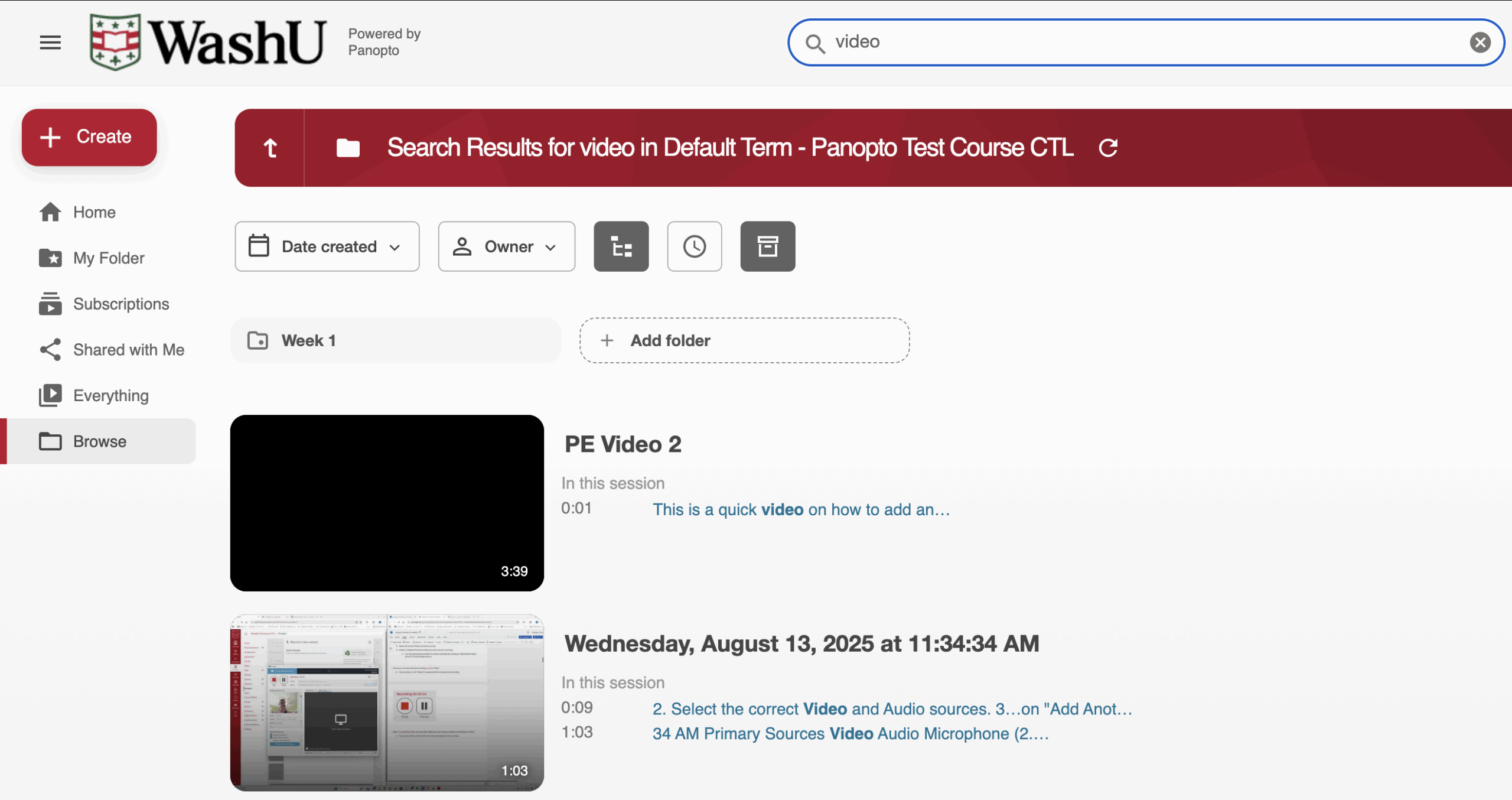
- Type in keywords in the Search Bar to find specific content:
- You can search words, and you will be shown instances where the word:
- appears in the title
- was spoken
- shown on screen
- shown in slides in a video
- You can search words, and you will be shown instances where the word: