Panopto Tutorials:
Managing Access to Your Panopto Videos
Learn how Panopto sharing and permissions work at WashU, including Canvas course folders, viewer and creator access, and troubleshooting common access issues.
Need technical support?
Call us
Email us
Panopto gives you several ways to control who can see and edit your videos. A lot of confusion stems from the way video access is handled through inheritance, with default permissions set at the folder level rather than the video level. This tutorial will help clarify how access in Panopto works.
Understanding Course Folder Access
When a Canvas course is connected to Panopto, two groups are created automatically and kept in sync with your Canvas roster:
- Creator group: Instructors, TAs, and course admins. Can record, upload, edit, and share videos in the folder.
- Viewer group: Students enrolled in the course. Can view everything in the folder.
These follow a predictable naming pattern, for example:

Access updates automatically as students add or drop the course; you don’t need to manage this manually.
Don’t see a Panopto link in your Canvas course at all? Jump to Troubleshooting below.
Understanding the Different Access Levels
Every video and folder has a sharing level. You can find or change it by:
- Clicking on the Share icon:
- For videos:

- For folders:

- For videos:
- Scroll to the “Who can access this video/folder” section. To change the access level, click on change:

- Select your desired access level. Don’t forget to click Save when you’re done:
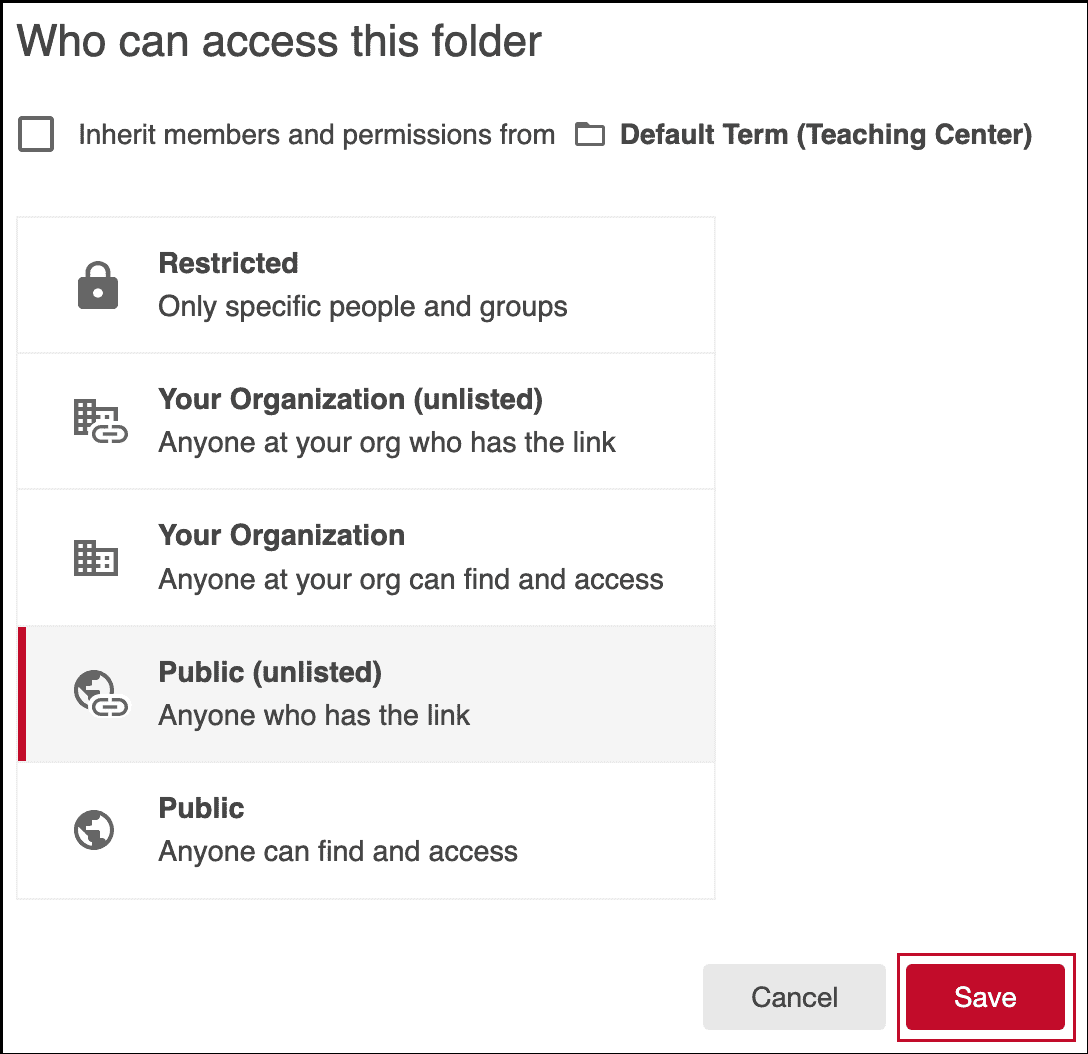
- Restricted (specific people and groups): Only the exact people or groups you list. Anything you share is only viewable by them.
- Your Organization (unlisted): Anyone with a valid WashU Key and the link. It won’t show up in anyone’s search results unless they were named directly.
- Your Organization: Anyone with a valid WashU Key can find and open it by searching WashU’s Panopto site — no link required.
- Public (unlisted): Anyone with the link can watch, no WashU login needed. Not searchable.
- Public: Open to anyone on the internet, and searchable. No login needed.
↳ NOTE: For course content, “Restricted” (shared with the Viewer group) is almost always the right default.
Giving Another User Permission to Edit Your Video
To record over, trim, or otherwise edit a video, someone needs Creator access — and Creator access can only be granted at the folder level, never on an individual video.
If you want to collaborate with a colleague on specific recordings, the cleanest approach is to move those videos into a shared folder and give your collaborator Creator access to that folder.
By default, a video or folder automatically takes on the sharing settings of the folder it lives in — this is called inheritance. It’s what lets an entire course folder’s worth of videos stay properly shared without you touching each one individually.
- Adding a Viewer to a folder or video does not require turning inheritance off.
- Adding a Creator does require turning inheritance off first — Panopto needs the folder to have its own independent permission set before it will let you assign edit-level collaborators.
To turn off inheritance when you do need to add a Creator:
- Open Share for the folder or video.
- Click Change next to the inheritance setting.
- Click Stop Inheriting.
- Set the sharing level and add your collaborator.
- Click Save.
↳ NOTE: This is not possible at top-level Canvas course folders. This must be done in a sub-folder within the course. Doing so would risk breaking instructor and student access at the root folder level for a course.
Giving Students Access to Past Semester Recordings
Three ways to make an older recording available to a current class:
- Embed it in Canvas using the Panopto tool in the Rich Content Editor. This grants access to everyone currently enrolled automatically, regardless of which folder the video lives in.
- NOTE: Analytics and comments from the previous semester will carry on with video using this method.
- Move or copy the video into the current semester’s course folder, where it will pick up that folder’s Viewer group automatically.
- NOTE: Moving the video will carry on analytics and comments from the previous semester. Making a reference copy will not.
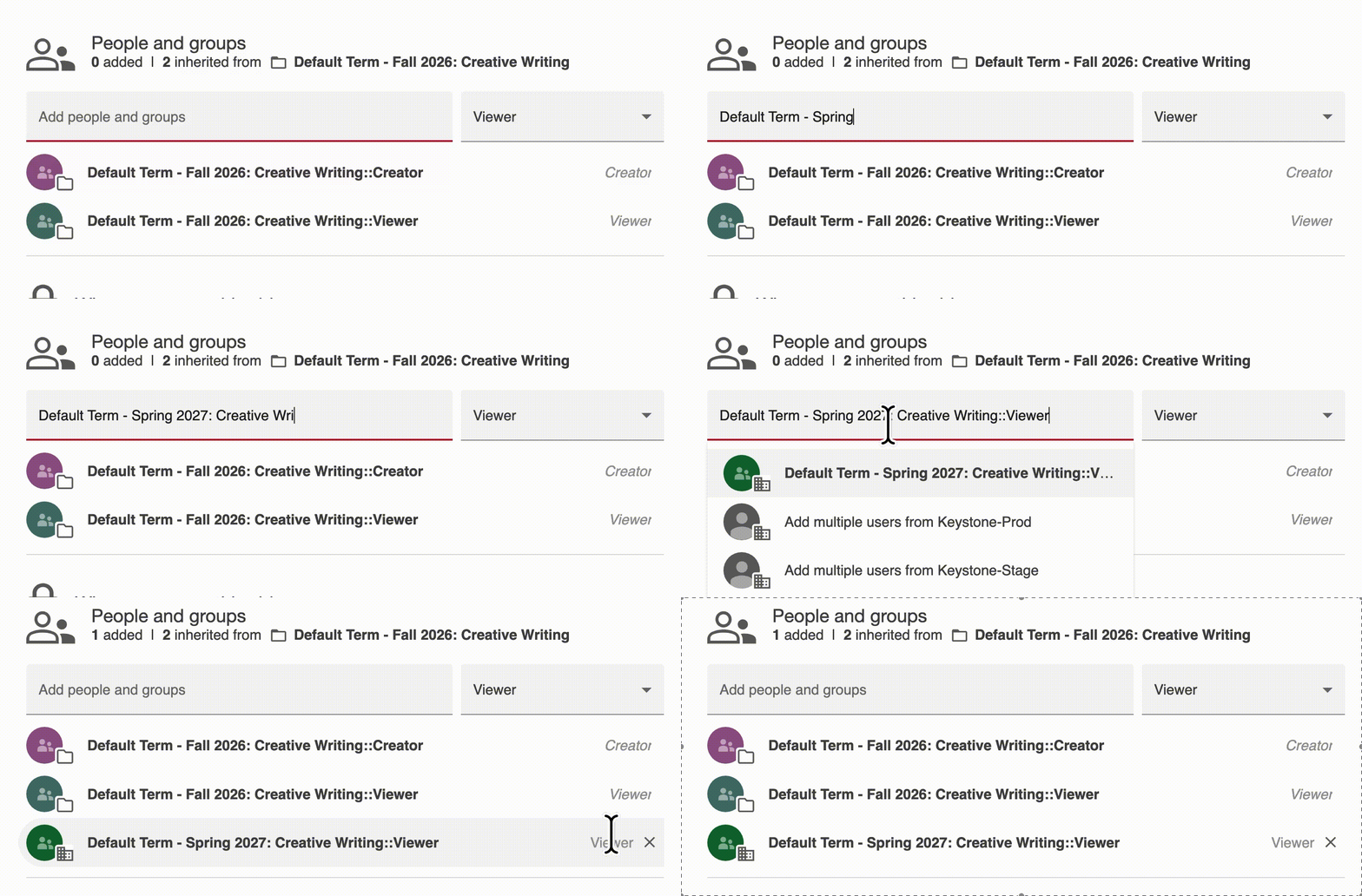
- Manually add the current semester’s Viewer group to the old folder’s or video’s sharing settings:
Removing Access
- Click on the Share icon for the video or folder.
- For videos:
- For folders:
- For videos:
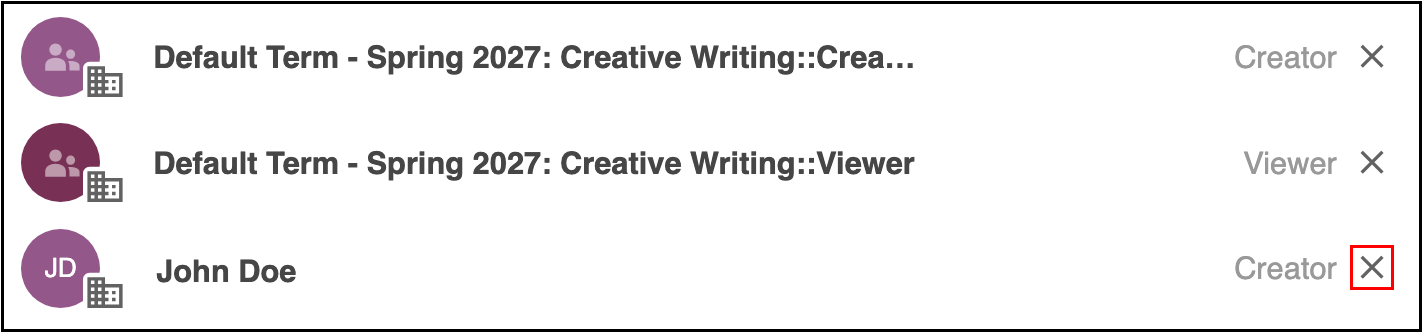
- Under People and groups, find the person or group.
- Click the X next to their name.
- Click Save.

Controlling When Content Becomes Accessible
By default, a video becomes viewable as soon as it finishes processing. Two features let you control that more precisely:
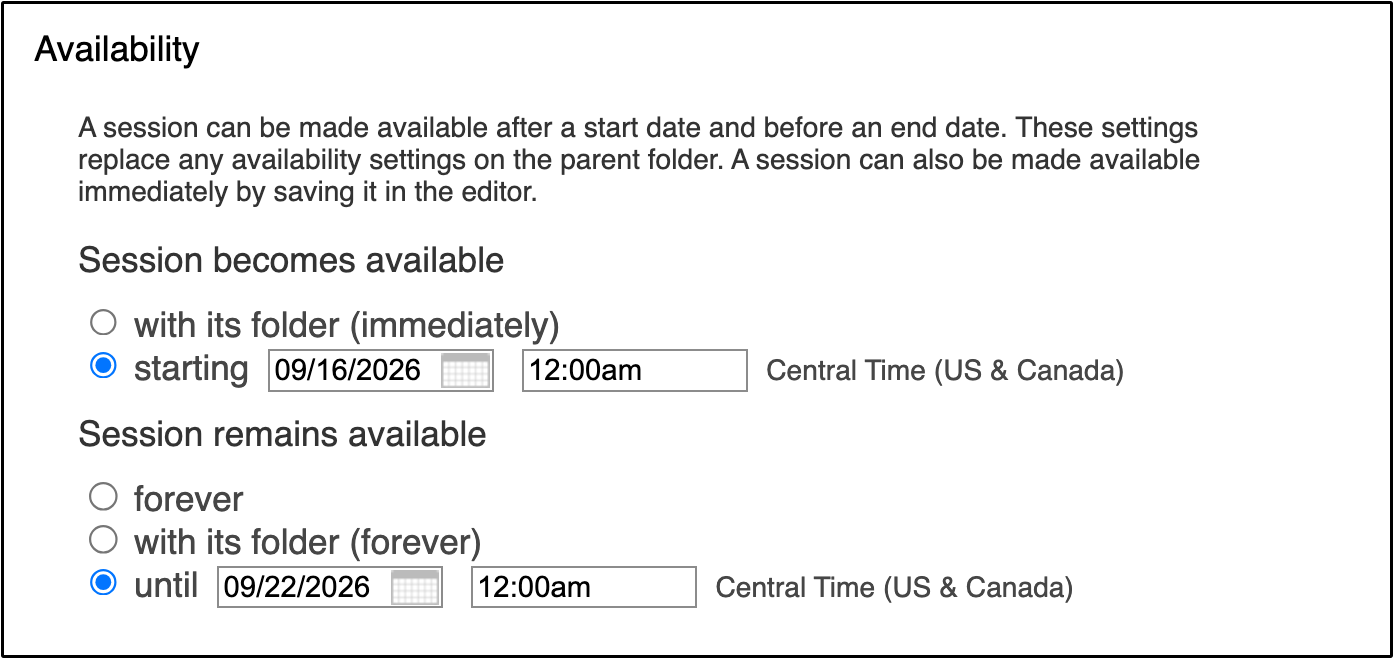
- Availability workflow: set a start and end date. Outside that window, the video is completely hidden and unplayable — even for someone with a direct link.
- For videos:
- Click on the Settings icon for the video:
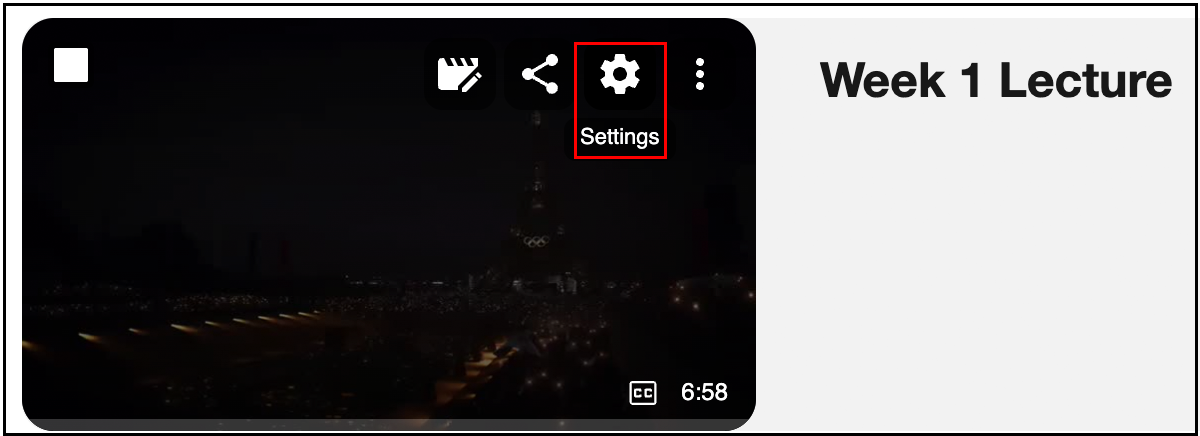
- Go to the Overview tab.
- Scroll down to the Availability section and set the desired start and end date:
- Click on the Settings icon for the video:
- For folders:
- Click on the Settings icon for the folder:
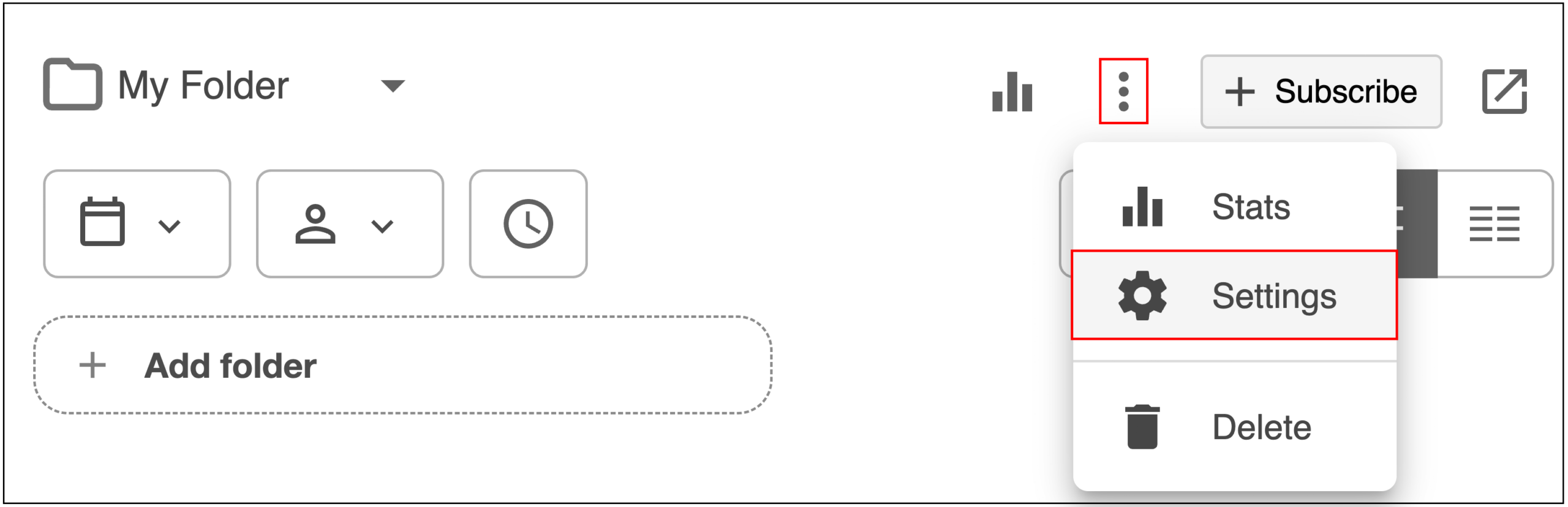
- Go to the Settings tab.
- Scroll down to the Availability section and set the desired start and end date:

- Click on the Settings icon for the folder:
- For videos:
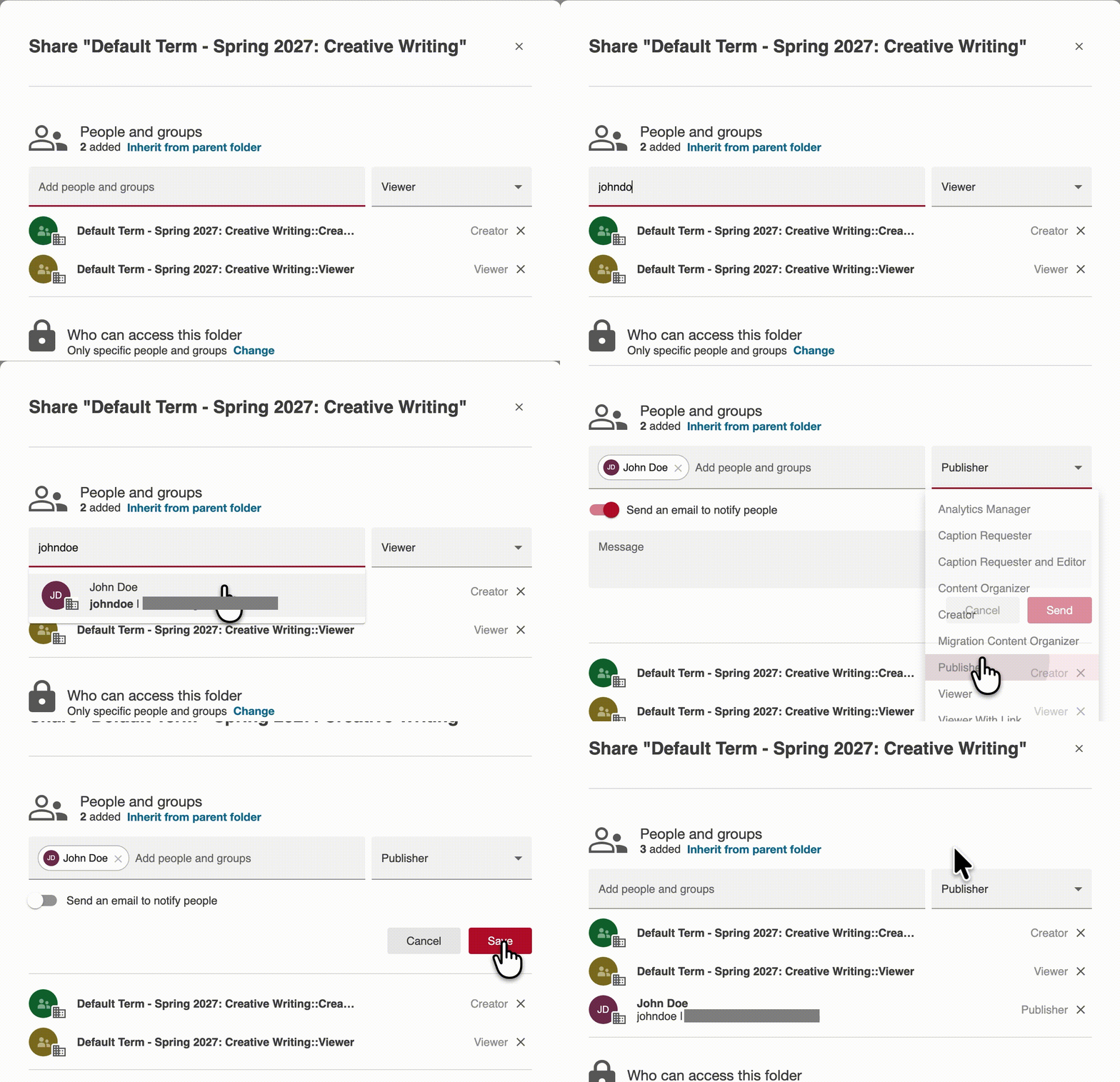
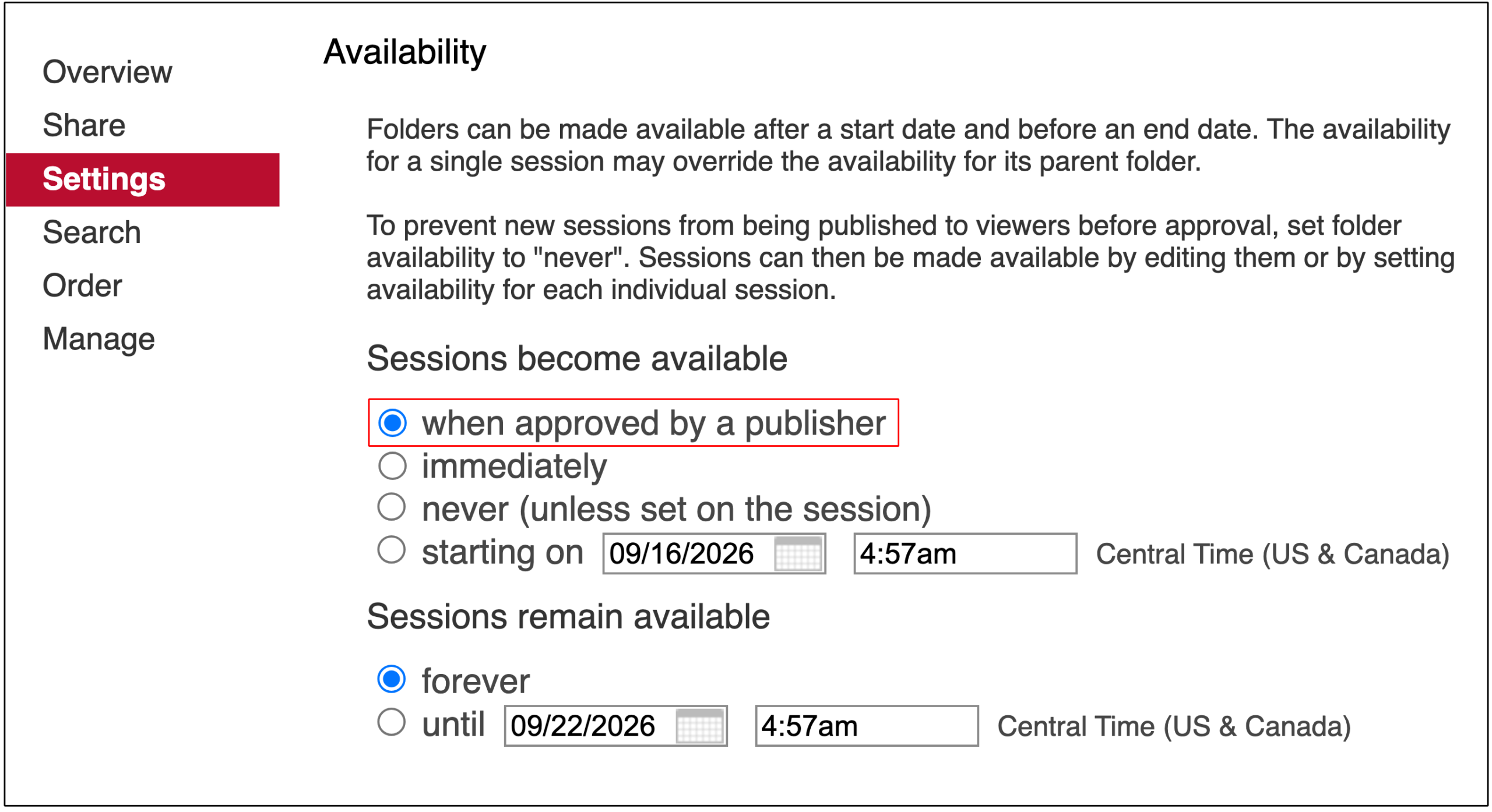
- Approval workflow: assign a Publisher to a folder. New content uploaded there stays hidden until the Publisher reviews and approves it. Whoever turns this feature on for a folder automatically becomes its Publisher. This can only be configured at the folder level, not per-video.
- Click on the Share icon on the folder:
- Add a user as Publisher:
- Click on the Settings icon for the folder:
- Scroll down to the Availability section and select “when approved by a publisher”:
- Whenever a video is added to the folder, the Publisher will receive an email notifying them along with links to watch and approve the video.
- Click on the Share icon on the folder:
Making Content Accessible Beyond a Single Course
- Departmental or cross-course folders: If your department runs recurring events, trainings, or multi-instructor content, request a dedicated shared folder from your department’s IT support. Once it exists, anyone with Creator access can add other collaborators as needed. Content can be added to the shared folder by anyone with Creator access.
- Custom user groups: You can also create your own reusable groups in Panopto — useful for research teams, committees, or any set of people you share content with repeatedly- so you’re not re-adding the same names one at a time.
- From Panopto inside Canvas, click on the Open in Panopto link at the top left:

- Click on System and then User Groups:

- Click on New:

- Type in the name of the user, select them and then click on Add Users:
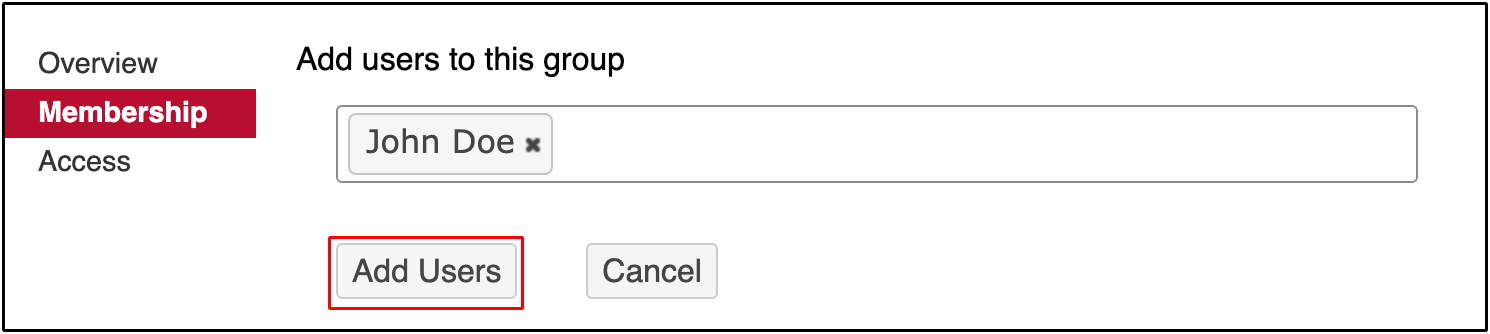
- Once the Group has been created, you can then type in the name of the group in the Share page and select it:

- From Panopto inside Canvas, click on the Open in Panopto link at the top left:
TROUBLESHOOTING
- Students say they can't view course videos
-
- Try a different browser — Chrome or Firefox tend to be the most reliable with Canvas and Panopto together. This is due to more aggressive default cookie handling by other browsers such as Safari.
- Turn off pop-up blockers for Canvas and Panopto.
- Make sure third-party cookies are enabled.
- On Safari (macOS/iOS): go to Settings > Privacy and turn off “Prevent Cross-Site Tracking,” or allow cross-site tracking specifically for canvas.wustl.edu and wustl.hosted.panopto.com.
- Someone gets a "Request Access for Video" error
-
Their WashU Key or course group isn’t in that video’s share settings. Fix it by embedding the video through the Panopto tool in Canvas (which provisions access automatically), or by setting the video’s sharing to “Anyone at your organization with the link.”
If this is a recurring issue, reach out to your department IT support for further guidance.
- The Panopto Video link is missing from Canvas course navigation
-
- In the course, go to Settings.
- Open the Navigation tab.
- Drag Panopto Video from the hidden list into the visible list.
- Click Save.